Smart devices help you manage your rental properties more efficiently. By connecting smart locks, thermostats, and other devices to SimpliHost, you can monitor and control your property remotely, automate guest access, and gather insights about occupancy and usage. This guide walks you through importing devices from popular manufacturers and assigning them to your properties.
You've purchased a new smart lock, thermostat, or other smart device and want to connect it to SimpliHost
You're setting up smart devices for a property for the first time
You want to enable guest access through smart locks or remote monitoring capabilities
You're migrating device management from another platform to SimpliHost
You have admin or property manager access to your SimpliHost account
Your smart device is already set up and working in the manufacturer's app or account
You have your manufacturer login credentials (email and password) ready
Your property is already created in SimpliHost
Your device is compatible with SimpliHost (check SimpliHost's supported devices list if unsure)
Select Smart Devices from the main menu
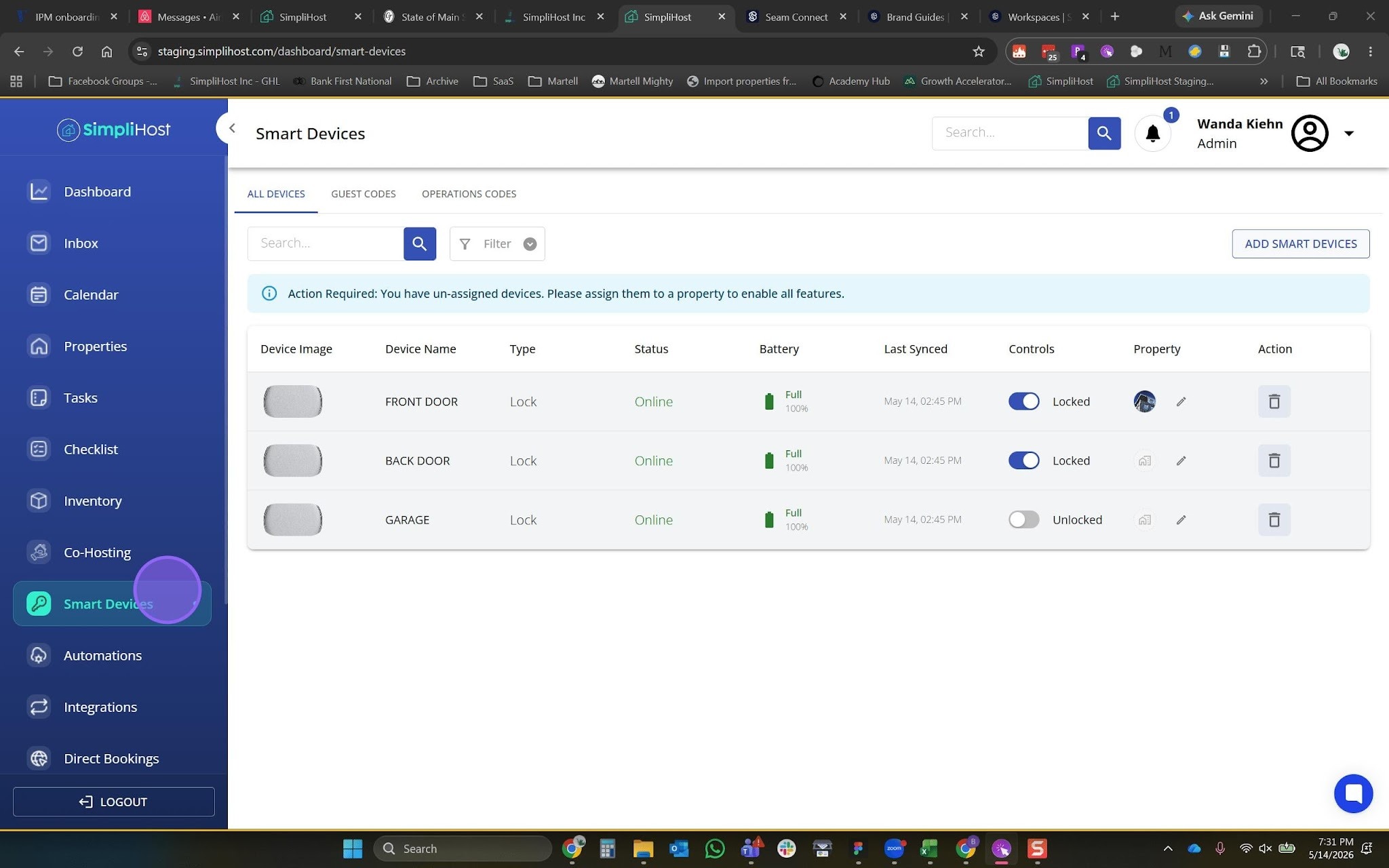
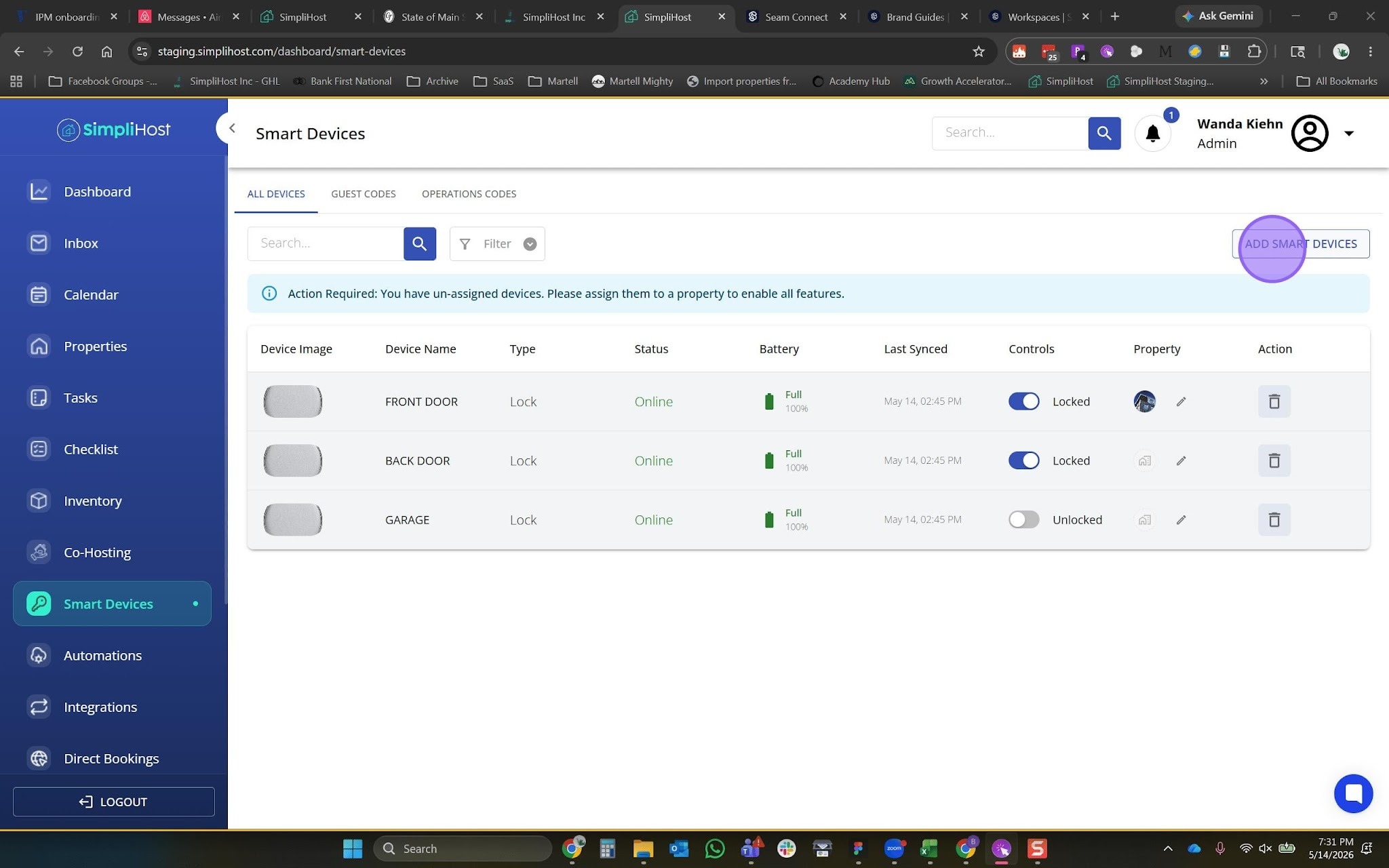
Select Add Smart Device.
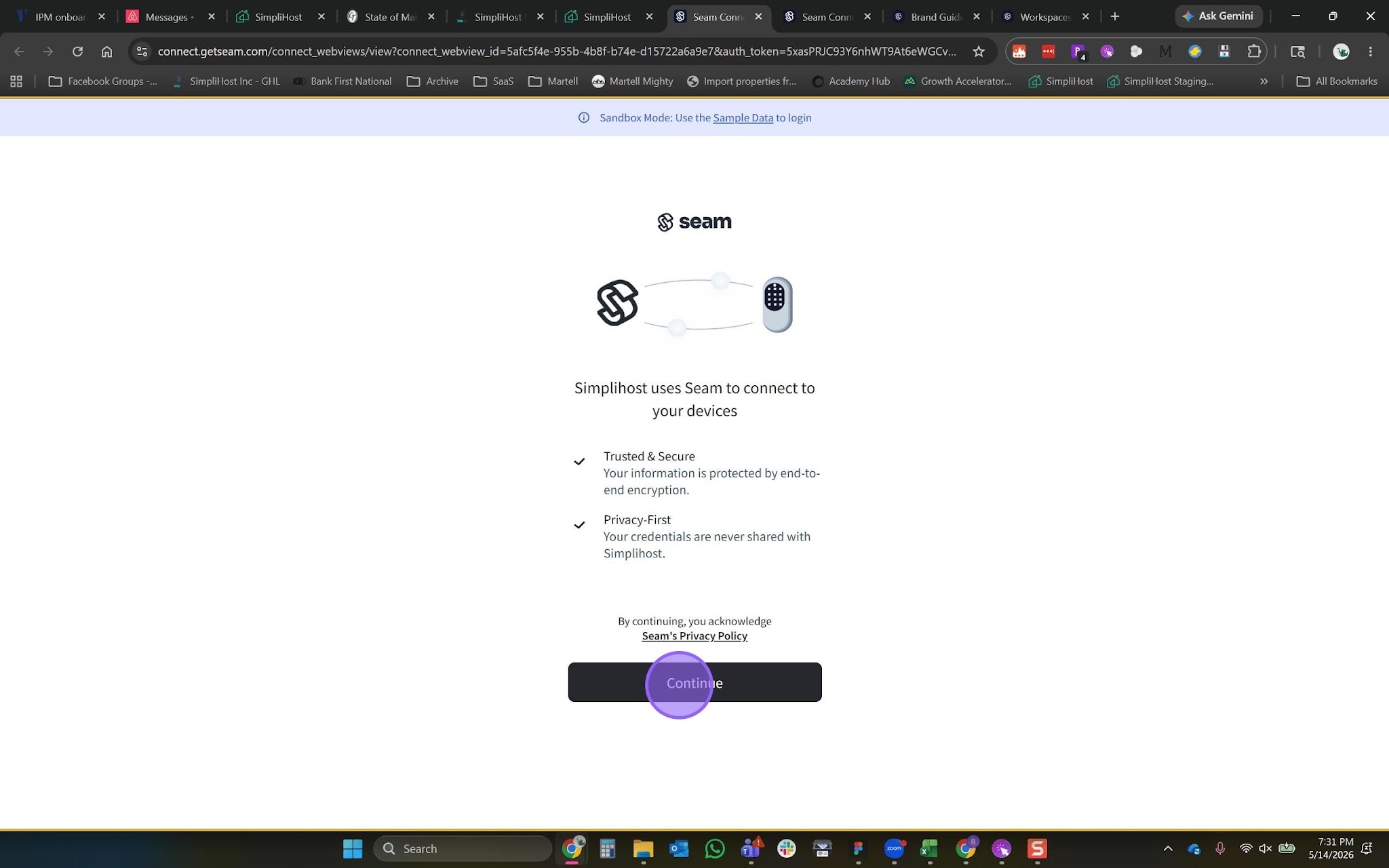
Select Continue to proceed to the device manufacturer selection prompt.
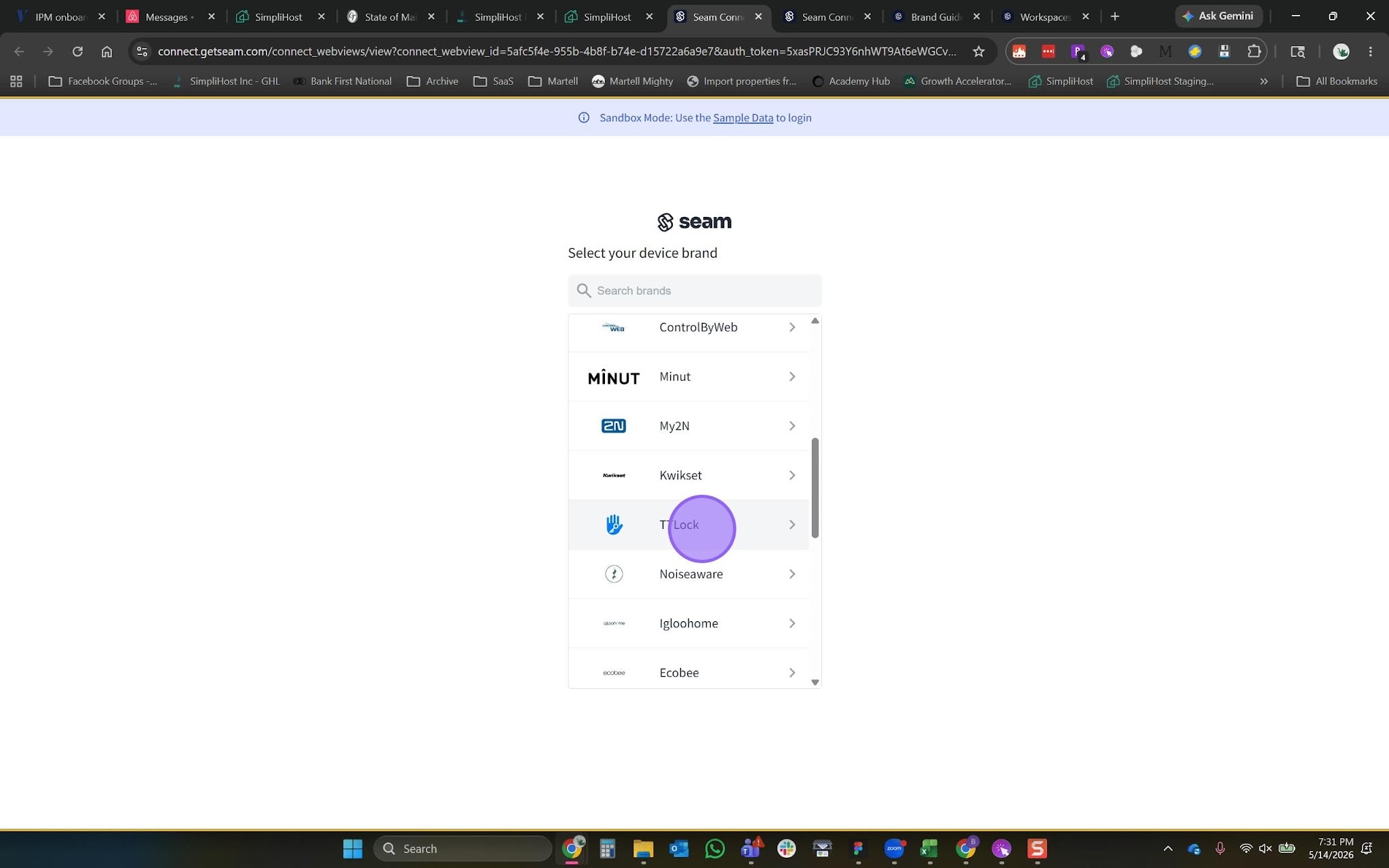
Choose the appropriate smart device manufacturer from the list (for example, Yale, August, Ecobee, or Nest).
You will be routed to either the manufacturer's website or an in-app login prompt, depending on their integration method.
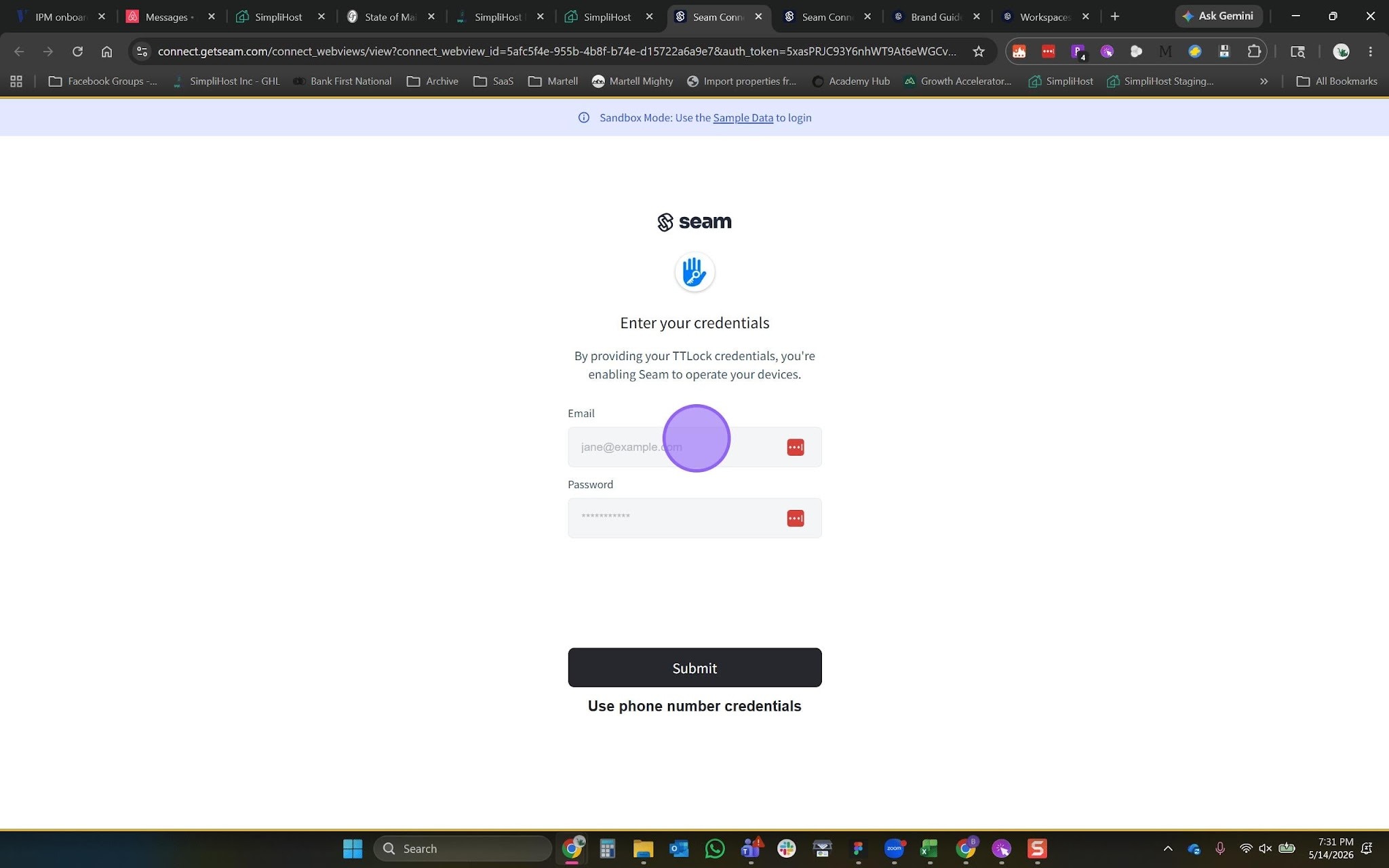
Enter your manufacturer username and password when prompted.
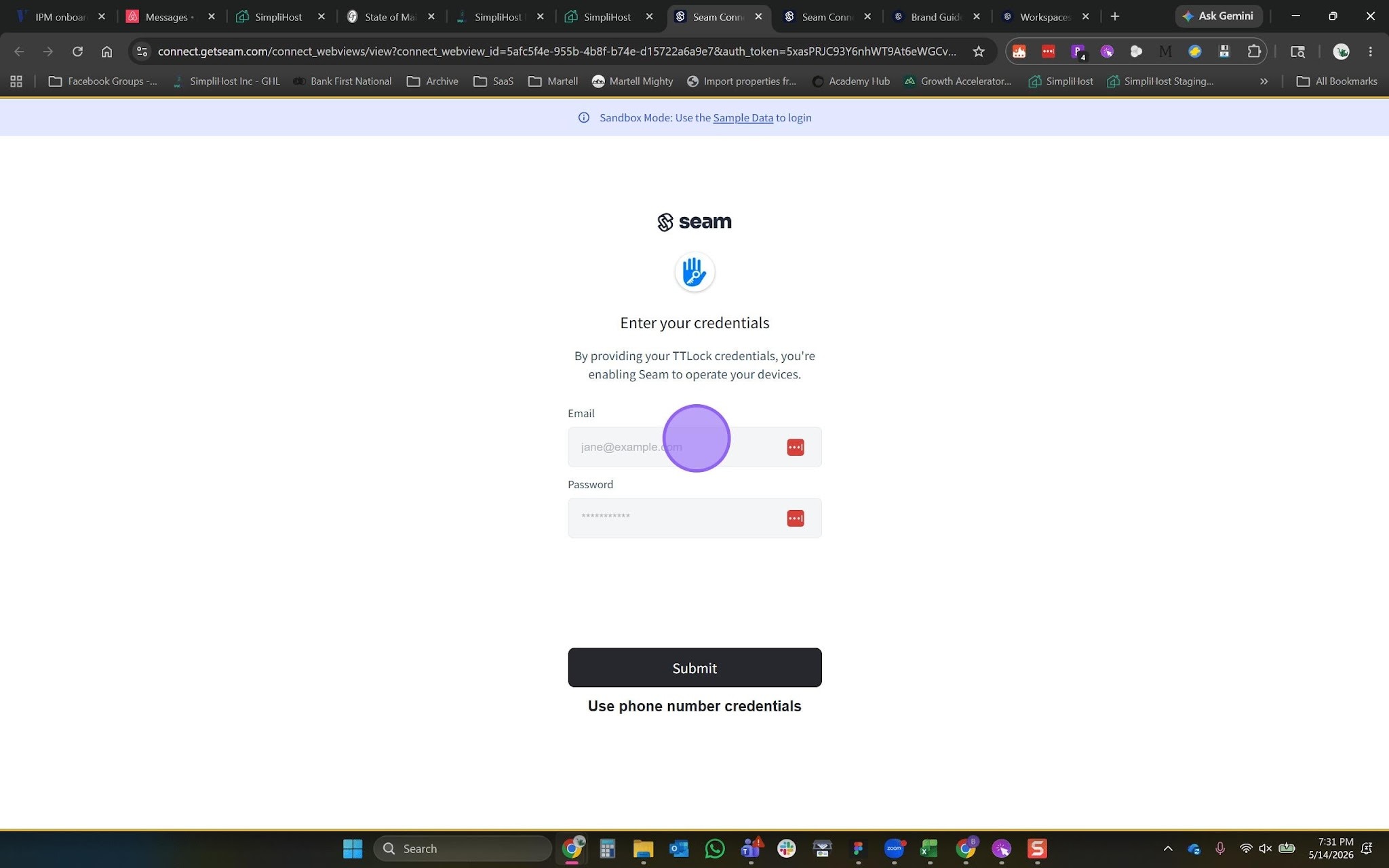
Select Return to SimpliHost
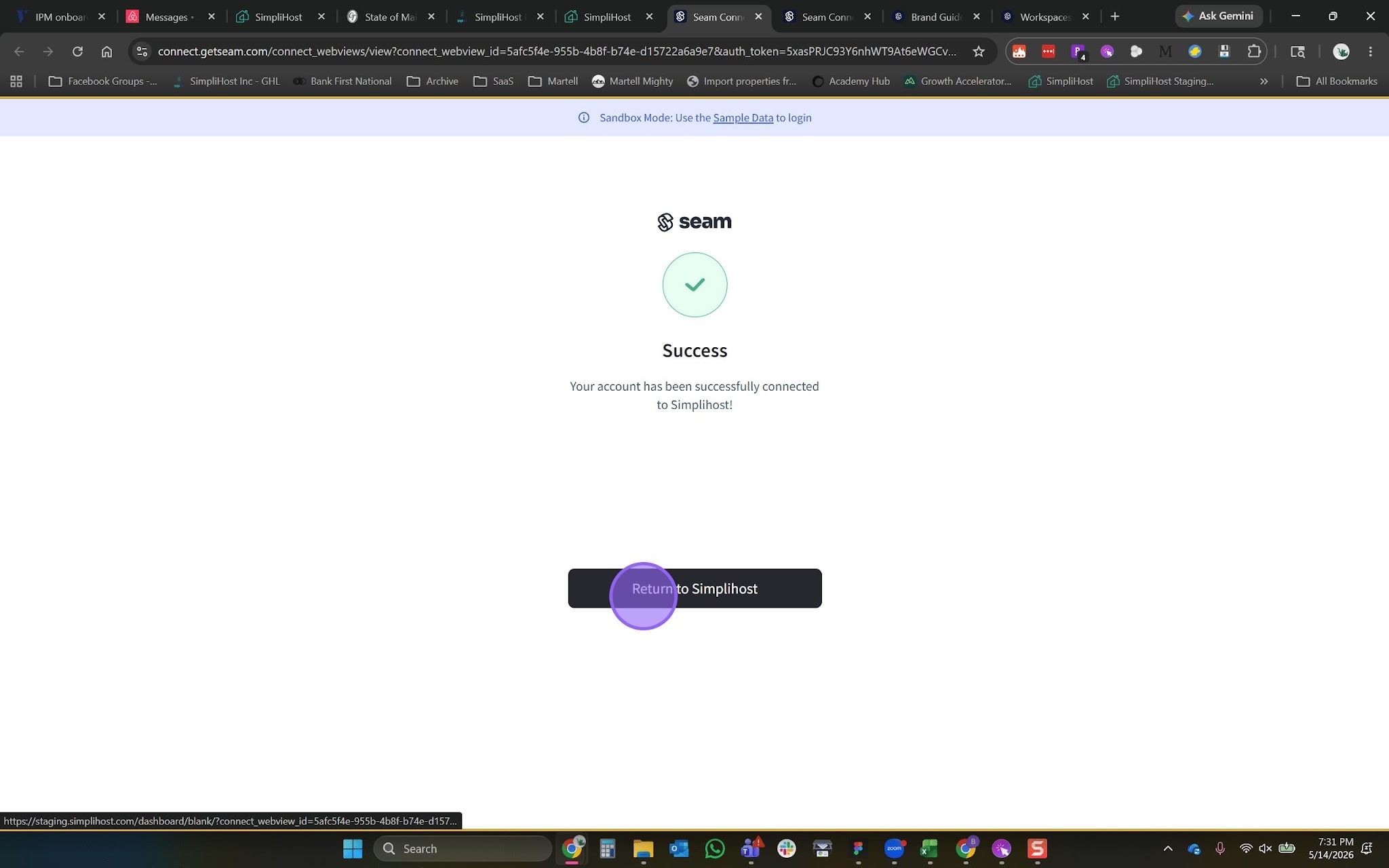
Your device now appears in the imported devices list. Select the Edit button next to your newly imported device.
Note: If your device takes a few moments to sync, this is normal. Refresh your browser to see the latest status.
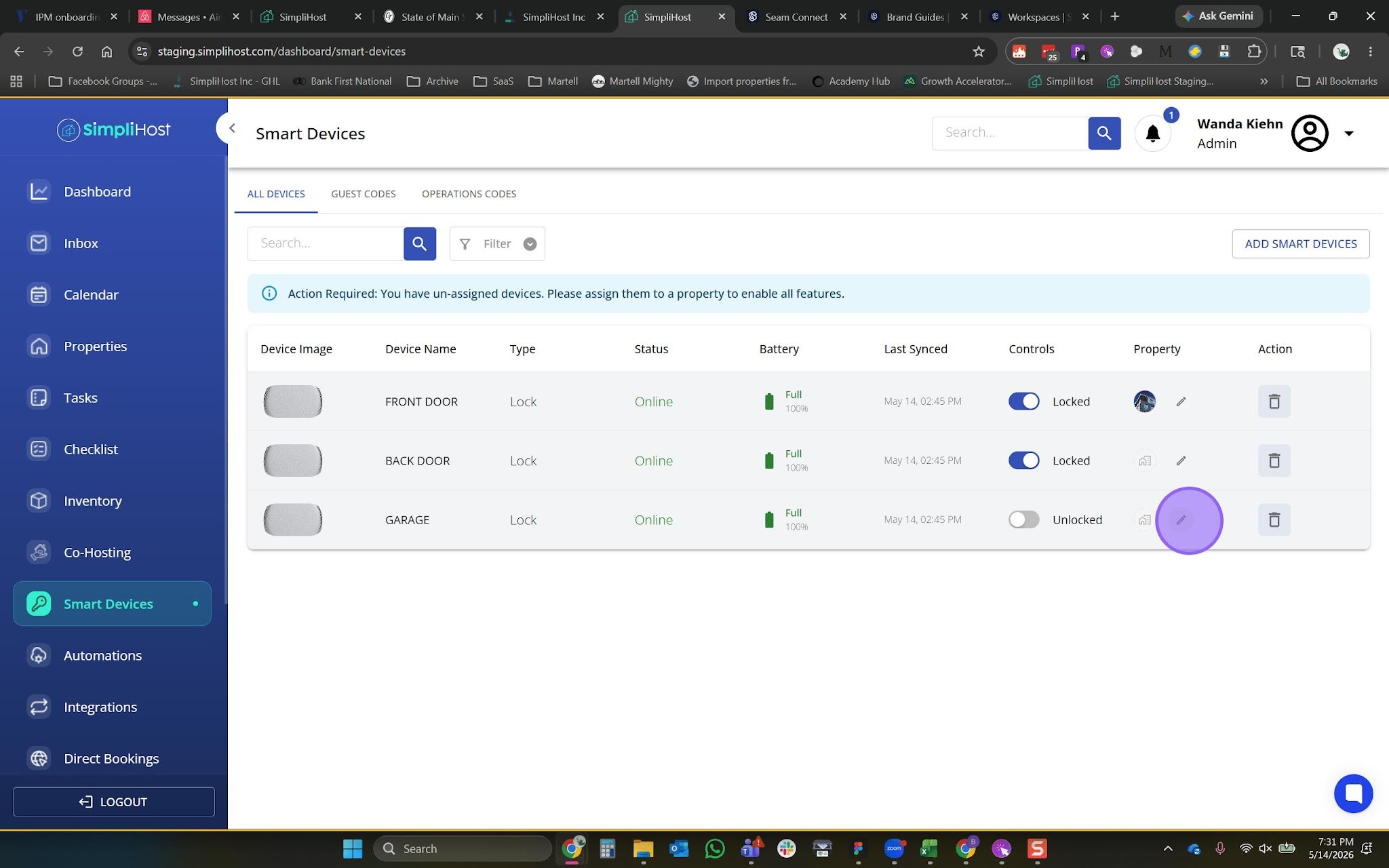
Select the appropriate property from the dropdown list to assign the device to a specific rental.
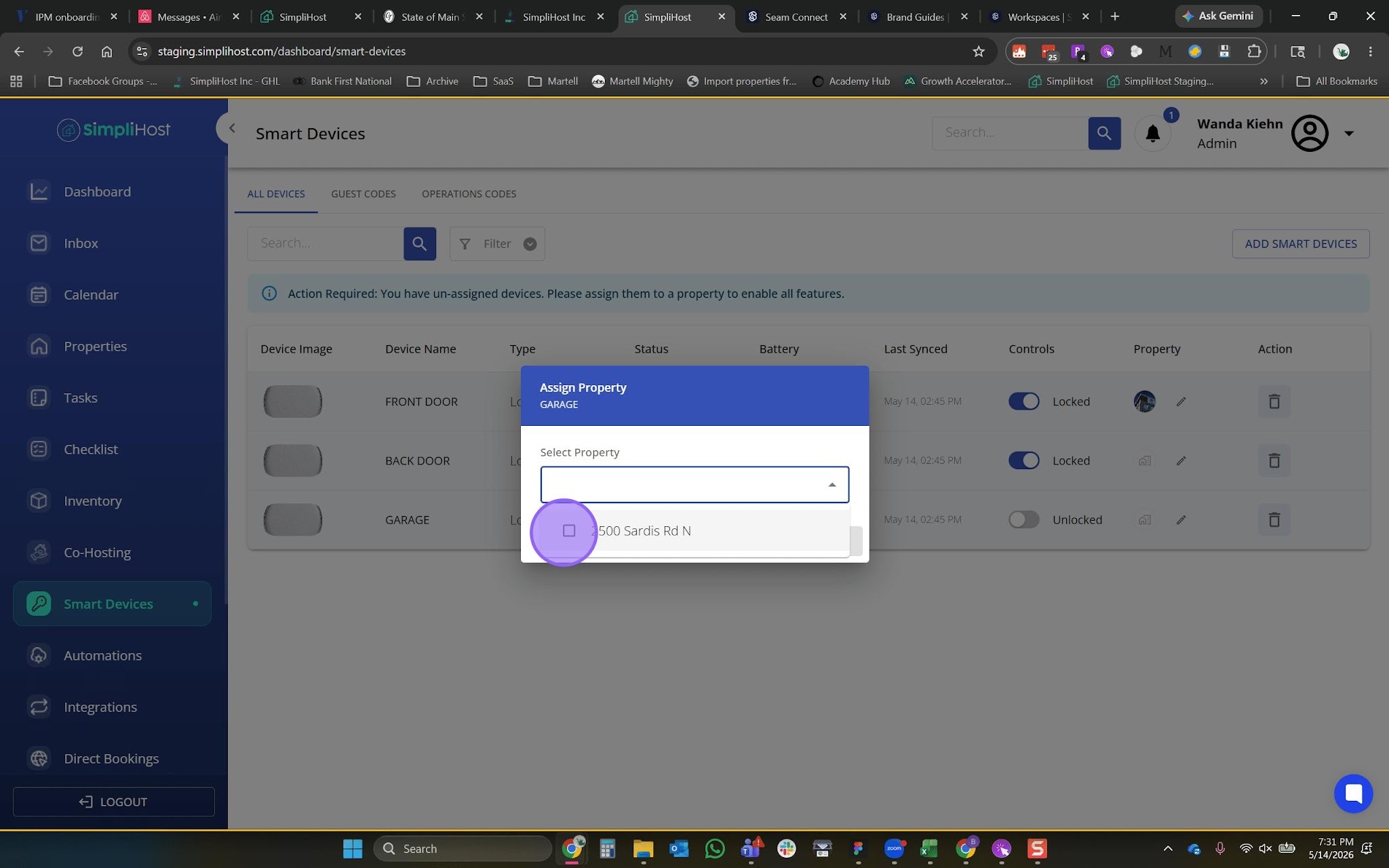
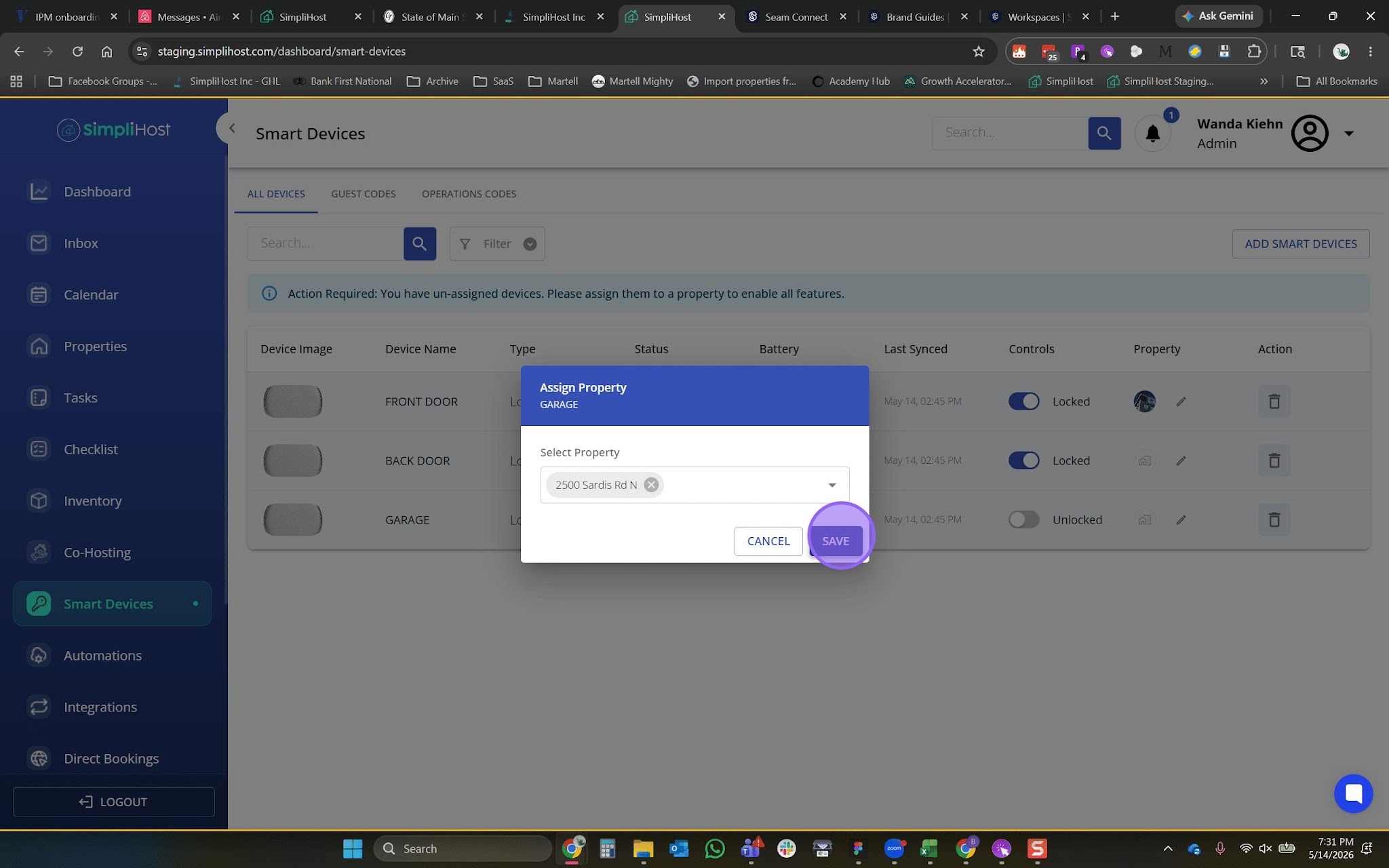
Select Save to confirm the property.
Repeat steps 3 through 11 for each additional smart device you want to connect.
Once you save, your smart device is now linked to your property in SimpliHost. You'll see the device appear in your property's smart devices list and can begin using features like:
Remote access and control from the Inbox
Guest access codes or temporary permissions (if supported by the device type)
Connect one manufacturer at a time. It's easier to troubleshoot if each device syncs successfully before adding the next one.
Use descriptive device names. When you see the device in your property dashboard, a name like "716 Front Door Lock" is clearer than the default manufacturer name.
Check manufacturer compatibility. Not all smart devices integrate with SimpliHost. Visit your device maker's app or website to confirm integration availability before attempting to connect.
Keep manufacturer credentials handy. Some devices require you to create or link a manufacturer account before you can import them into SimpliHost.
Test remote access. After saving, verify that you can view or control the device from the SimpliHost dashboard to confirm the connection is working properly.
Problem: I'm redirected to the manufacturer's website but can't log in.
Problem: After I select Return to SimpliHost, my device doesn't appear in the imported devices list.
Problem: I assigned my device to the wrong property by mistake.
Problem: My device shows as imported but won't control remotely from SimpliHost.
Problem: I have multiple properties but my device only appears in one.
Lock and Unlock Locks Remotes (coming soon)
Set Up Operations Access Codes for Smart Locks (coming soon)
Monitor Lock Activity Logs (coming soon)
Troubleshoot Smart Device Connection Issues (coming soon)
Still need help? No worries — just open the in-app chat anywhere in SimpliHost and we'll give you a hand
