A direct booking website lets guests find and book your properties without going through an online travel agency. In SimpliHost, you can create a website with your own style, colors, business story, photos, and contact details, then choose which properties appear on it. Direct bookings help you reduce platform fees, build your own brand, and keep a direct relationship with your guests.
You want to accept bookings without paying OTA commissions.
You are launching a new brand or business and need a professional booking site.
You manage several property groups and want a separate website for each (for example, by city or brand).
You want to share a single booking link with repeat guests.
You are moving properties from one direct booking website to a new one.
Make sure you have access to Direct Bookings in your SimpliHost account.
Have your brand colors ready as hex codes (for example, #1A4D6E) if you don’t want to use a preset.
Prepare a short welcome message of 160 characters or less.
Have your website images and an owner photo ready to upload.
Check whether any properties you want to include are already on another website. Each property can only appear on one website at a time.
From your SimpliHost dashboard, click Direct Bookings.
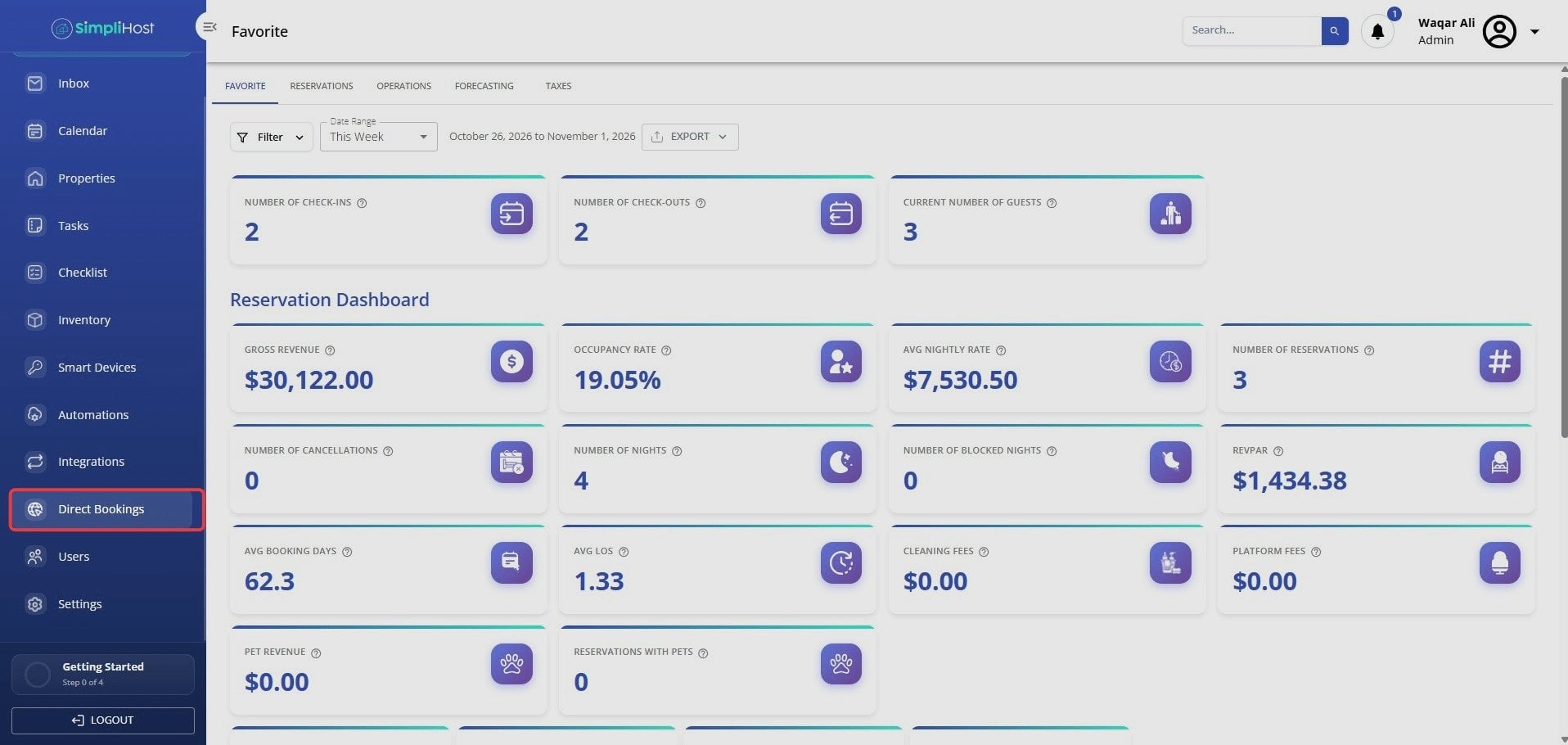
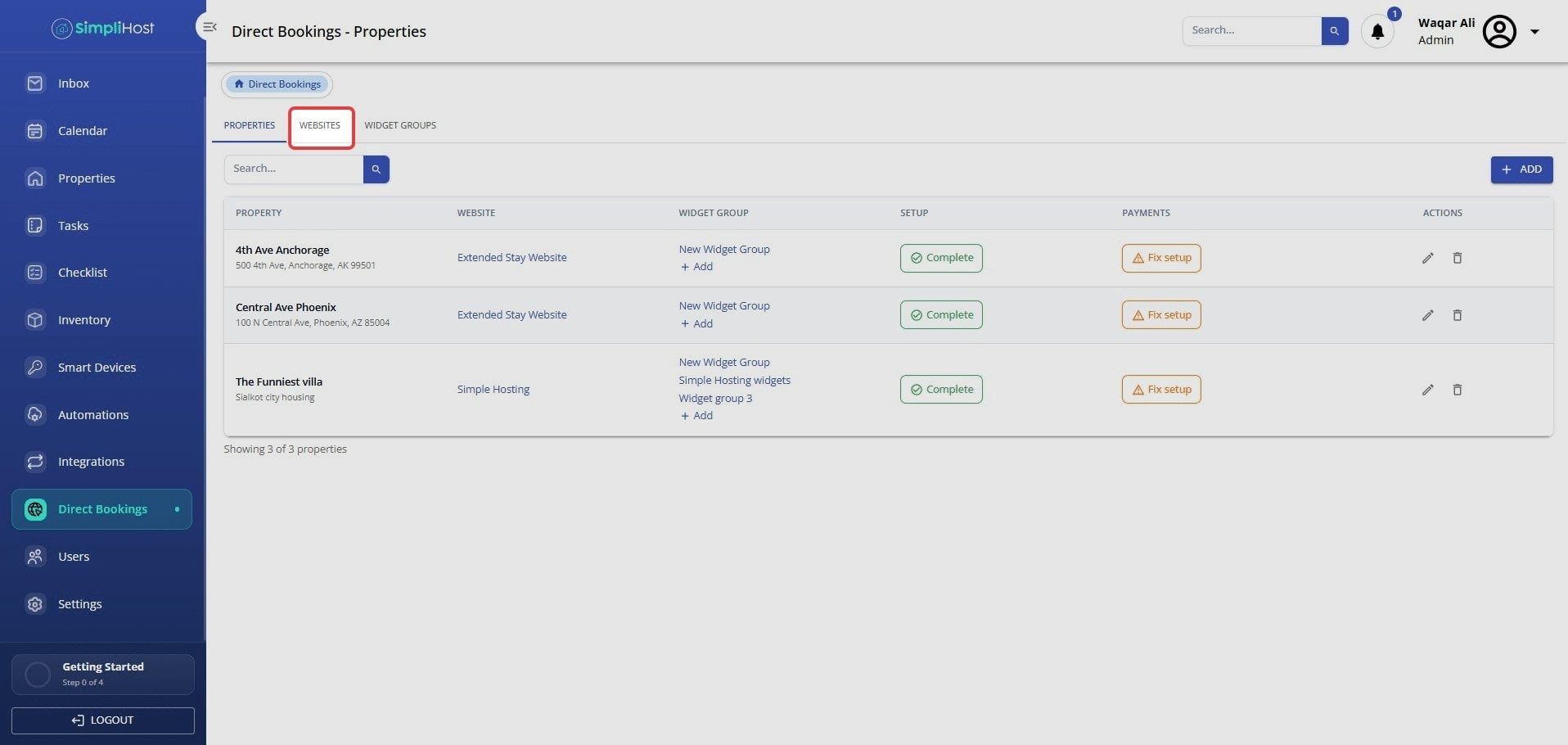
Click Websites.
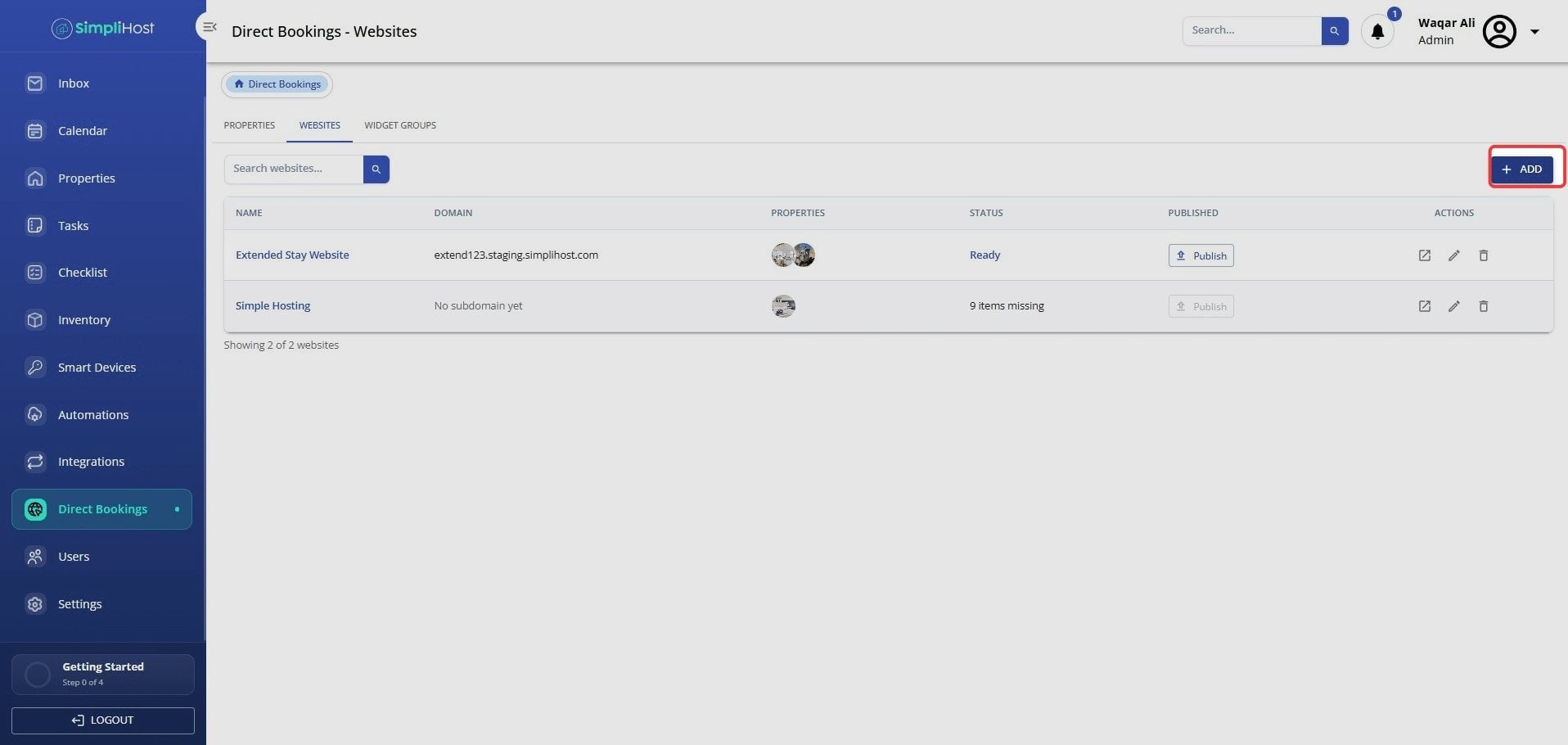
Click the + (add) icon.
Enter a name for your site in Website name.
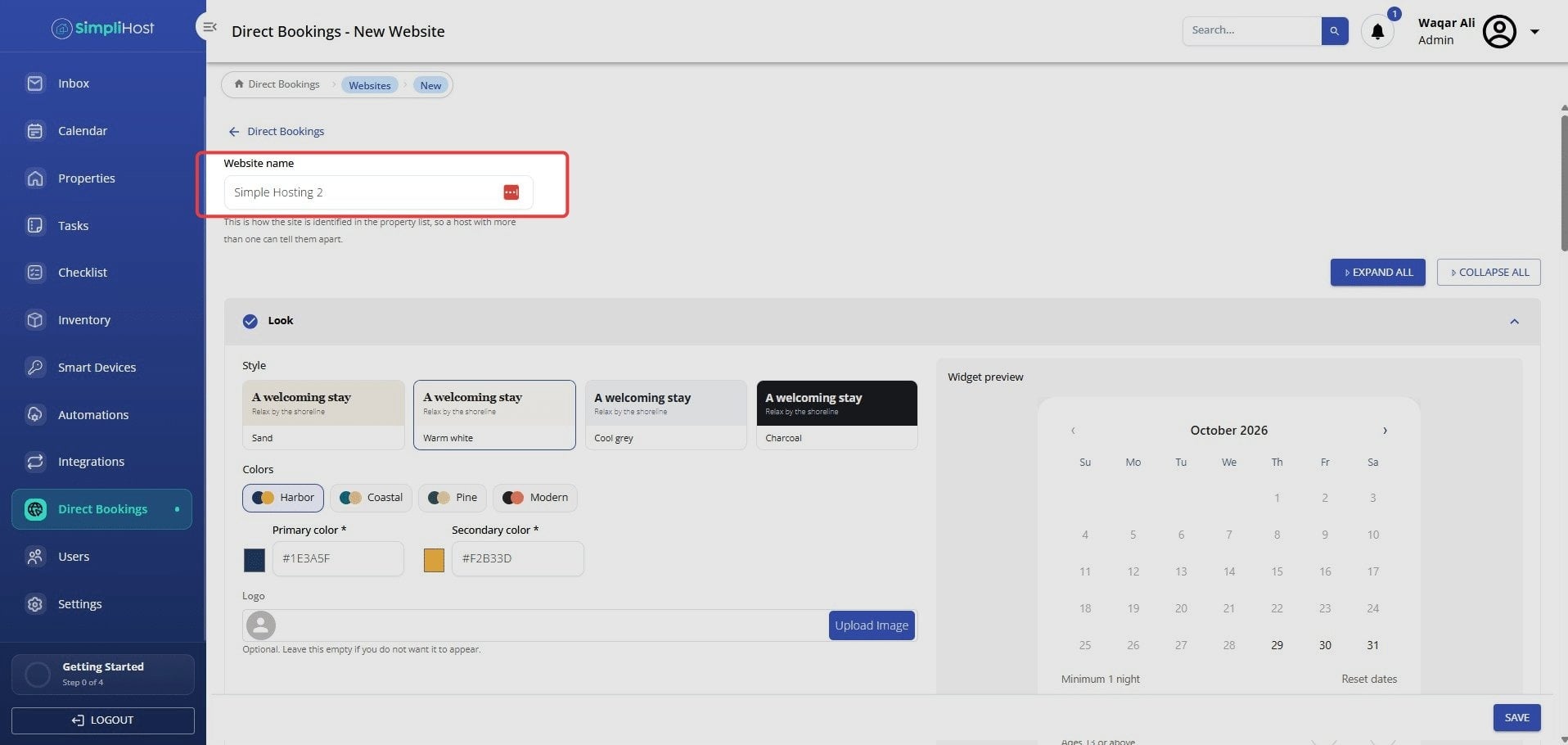
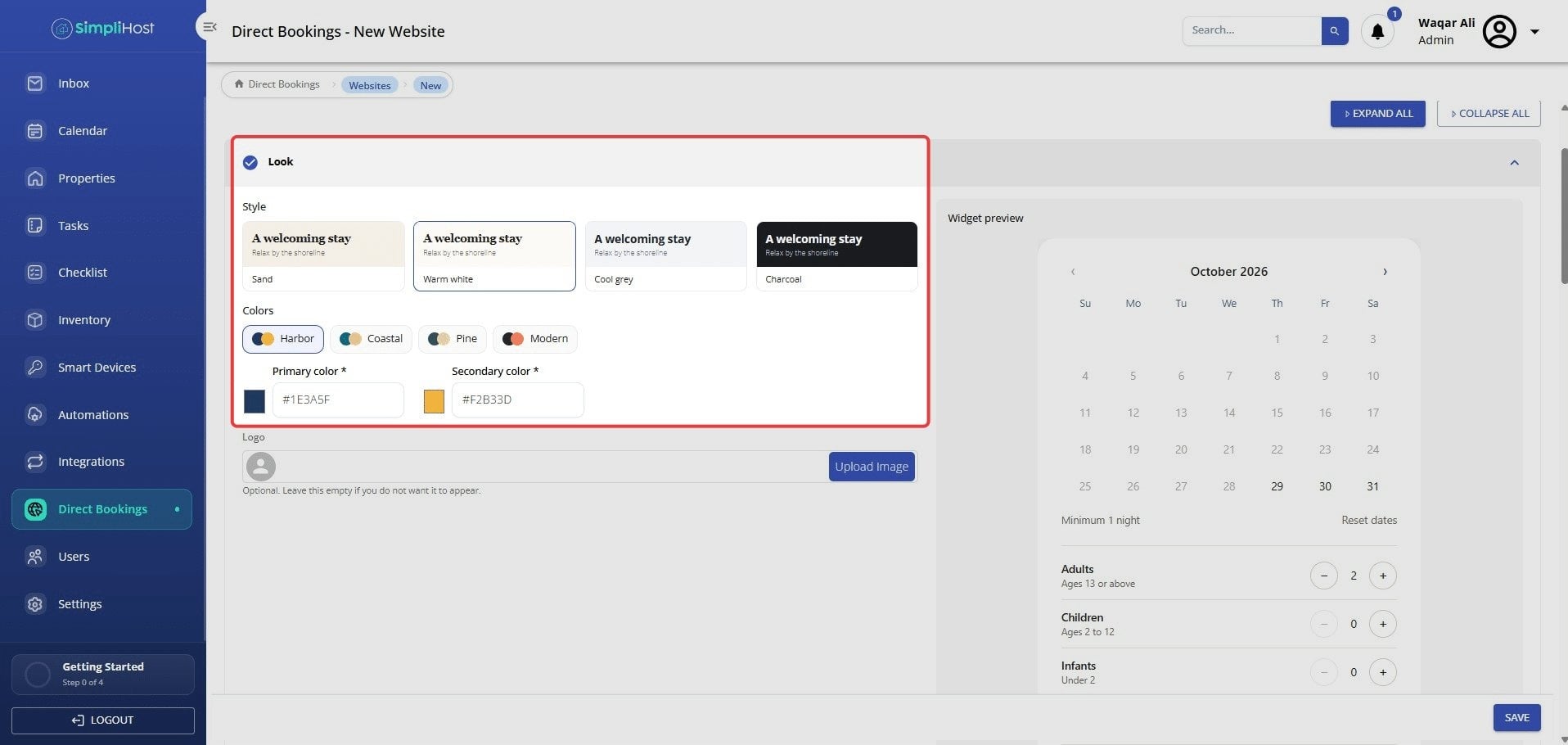
In the Look section, under Style, select a background: Sand, Warm white, Cool grey, or Charcoal.
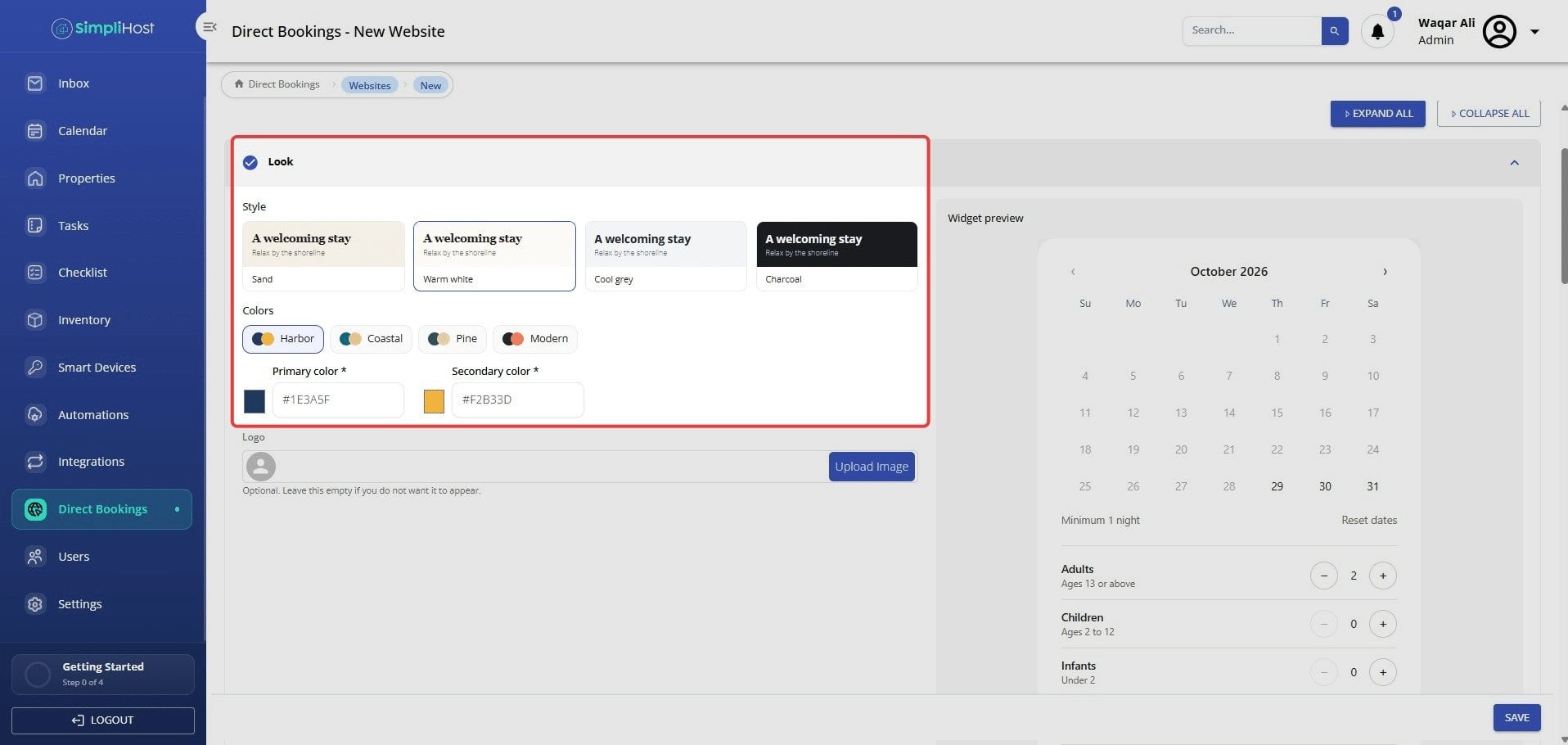
Under Colors, select a preset (Harbor, Coastal, Pine, or Modern), or enter your own hex codes in Primary color and Secondary color.
Tip: Both colors are required, even if you only customize one.
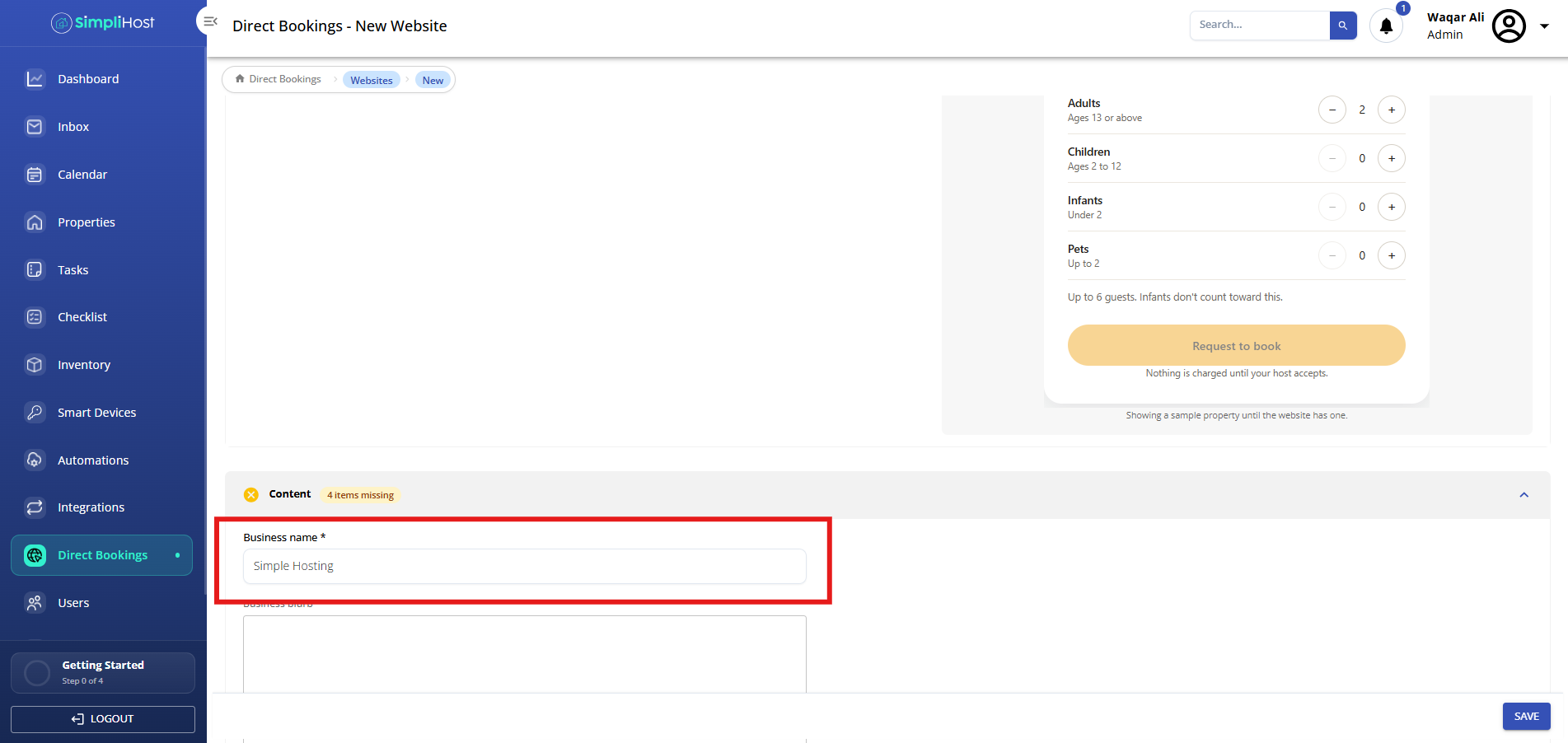
In the Content section, enter your business name in Business name.
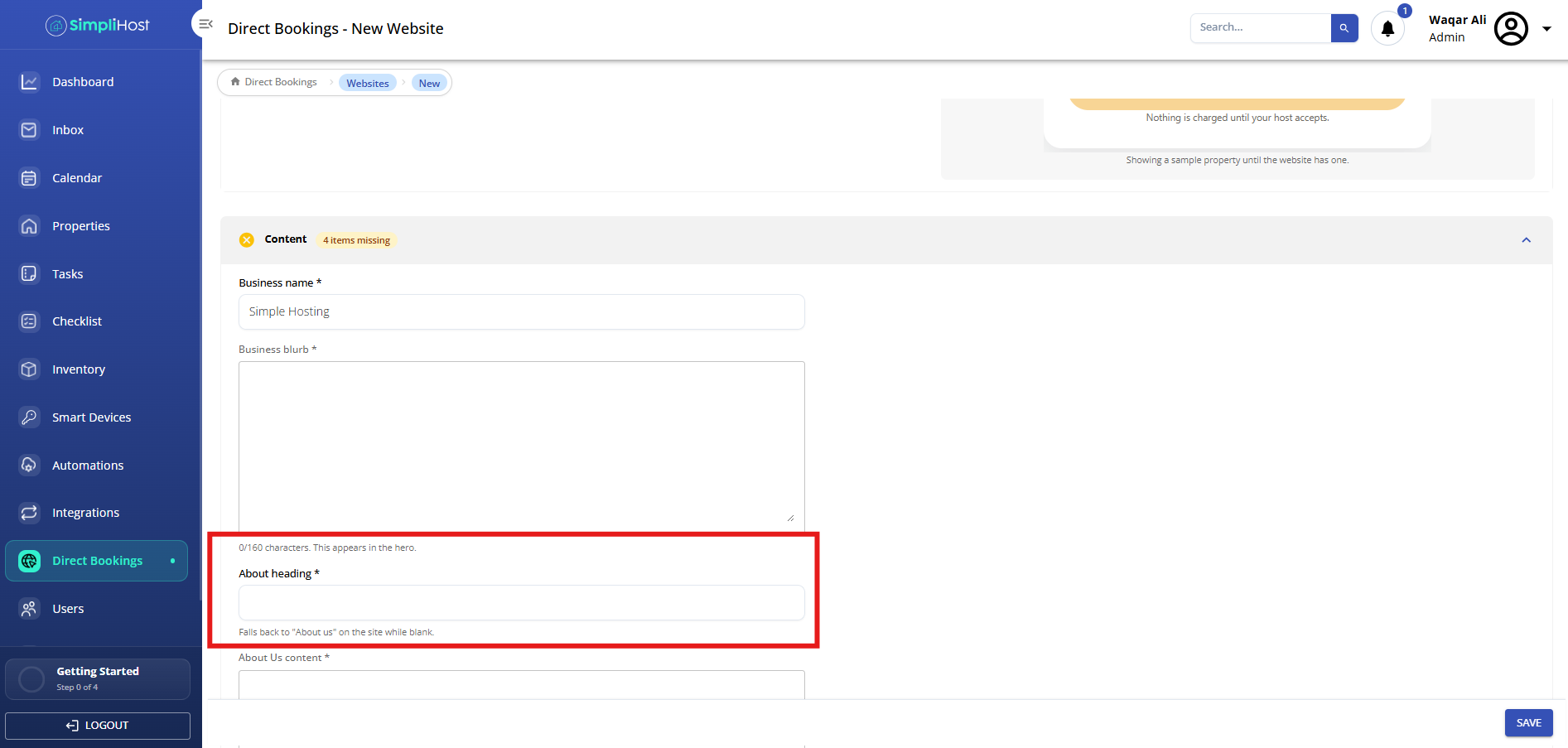
Enter a short welcome message (up to 160 characters) in Business blurb.
Tip: This text appears in the hero, the large banner at the top of your website.
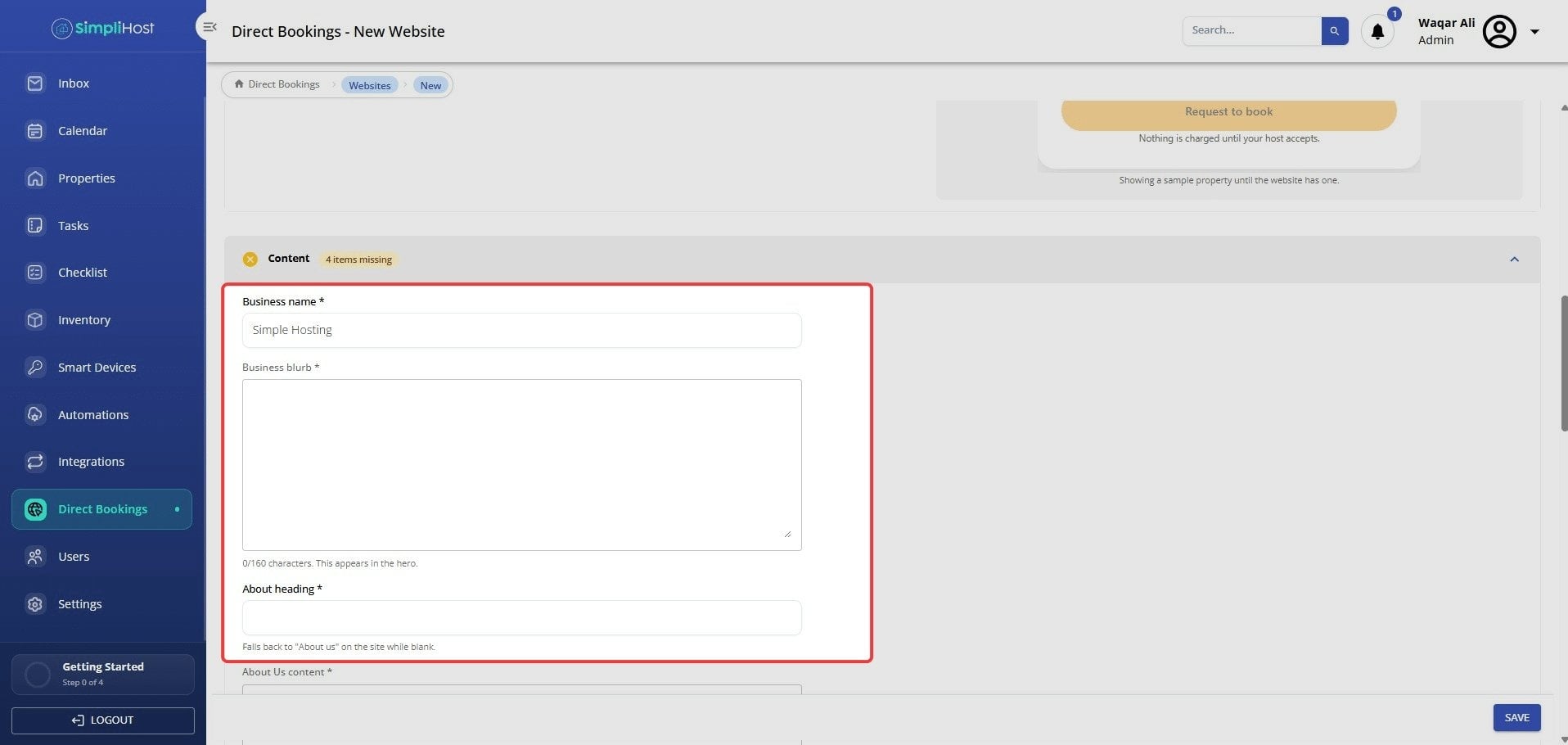
Enter an About heading.
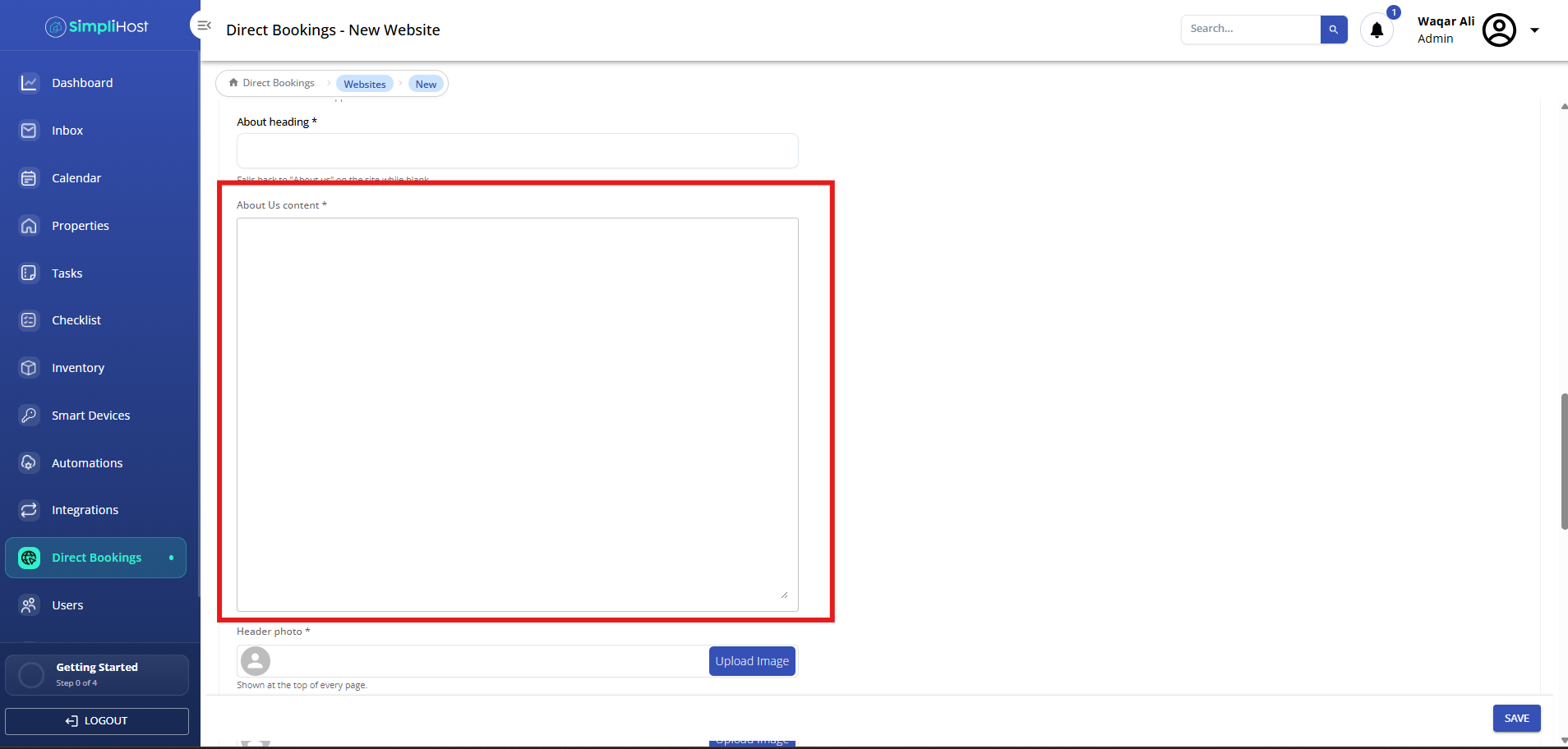
Enter your About Us content, describing who you are and what makes your stays special.
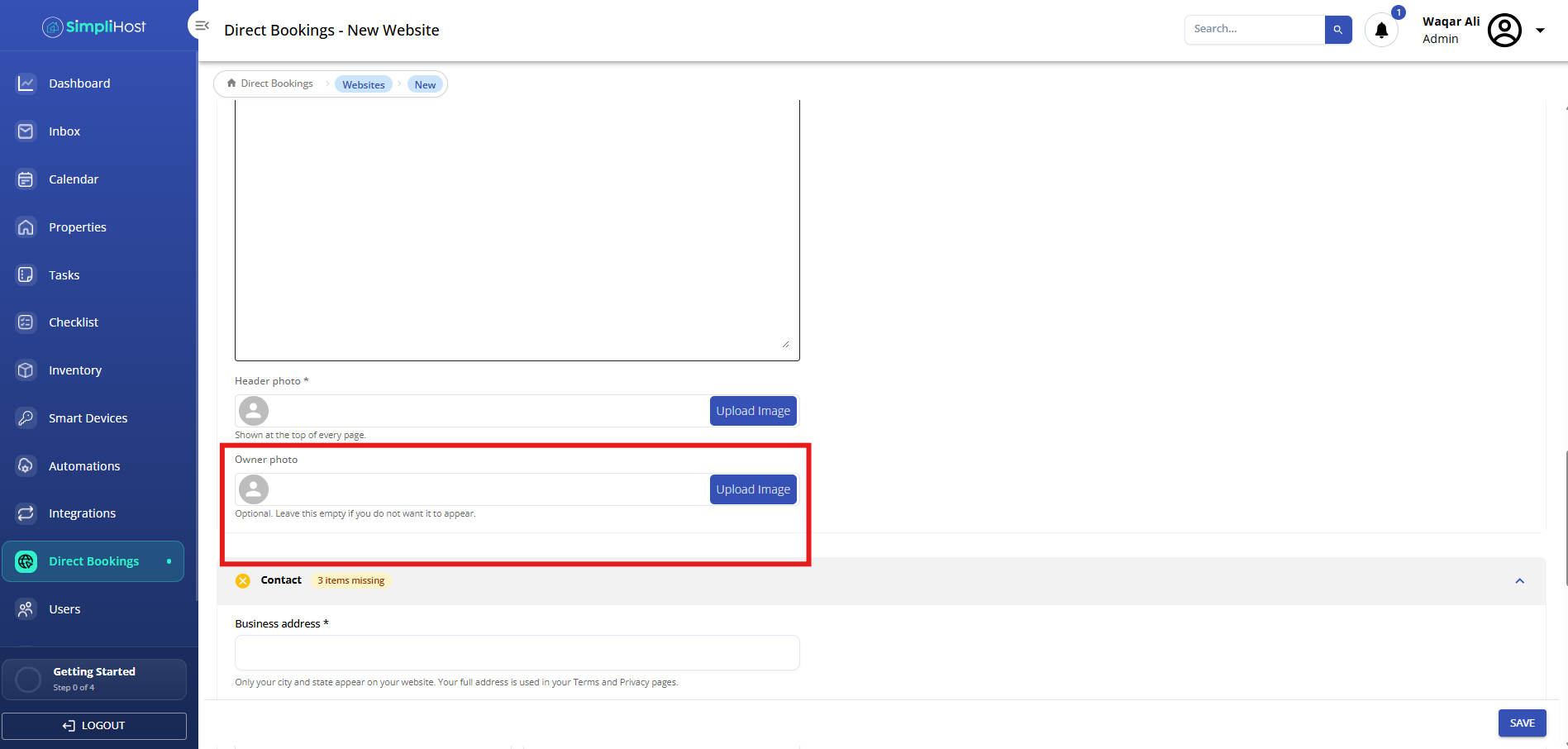
Click Owner photo and upload a photo of yourself or your team.
Enter your Phone number (optional).
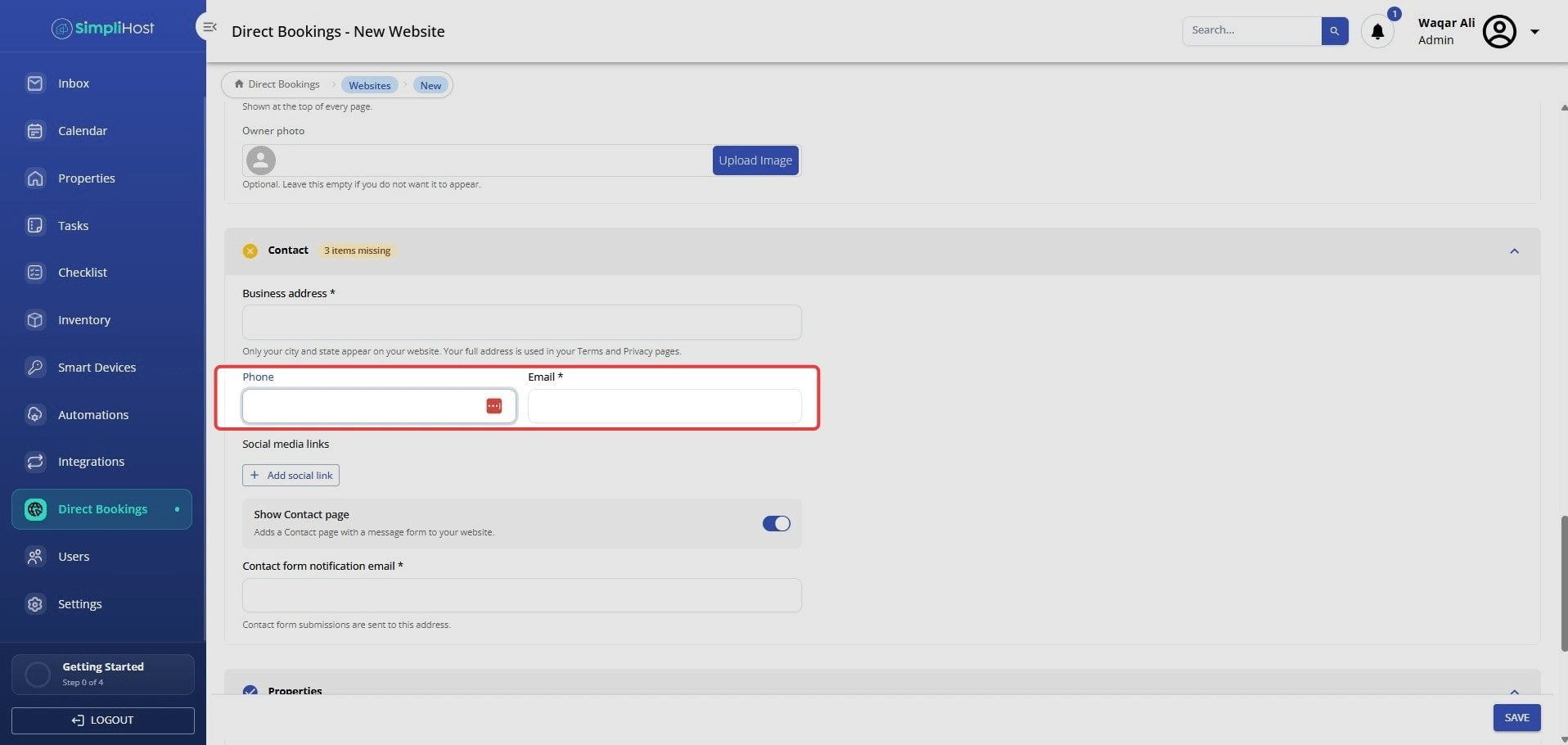
Enter your Email address.
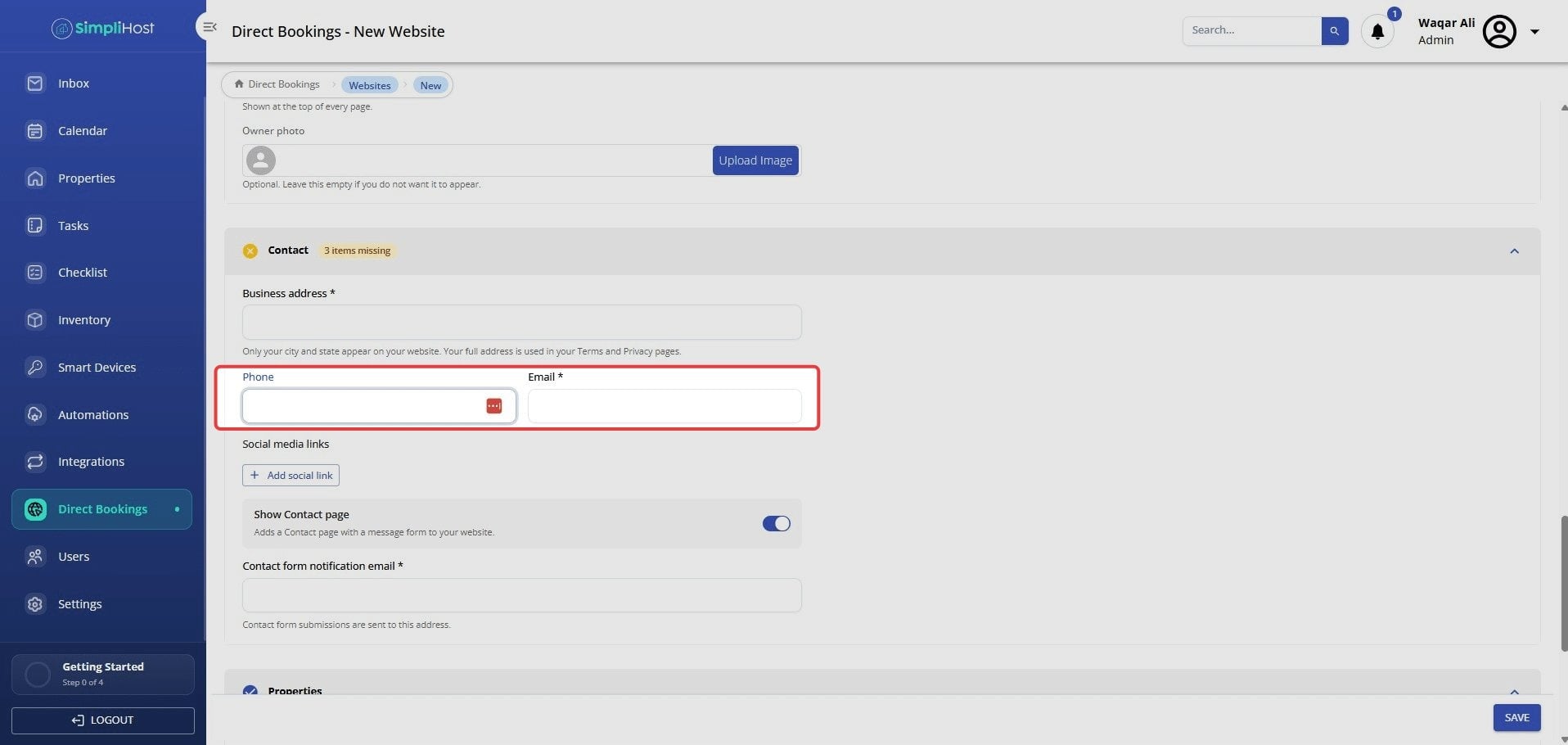
In the Properties section, open the Properties dropdown and select the properties to show on this website.
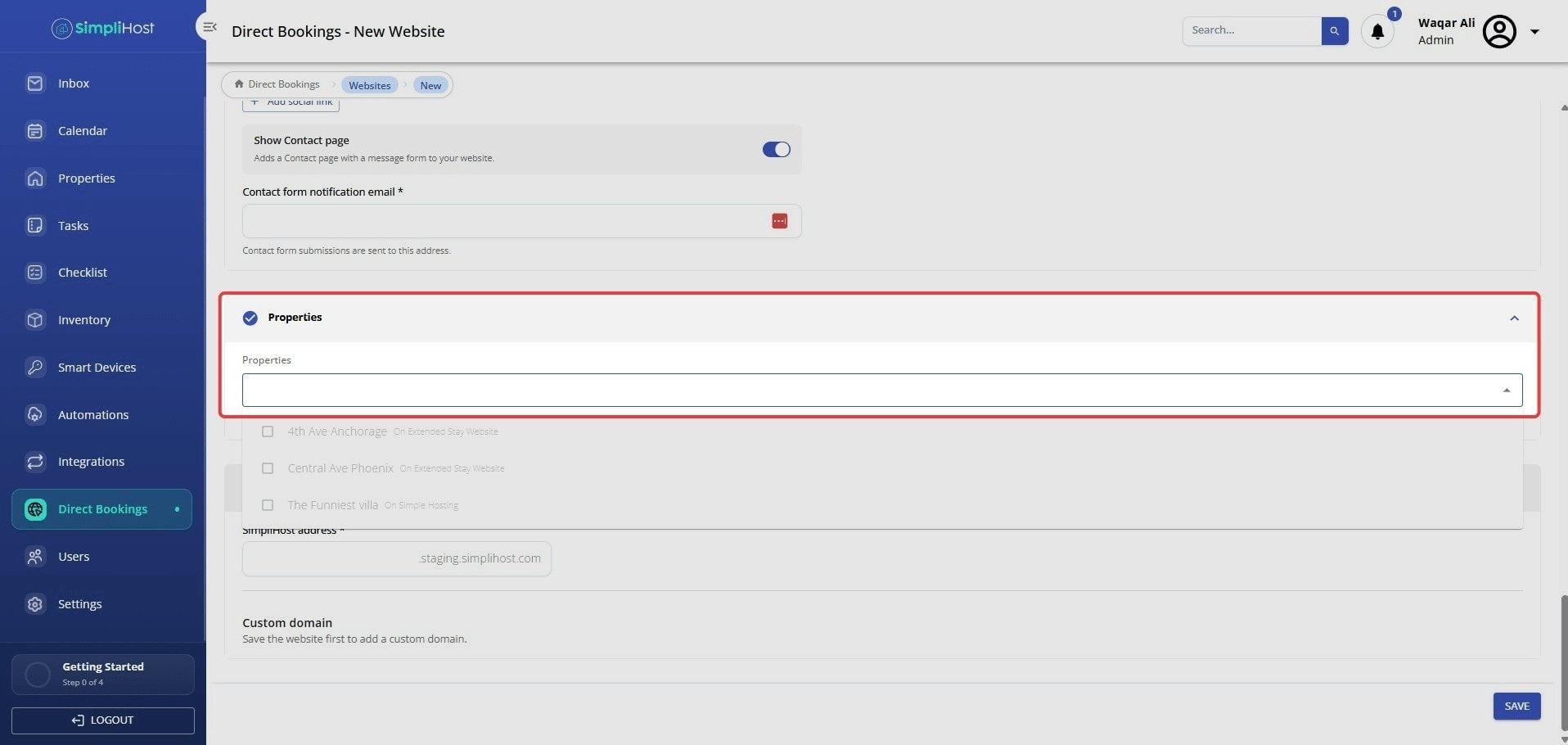
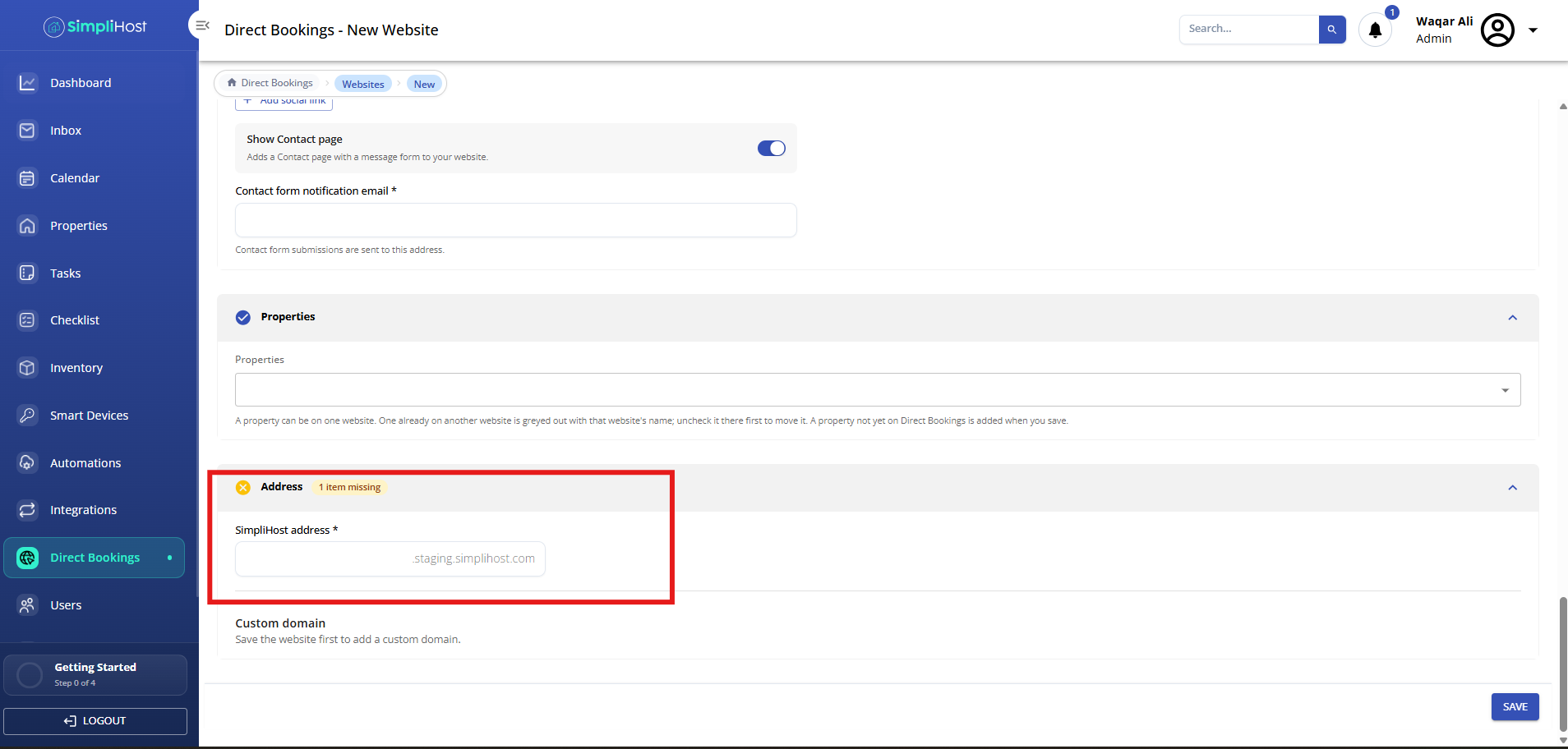
Enter your SimpliHost website address.
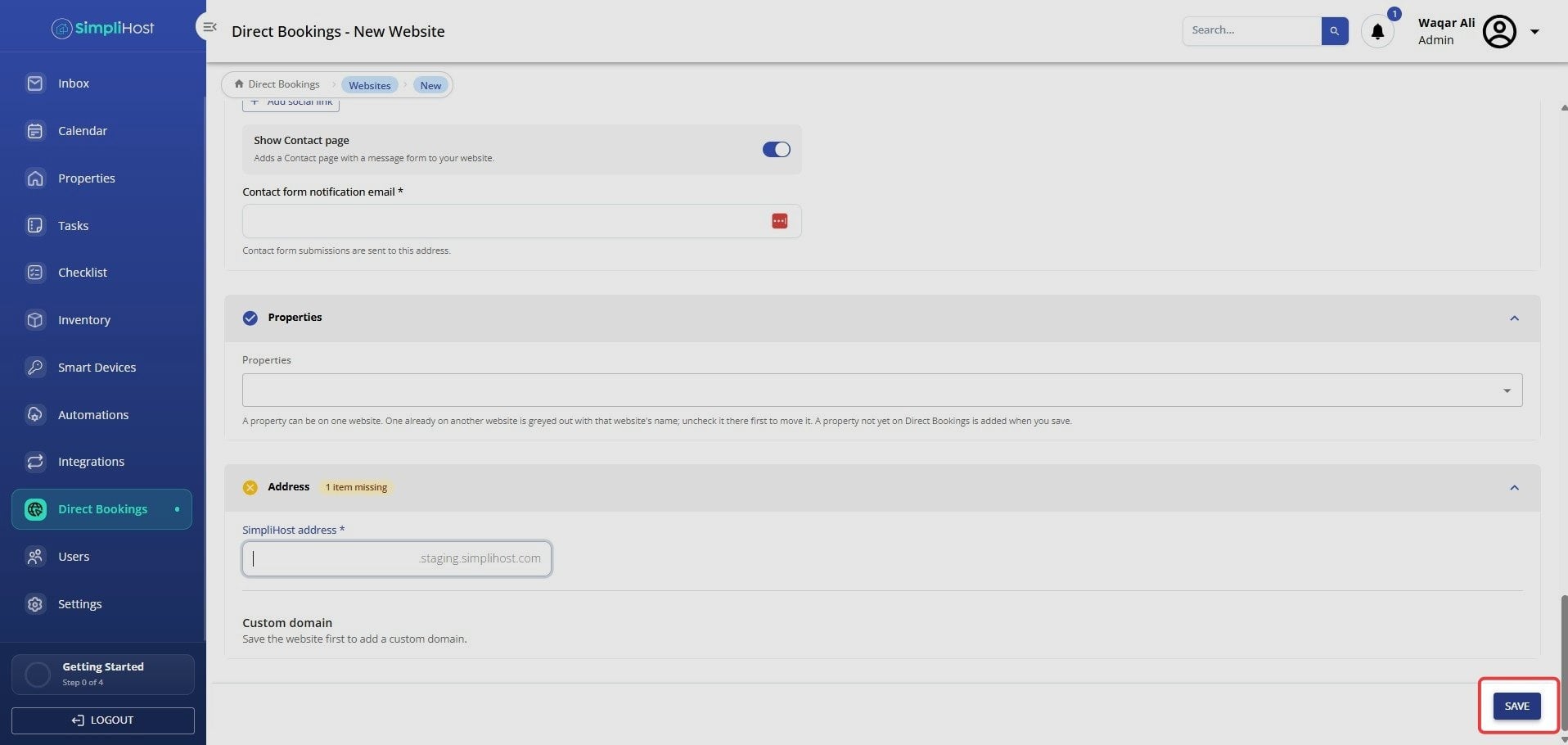
Click Save.
Your new website appears in the Websites list under Direct Bookings.
The properties you selected are now linked to this website and can no longer be added to another website unless you remove them first.
Any selected properties that weren’t already on Direct Bookings are added automatically.
If you left About heading blank, your site displays “About us” by default.
You can return to the website at any time to update its style, content, photos, or properties.
Keep your business blurb short and specific. Guests see it first, so lead with what makes your stays different.
Choose a background and color combination with strong contrast so text and buttons are easy to read on mobile.
Use a friendly, well-lit owner photo. A real face builds trust with first-time guests.
Group properties by location or brand if you plan to run more than one website.
Use an email address you check daily so guest inquiries don’t go unanswered.
Review your site on both desktop and mobile after saving.
Problem: The Save button doesn’t work or shows an error.
Likely Cause: A required field is empty, such as Business name, Business blurb, About Us, Email, or one of the color fields.
Fix: Scroll through each section, fill in any highlighted required fields, then click Save again.
Problem: A property appears greyed out in the Properties dropdown.
Likely Cause: The property is already assigned to another website.
Fix: Open the other website (shown next to the property name), remove the property, save, then return and select it on the new website.
Problem: The business blurb won’t accept more text.
Likely Cause: The blurb has reached the 160-character limit.
Fix: Shorten your message to 160 characters or less.
Problem: Custom colors aren’t accepted.
Likely Cause: The hex code is incomplete or formatted incorrectly.
Fix: Enter a full six-character hex code, including the # symbol (for example, #2F5D50).
Problem: The About section shows “About us” instead of your heading.
Likely Cause: The About heading field was left blank.
Fix: Open the website, enter your preferred heading in About heading, and click Save.
Problem: Your photo didn’t upload.
Likely Cause: The file is too large or in an unsupported format.
Fix: Try a smaller JPG or PNG image and upload it again.
Edit an Existing Direct Booking Website
Add a Property to Direct Bookings
Move a Property Between Direct Booking Websites
Set Up Payments for Direct Bookings
Still need help?
No worries — just open the in-app chat anywhere in SimpliHost and we’ll give you a hand.
