You are setting up a new property and need to add WiFi credentials for the first time.
Your WiFi password has changed and you need to update the saved information.
You have replaced your router and the network name is different.
You are preparing automated messages that pull in WiFi details dynamically.
A guest has reported that the saved credentials are not working.
You are doing a routine audit of your property information to make sure everything is current.
You must have edit access to the property in SimpliHost.
Have your WiFi network name (SSID) and current password on hand before you begin.
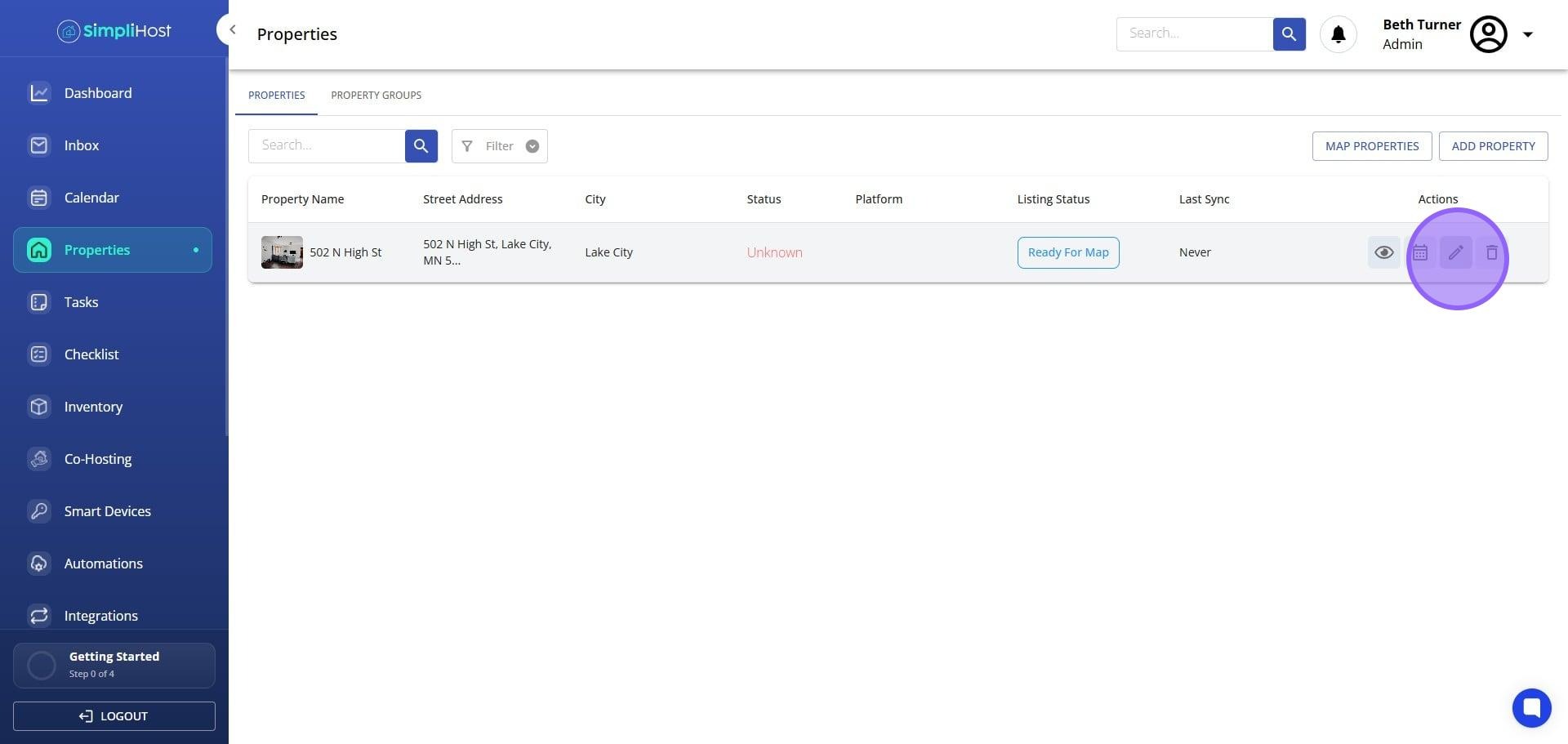
Open SimpliHost and navigate to the property you want to update.
Click Edit on that property.
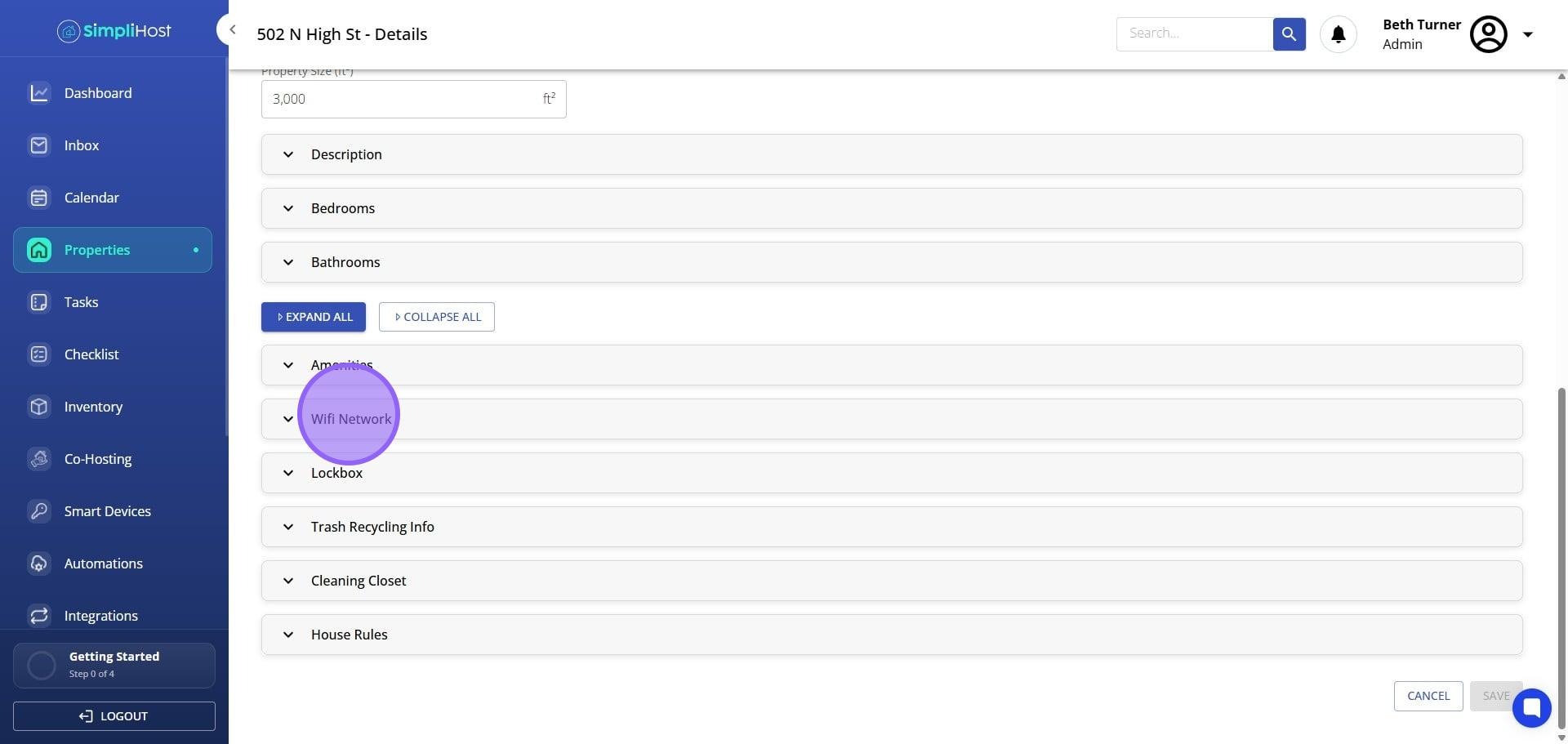
Select the WiFi Network section.
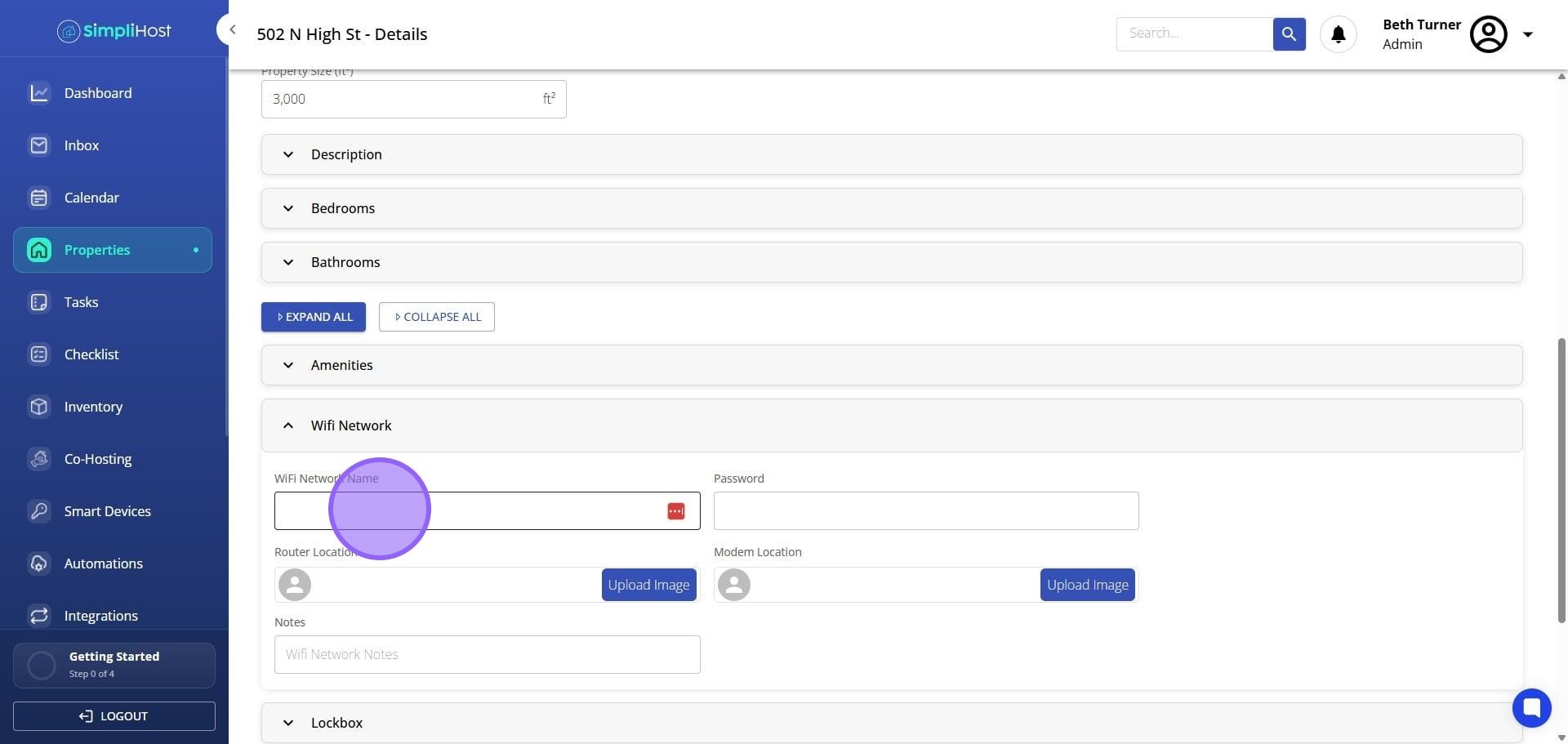
Enter your WiFi network name password into the WiFi Network Name and WiFi Network Password fields.
Click Save.
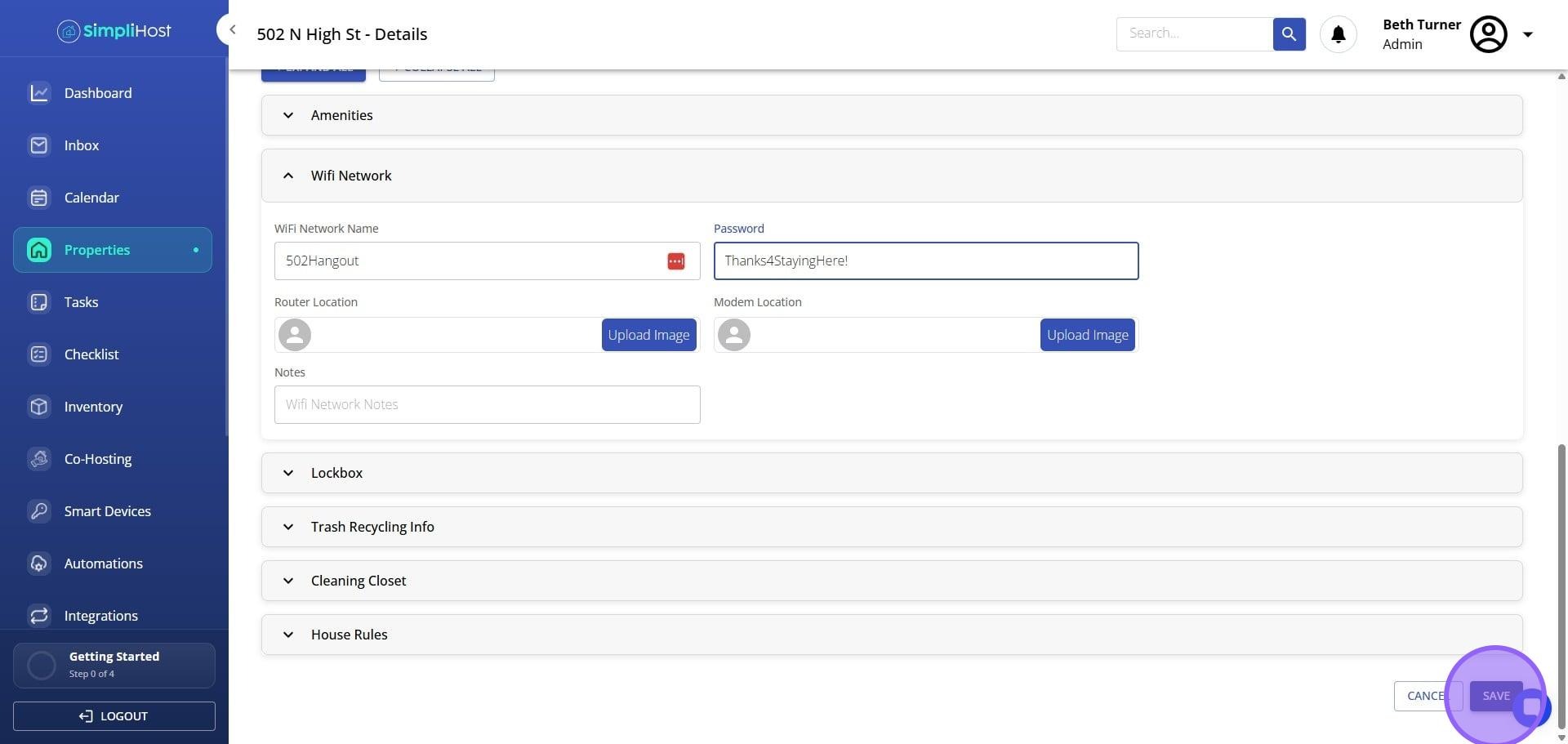
Your WiFi credentials are stored against the property record. Any messages, templates, or guidebook sections that reference WiFi details will reflect the updated information automatically. No additional steps are needed to push the changes to connected features.
Double-check your password for typos before saving. A single incorrect character will prevent guests from connecting.
If your network has both a 2.4GHz and a 5GHz band with different names, consider noting both in the network name field as a workaround (for example: "HomeNetwork and HomeNetwork_5G, same password"). This is not a dedicated multi-network feature, just a way to surface both names in one place.
Update your WiFi credentials in SimpliHost immediately after changing your router password. Waiting until a guest reports an issue creates unnecessary friction.
If you manage multiple properties, confirm you are editing the correct property before saving. It is easy to have the wrong property open if several are listed close together.
Use a password that is easy for guests to type on a phone. Special characters and long strings increase the chance of input errors.
Problem: The WiFi Network section is not visible. Likely Cause: Your account role may not include property editing permissions. Fix: Contact your account administrator to confirm your access level.
Problem: Changes are not saving. Likely Cause: A required field may be blank or there is a temporary connection issue. Fix: Confirm both the network name and password fields are filled in, then try saving again.
Problem: Guest messages still show the old WiFi password after saving. Likely Cause: The message template may use static text instead of a dynamic WiFi field. Fix: Open the message template and replace the static text with the dynamic WiFi variable.
Problem: The Save button is greyed out. Likely Cause: You may be in a view-only mode. Fix: Check that you opened the property in Edit mode, not just preview.
Problem: WiFi credentials are correct in SimpliHost but guests still cannot connect. Likely Cause: The issue is with the property network, not the saved data. Fix: Verify the router is working and the credentials are correct by testing them on a personal device at the property.
Update Property Details and Descriptions
Set Up Automated Guest Messaging
Still need help? No worries — just open the in-app chat anywhere in SimpliHost and we'll give you a hand.
