Adding lockbox details to a property in SimpliHost gives guests everything they need to access the property on arrival. You can store the lockbox code, include location notes, and optionally upload a photo to make the entry process clear. Having this information in SimpliHost means it is always available to pull into automated check-in messages and guest communications.
You are setting up a new property and need to add lockbox details for the first time.
Your lockbox code has changed and needs to be updated.
You want to add or replace a photo showing where the lockbox is located.
You are building automated check-in messages that reference lockbox information.
A guest has had trouble locating the lockbox and you want to add clearer notes.
You are auditing property access information to confirm everything is current.
You must have edit access to the property in SimpliHost.
Have your lockbox code and any location details ready before you begin.
If you plan to upload a photo, have the image file accessible on your device.
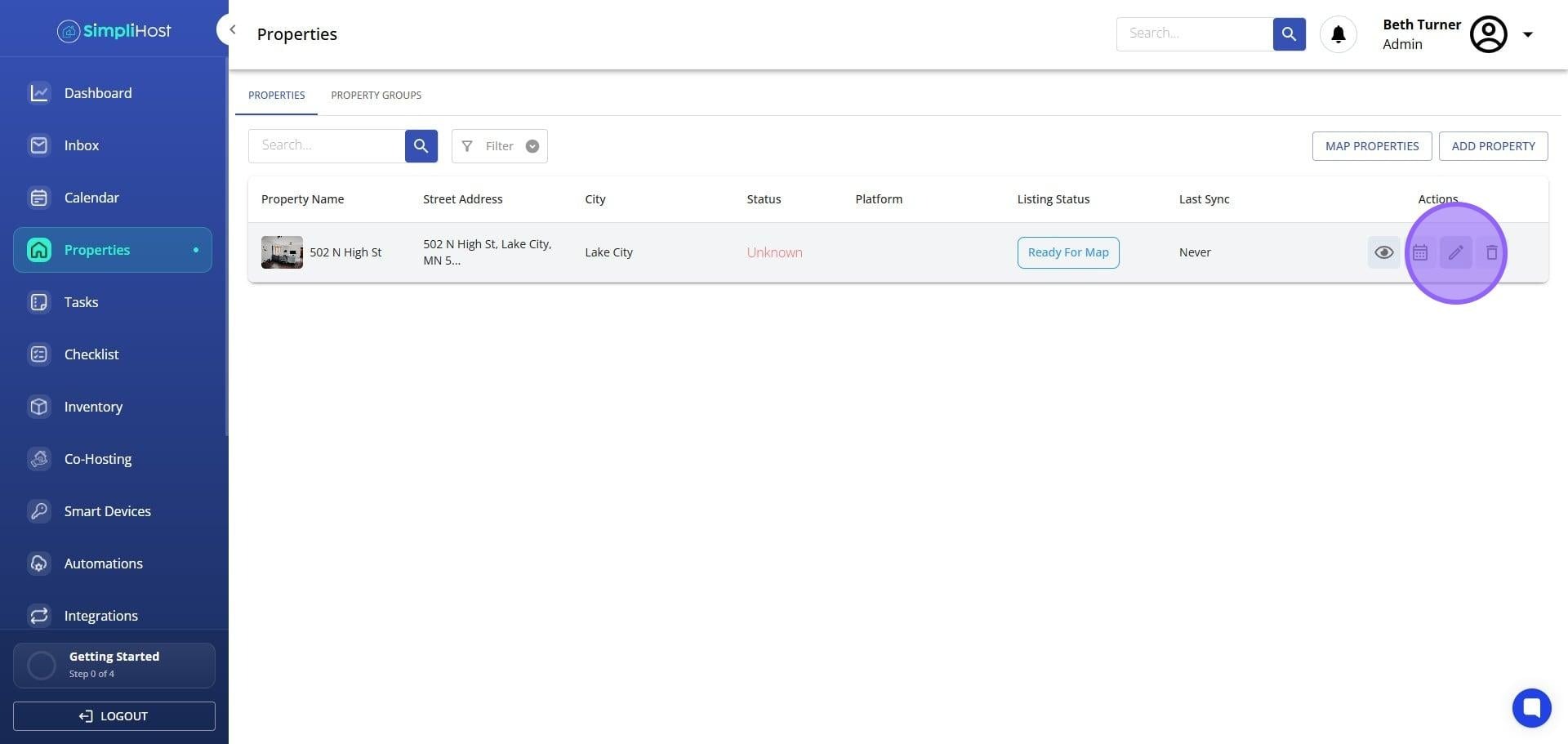
Open SimpliHost and navigate to the property you want to update.
Click Edit on that property.
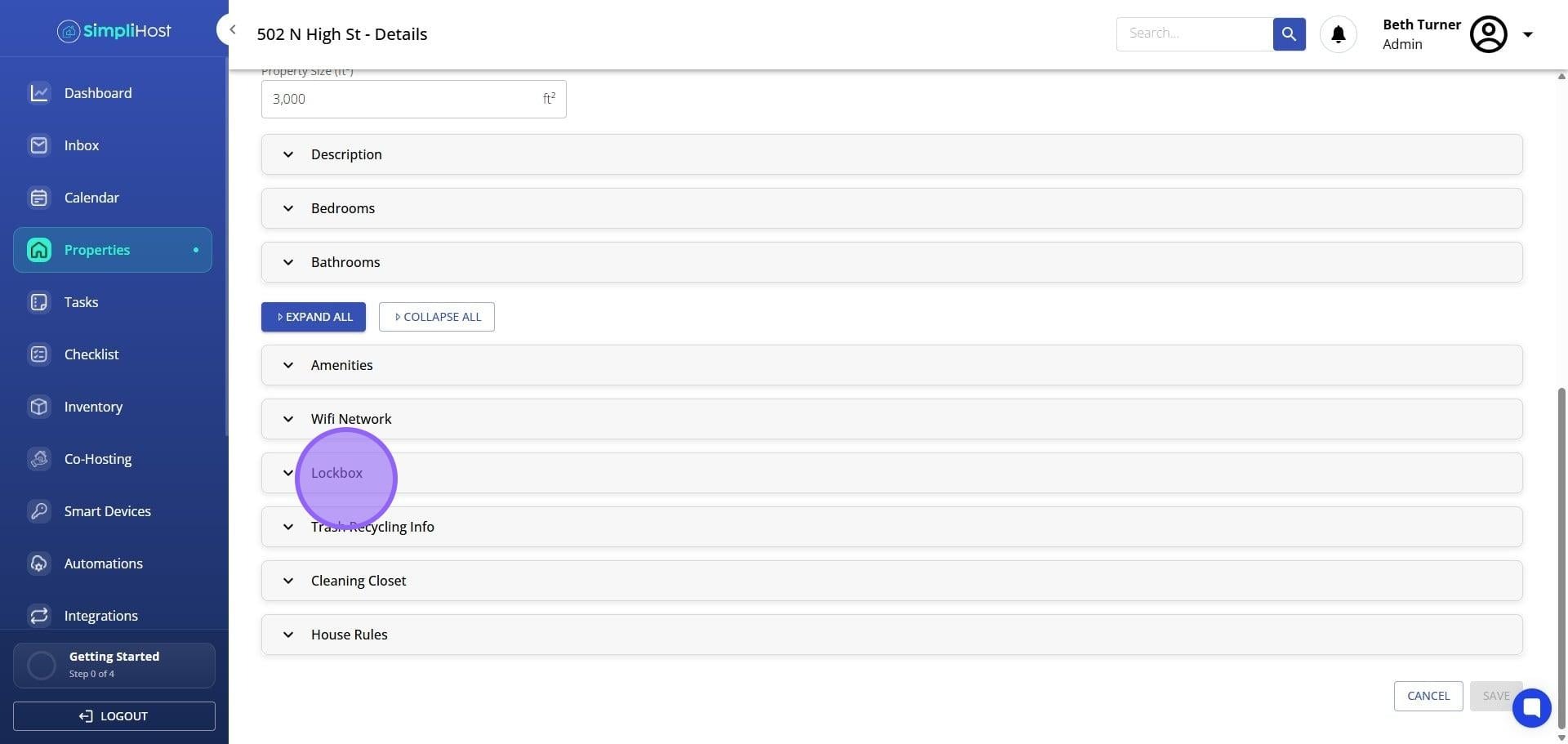
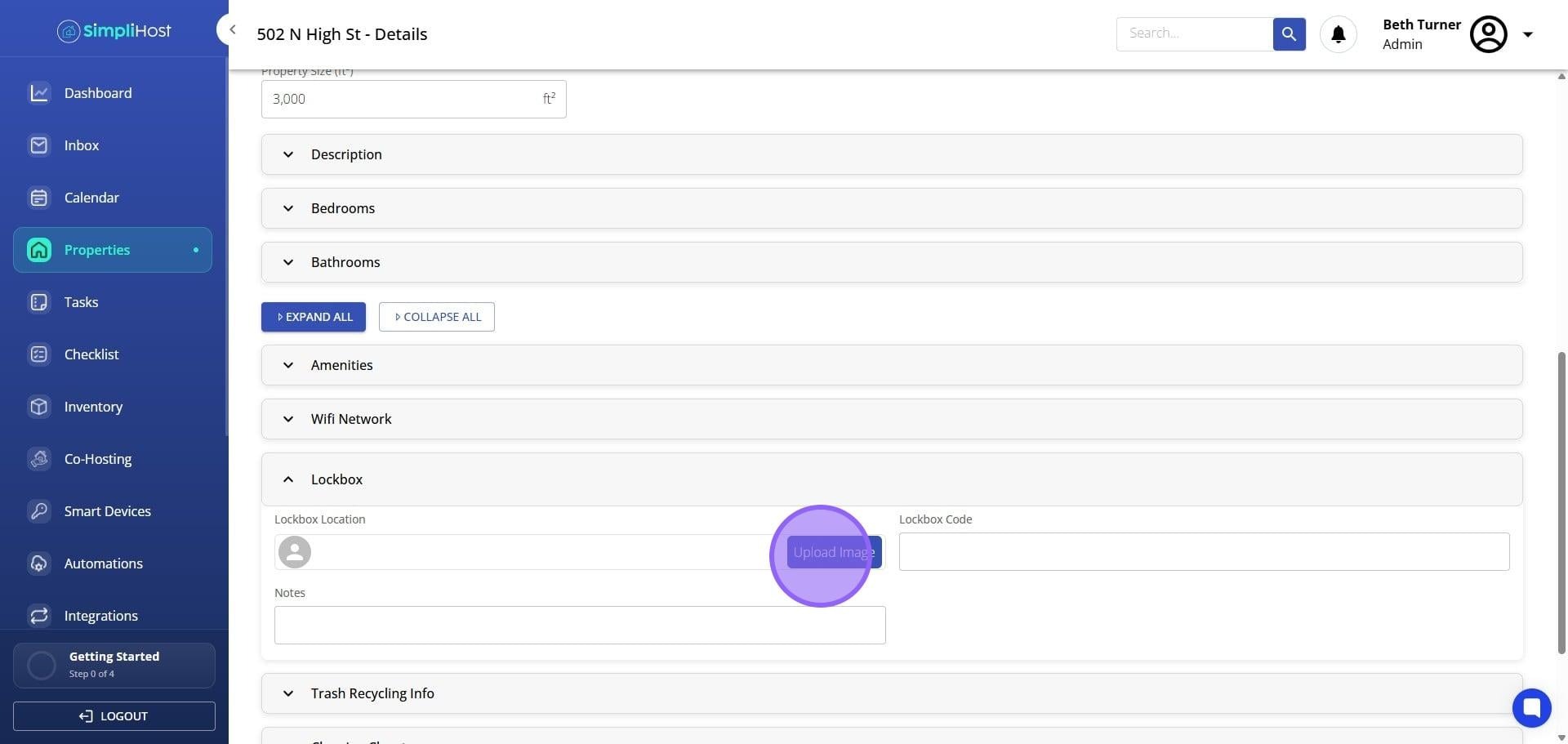
Expand the Lockbox section.
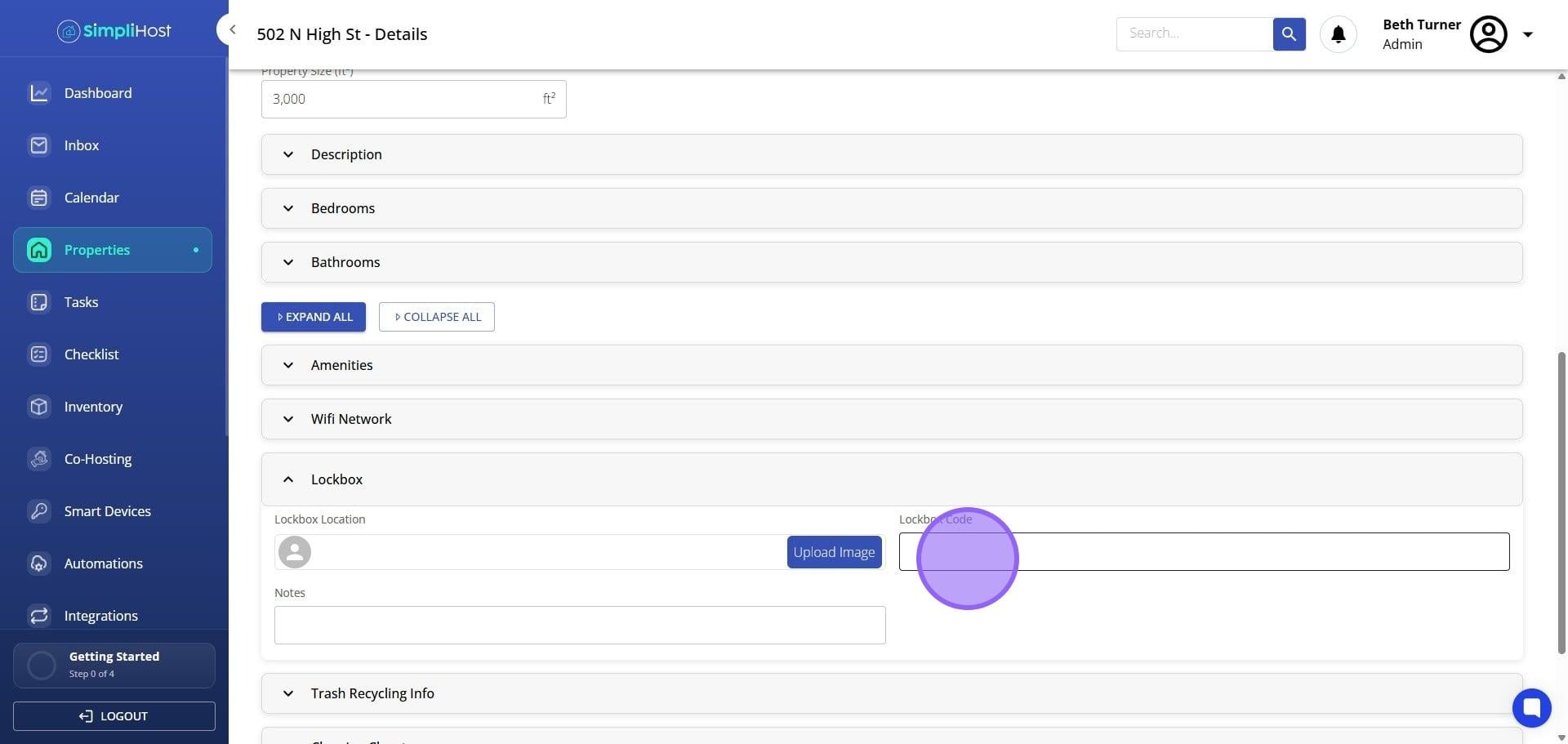
Enter your lockbox code in the code field.
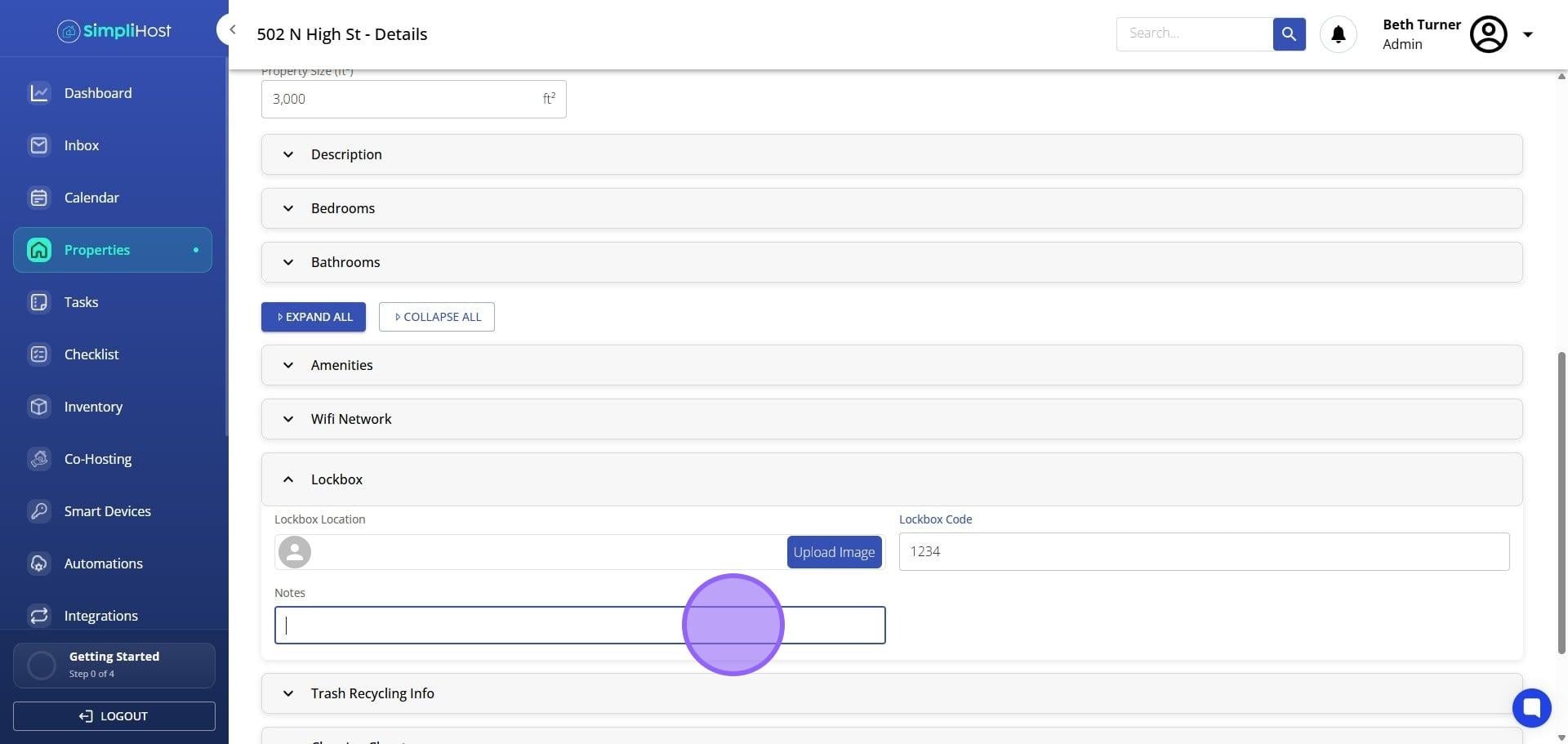
Enter any location notes in the notes field, such as where the lockbox is mounted or any landmarks that help guests find it.
If you want to include a photo of the lockbox location, click Upload Image and select the image from your device.
Click Save.
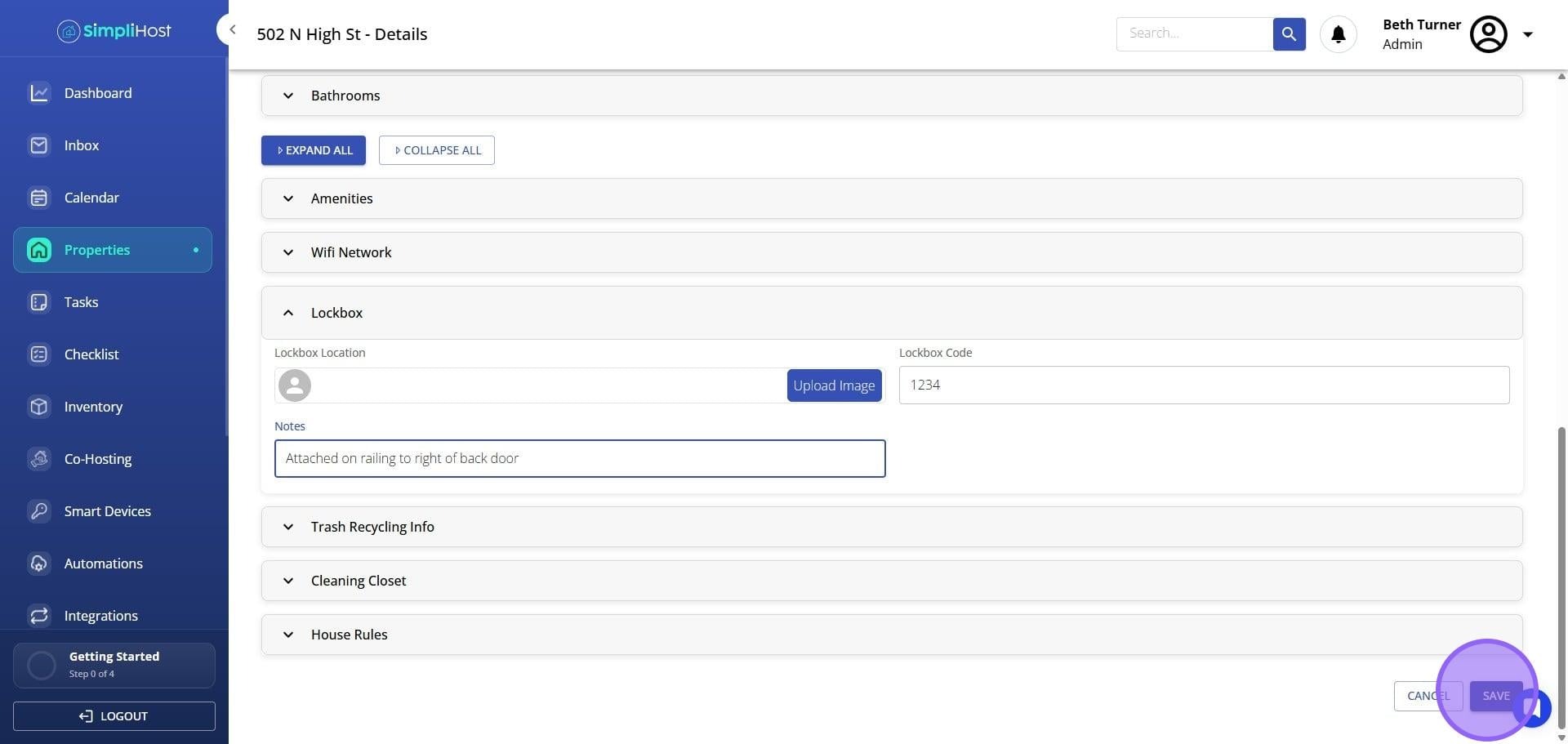
Your lockbox details are stored against the property record. Any messages or templates that reference lockbox information will reflect the updated details automatically. If you uploaded a photo, it will be available wherever lockbox images are displayed in your guest communications.
Be specific in your location notes. Phrases like "on the right side of the front gate, third post from the street" are more useful than "near the front door."
Use a clear, well-lit photo that shows the lockbox in context. A close-up of just the box is less helpful than a shot that shows surrounding landmarks.
Update the lockbox code in SimpliHost immediately after you change it at the property. Do not wait until a guest reports an access issue.
If you use a rotating or time-sensitive code, consider noting the format in the notes field so guests know what to expect.
Review lockbox details after any code change, contractor visit, or seasonal property check to confirm everything is current.
Problem: The Lockbox section is not visible.
Likely Cause: The section may be collapsed or your account role may limit editing access.
Fix: Look for an expand arrow next to the Lockbox label, or contact your administrator to confirm your permissions.
Problem: Image upload is not completing.
Likely Cause: The file may be too large or in an unsupported format.
Fix: Try a smaller file size or convert the image to JPG or PNG before uploading.
Problem: Changes are not saving.
Likely Cause: A required field may be incomplete or there is a temporary connection issue.
Fix: Confirm the code field is filled in, then try saving again.
Problem: Guest messages still show the old lockbox code.
Likely Cause: The message template may use static text instead of a dynamic lockbox field.
Fix: Open the template and replace the static code with the dynamic lockbox variable.
Problem: The Save button is greyed out.
Likely Cause: You may be in view-only mode.
Fix: Confirm you opened the property in Edit mode rather than preview.
Add WiFi Information to a Property
Set Up Automated Guest Messaging
Update Property Details and Descriptions
Still need help? No worries — just open the in-app chat anywhere in SimpliHost and we'll give you a hand.
