Operations Automations in SimpliHost allow you to automate routine communications and actions tied to your property operations, such as sending check-in instructions, reminders, or follow-up messages. Activating these automations reduces manual work and helps ensure your guests and team receive the right information at the right time, without you needing to send each message yourself.
You want to automate guest messaging for check-in, check-out, or mid-stay touchpoints
You are setting up SimpliHost for the first time and want to enable default communication workflows
You need to switch a message delivery method between SMS, email, or in-app notification
You want to review what a standard automation sends before turning it on
You need to remove the default action and replace it with a different delivery method
You are troubleshooting a communication that did not send as expected
You must have access to the Automations section of your SimpliHost account
Standard automations are pre-built and available to all accounts; no additional setup is required before activating them
Click into Automations from the main navigation.
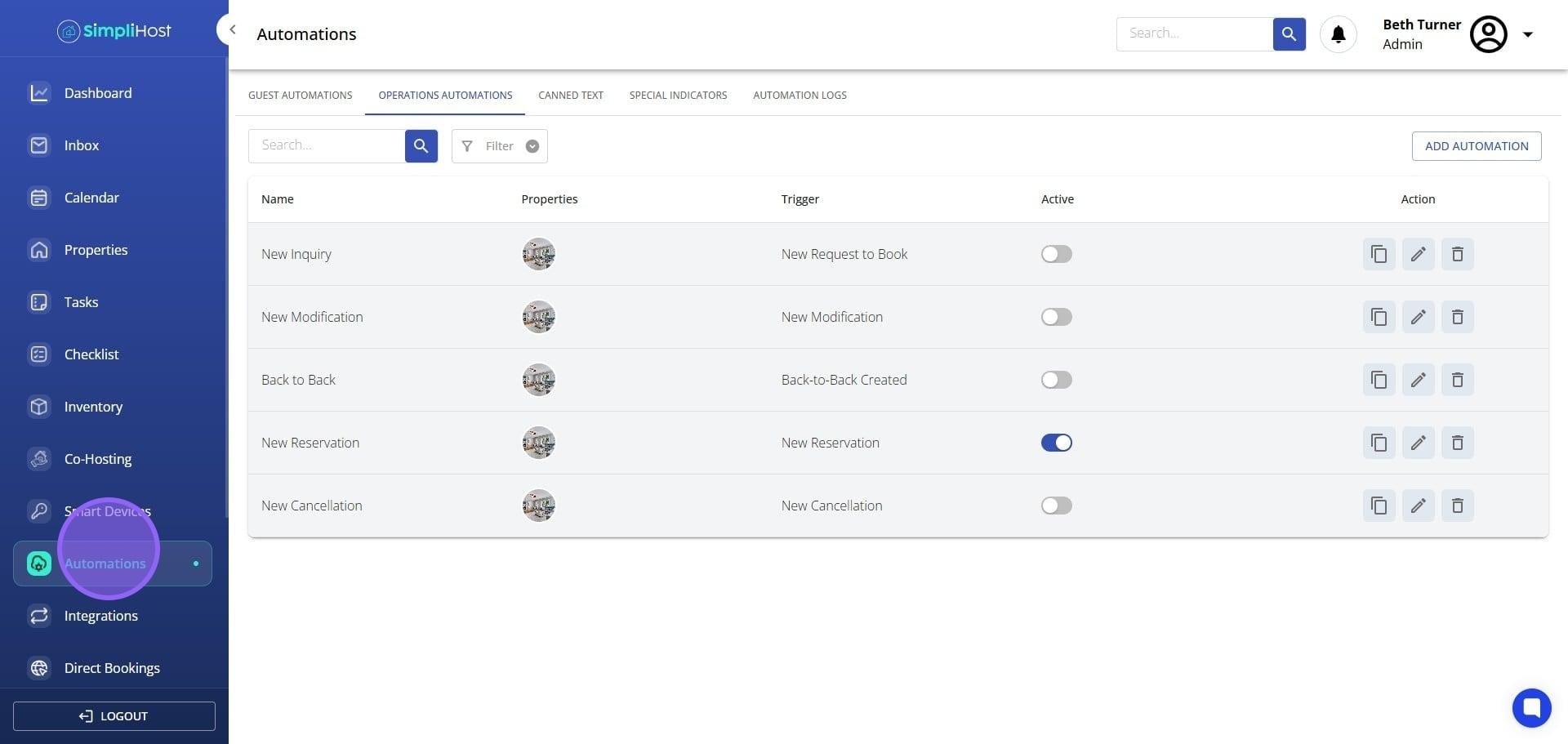
Click on Operations Automations.
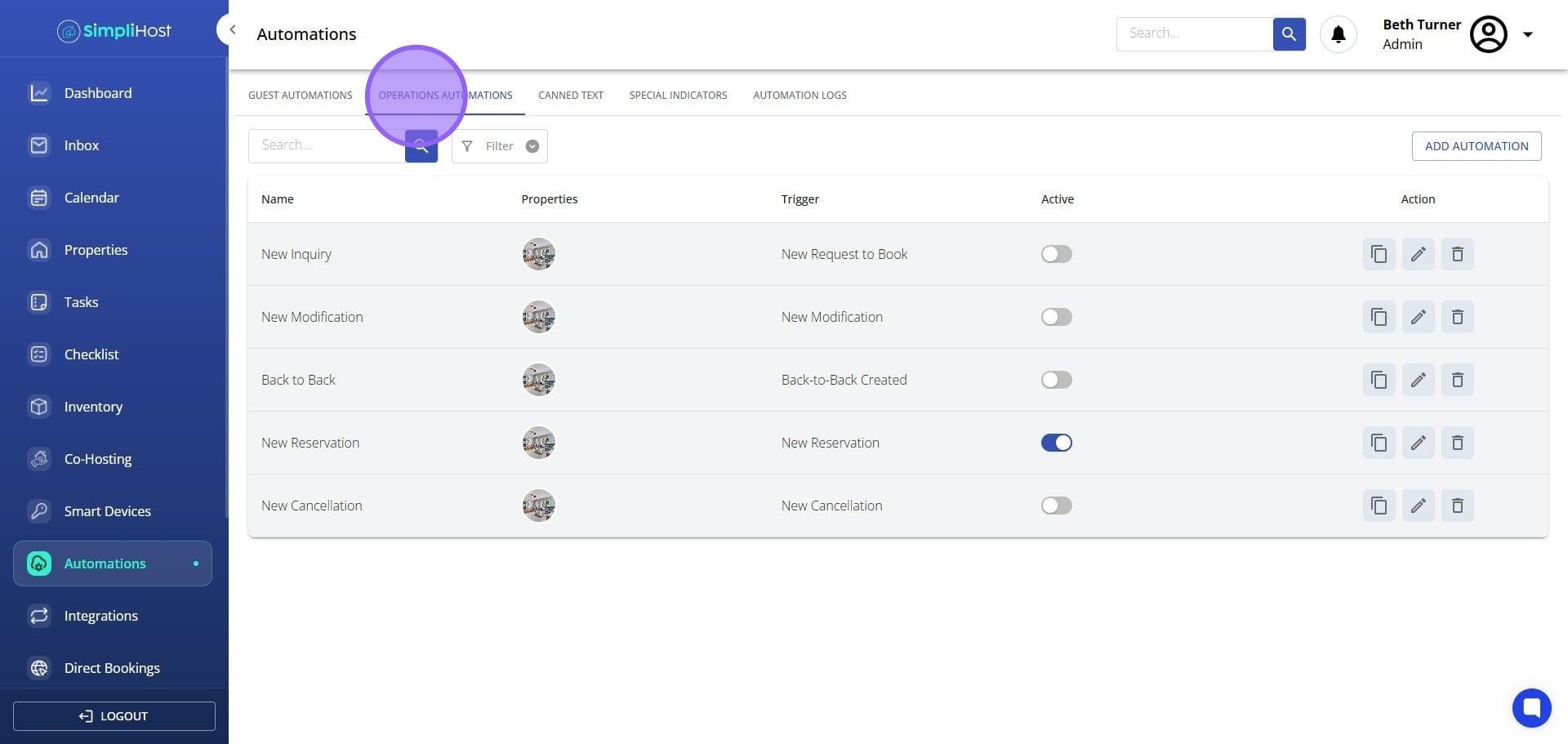
Locate the automation you want to enable and toggle it on.
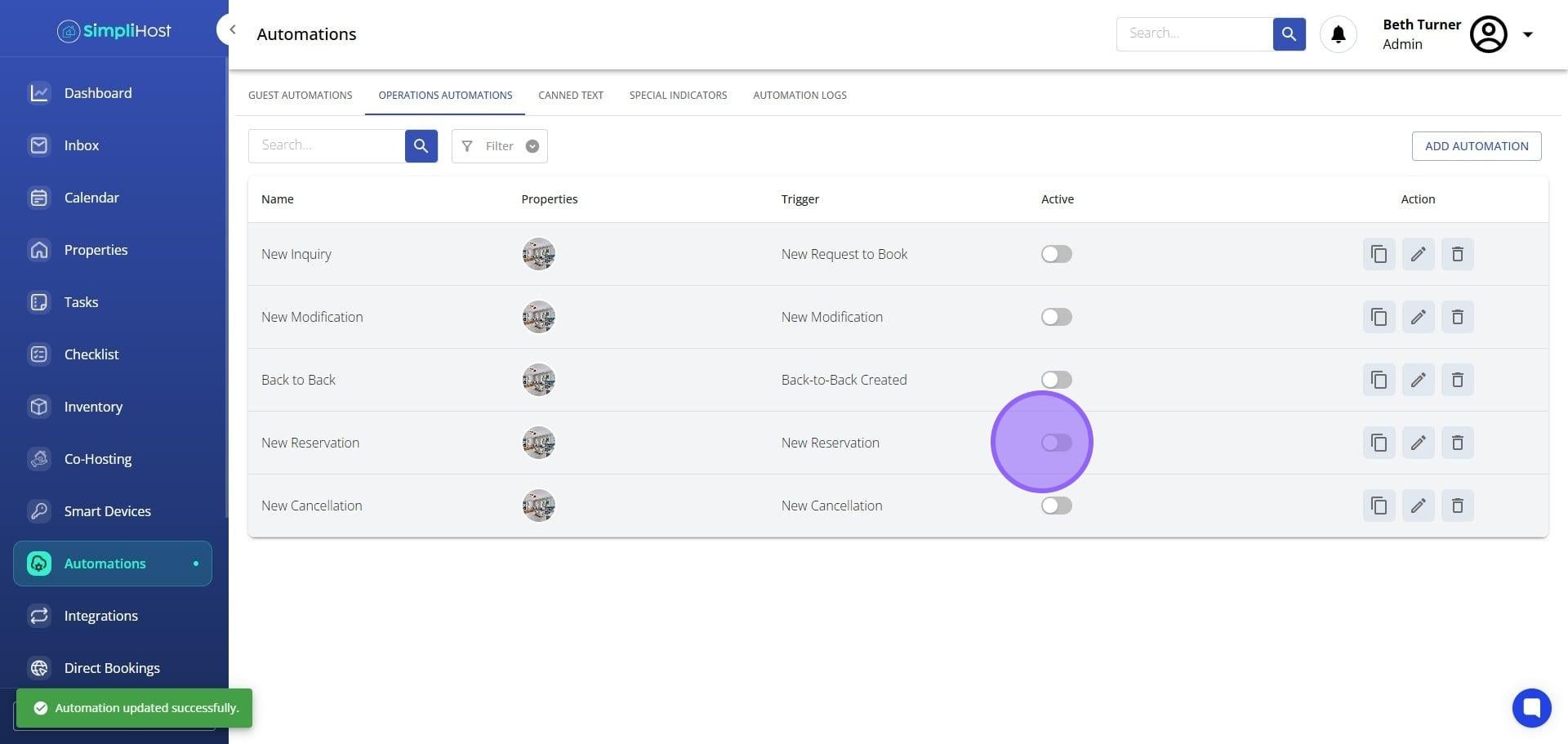
To review or update the automation before activating it, click the Edit button next to it.
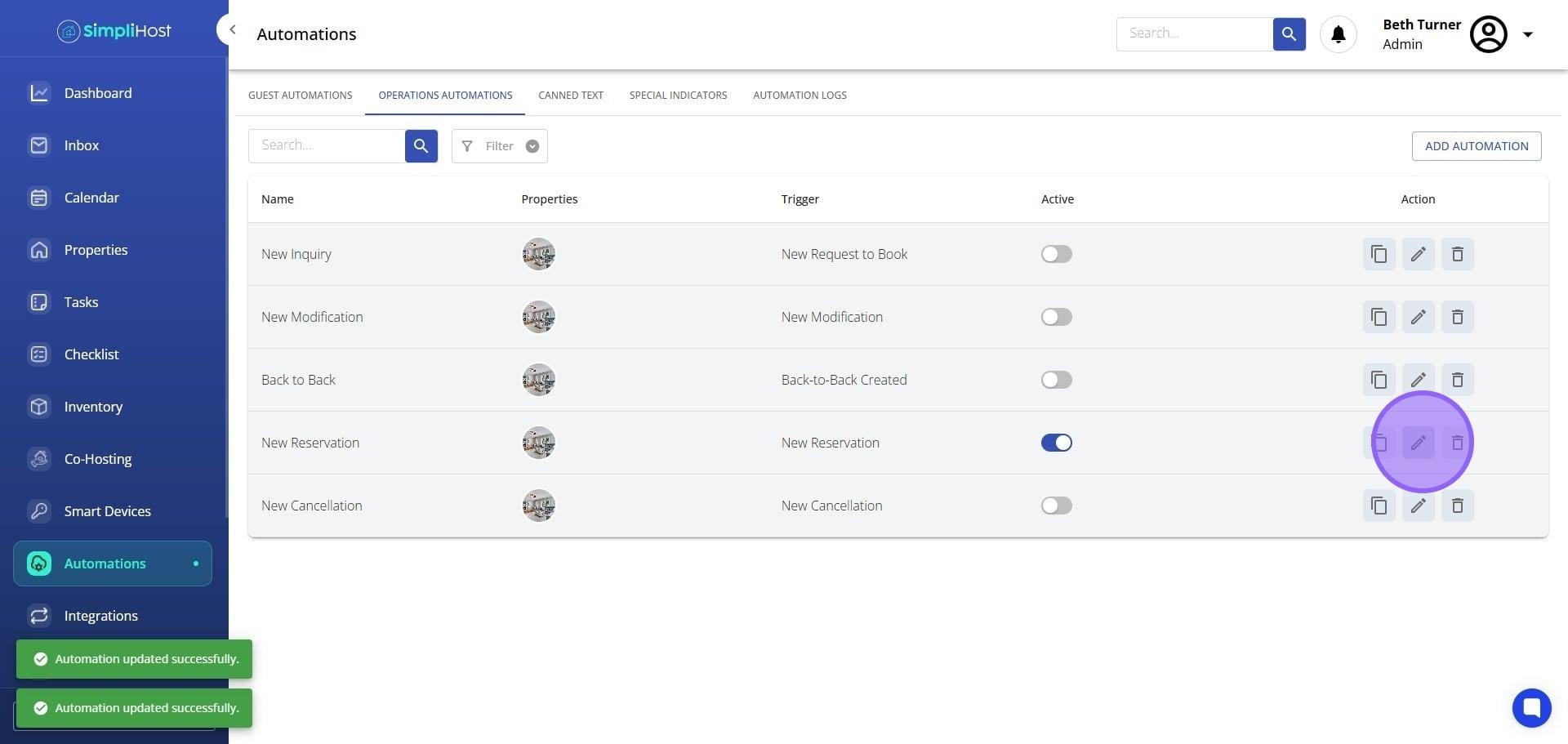
From the edit view, update the message content as needed, such as adding fields or changing label text.
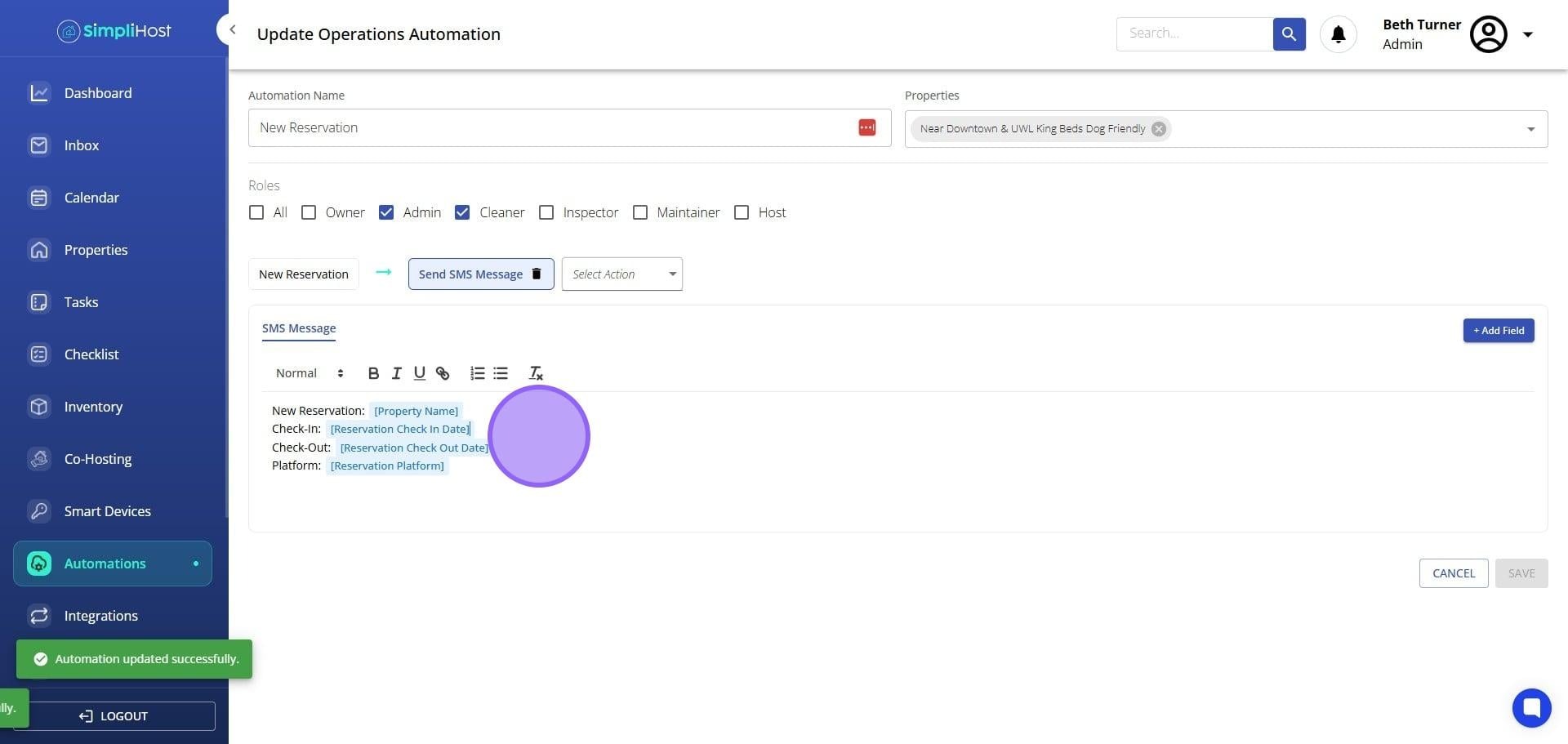
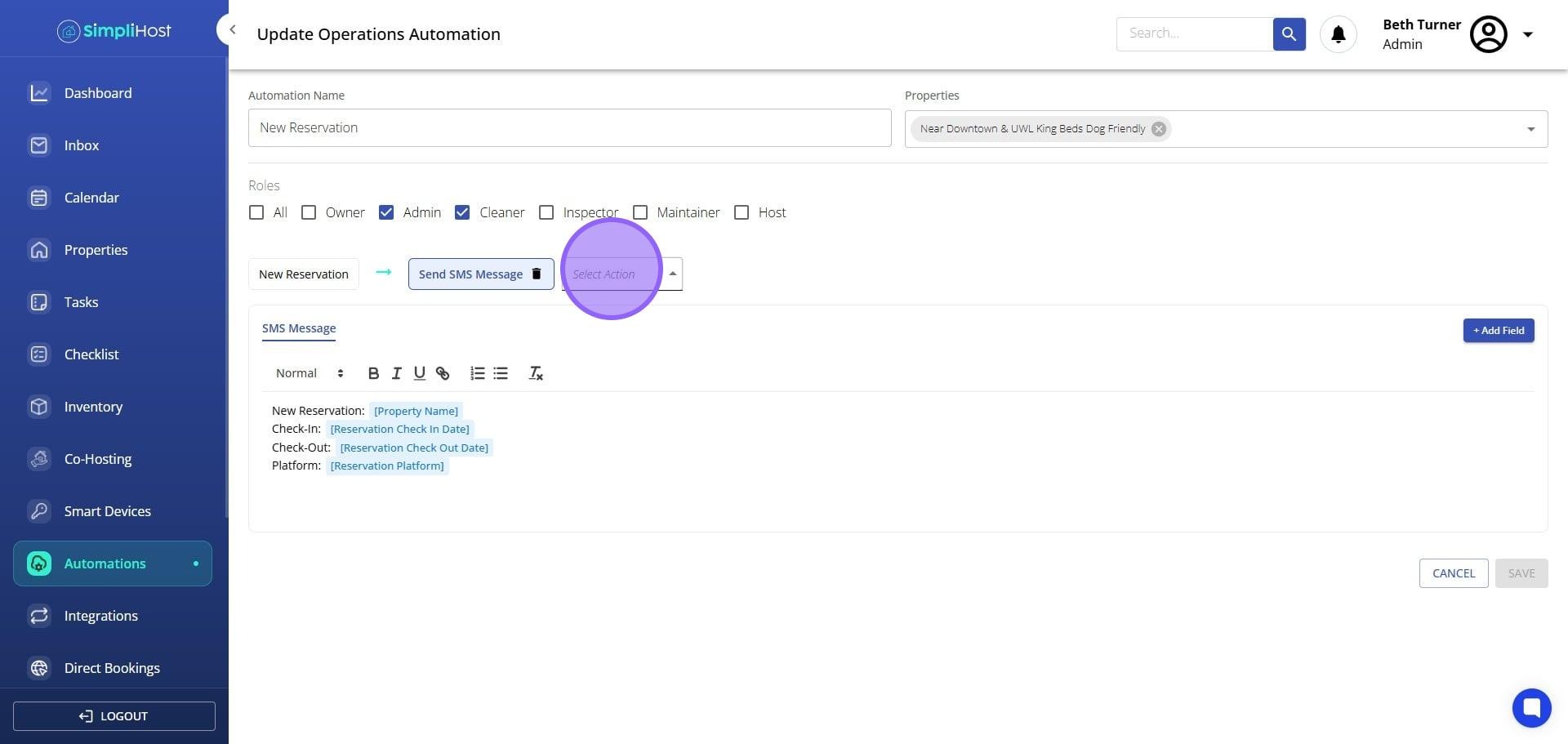
To change the delivery method, click Select Action. If you do not want the default action, click Delete to remove it first.
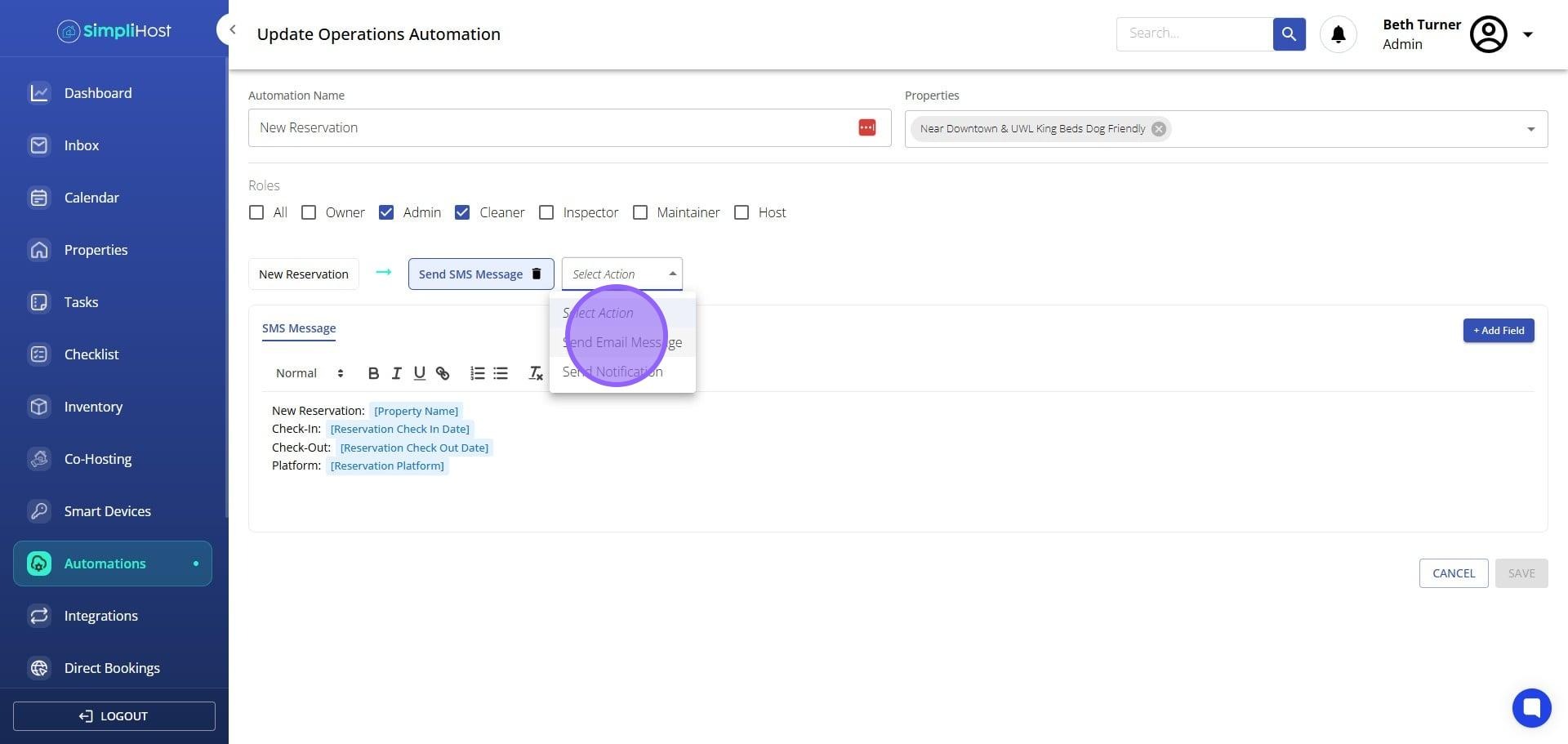
Select the action that applies. For Operations Automations, the available options are Send SMS Message, Send Email Message, and Send Notification.
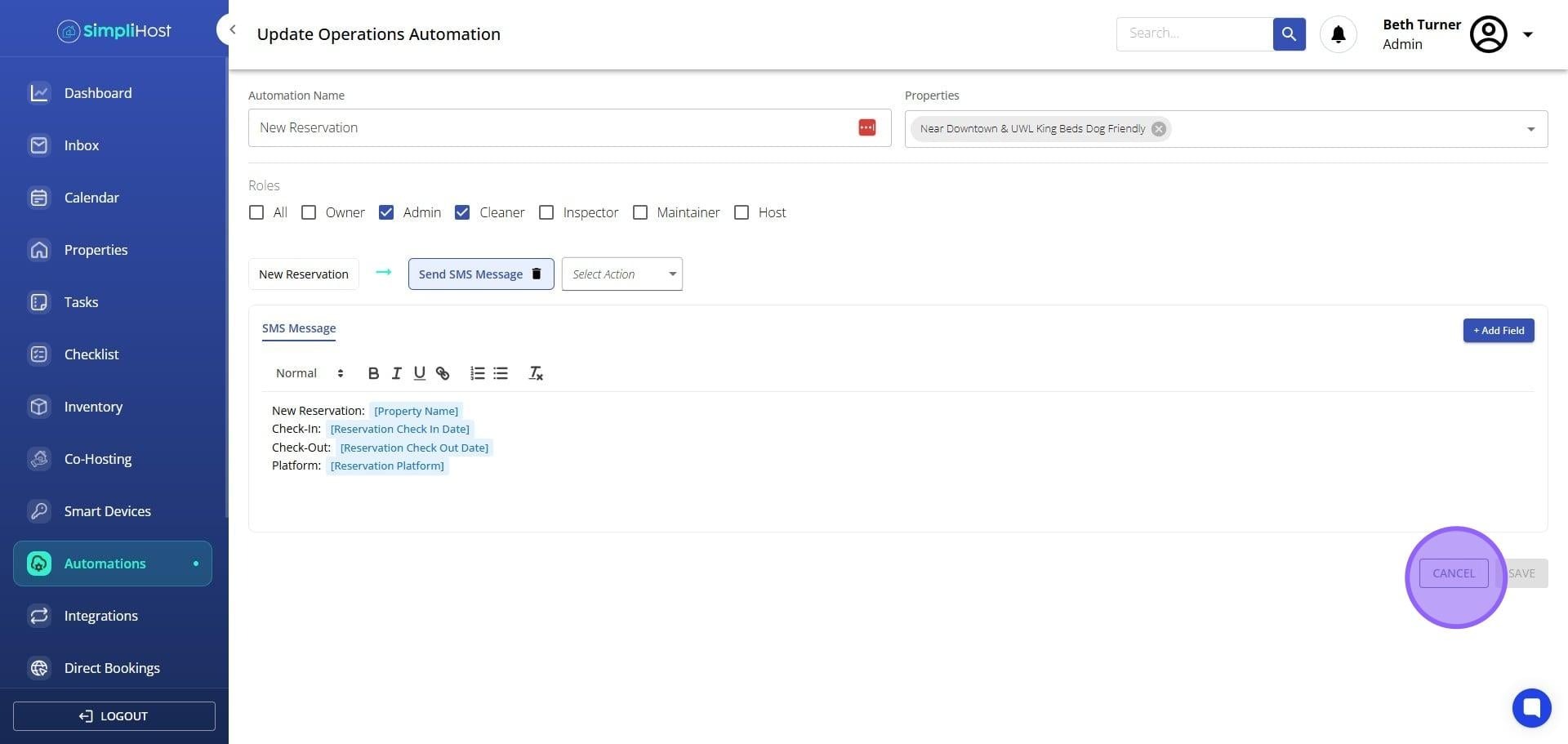
Click Save to apply your changes, or Cancel to return without saving.
Repeat steps 3 through 8 for any additional operations automations you want to activate.
Once saved, the automation becomes active and will trigger based on its configured conditions. Any delivery method or content changes you made will apply immediately to future automation runs. You can return to the Operations Automations screen at any time to toggle automations off, make further edits, or review the current configuration.
Review the default message content before activating an automation to confirm it matches your tone and property details
Use the Edit view to add dynamic fields such as guest name or check-in time so messages feel personalized
If you are replacing the default action, delete it before selecting a new one to avoid duplicate actions on the same automation
Only three action types are supported for Operations Automations: Send SMS Message, Send Email Message, and Send Notification
If you manage multiple properties, verify that the automation settings apply to the correct listings before saving
After activating, send a test booking through your system to confirm the automations trigger and deliver as expected
Problem: An automation is not sending messages after being toggled on. Likely Cause: The automation may not have a valid action set, or the toggle was not saved properly. Fix: Open the automation in Edit view, confirm an action is selected and all required fields are filled in, then save again and re-check the toggle status.
Problem: The guest received the message using the wrong delivery method. Likely Cause: The previous default action was not deleted before a new one was selected, or the change was not saved. Fix: Open the automation, delete the unwanted action, select the correct one, and save.
Problem: The Select Action option is not visible. Likely Cause: The default action may still be active and is occupying the action slot. Fix: Click Delete next to the existing action to remove it, then click Select Action to choose a replacement.
Problem: An action type that works in other automations is not available here. Likely Cause: Operations Automations only support three action types: Send SMS Message, Send Email Message, and Send Notification. Fix: Confirm you are working within Operations Automations and select only from the supported action types.
Problem: Dynamic fields are appearing as raw placeholder text in the sent message. Likely Cause: The field was entered manually as plain text rather than inserted as a system field. Fix: Open the automation in Edit view, remove the manually typed placeholder, and re-insert the correct dynamic field from the available options.
Problem: Changes made in the Edit view are not saving. Likely Cause: The Save button was not clicked, or a required field was left incomplete. Fix: Review all fields for completeness, then click Save. If the issue continues, refresh the page and re-enter your changes.
Set Up Automated Guest Messaging
Customize Message Templates with Dynamic Fields
Manage Automation Schedules and Triggers
Connect Notification Preferences for Your Team
Still need help? No worries — just open the in-app chat anywhere in SimpliHost and we'll give you a hand.
