Automations in SimpliHost send messages and notifications to guests, staff, or yourself based on reservation events or scheduled triggers. Editing an automation lets you refine message copy, add or swap communication channels, and insert dynamic fields that pull live reservation data into your messages automatically. System standard automations have fixed triggers that cannot be changed. Only custom automations allow full trigger editing.
You need to update the message content of an existing guest or operations automation
You want to add a new action, such as an SMS or email, to an automation that currently only sends one type of message
You want to insert dynamic fields, such as guest name or check-in date, into an existing message
You are setting up a new custom automation and need to configure its actions and message body
A guest or team member reported receiving an outdated or incorrect automated message
You want to rename an automation to better reflect its purpose
You must have access to the Automations section in your SimpliHost account
To edit triggers, the automation must be a custom automation. System standard automations do not allow trigger changes.
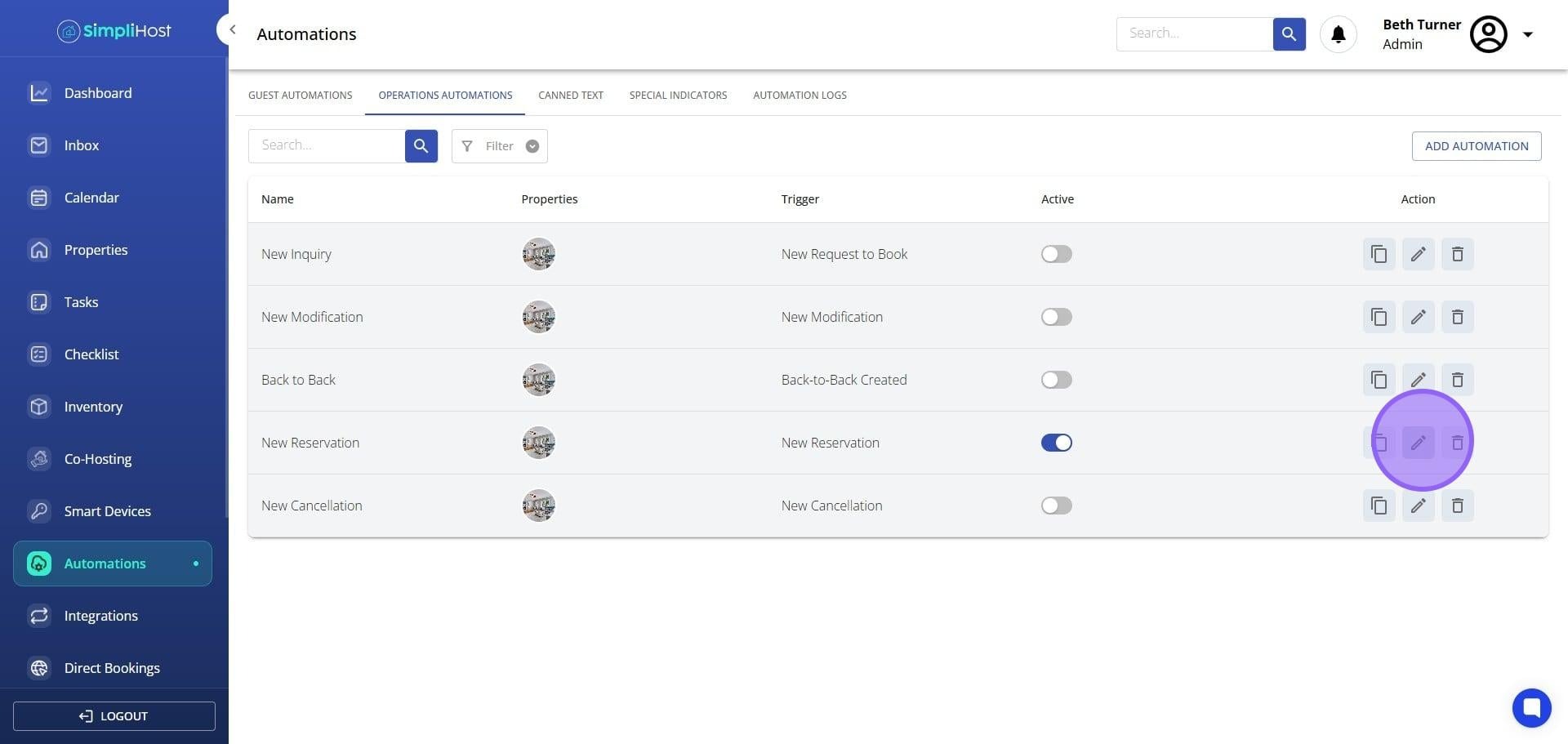
Navigate to Automations and select the automation you want to update and select Edit.
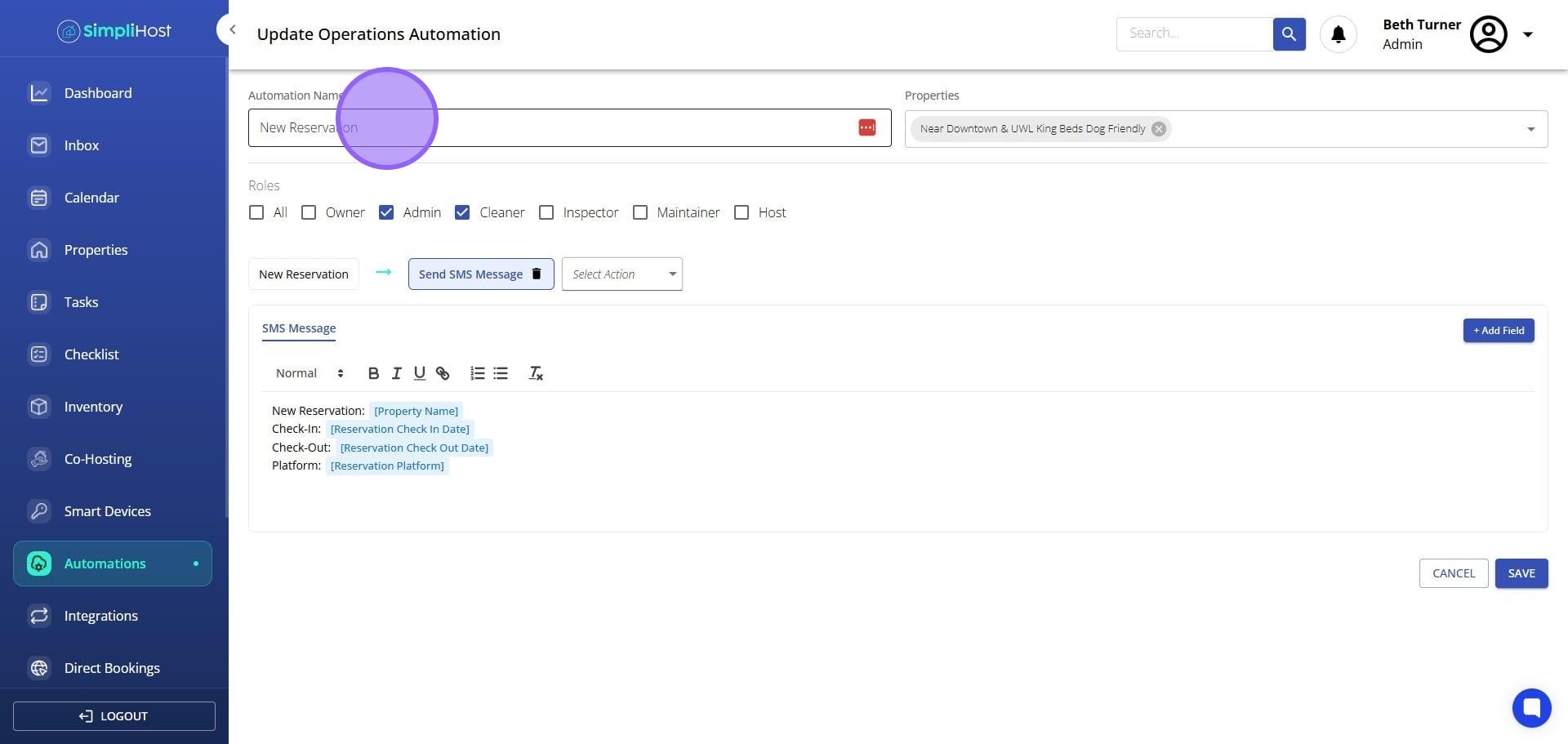
Select the Automation Name field and update the name if needed.
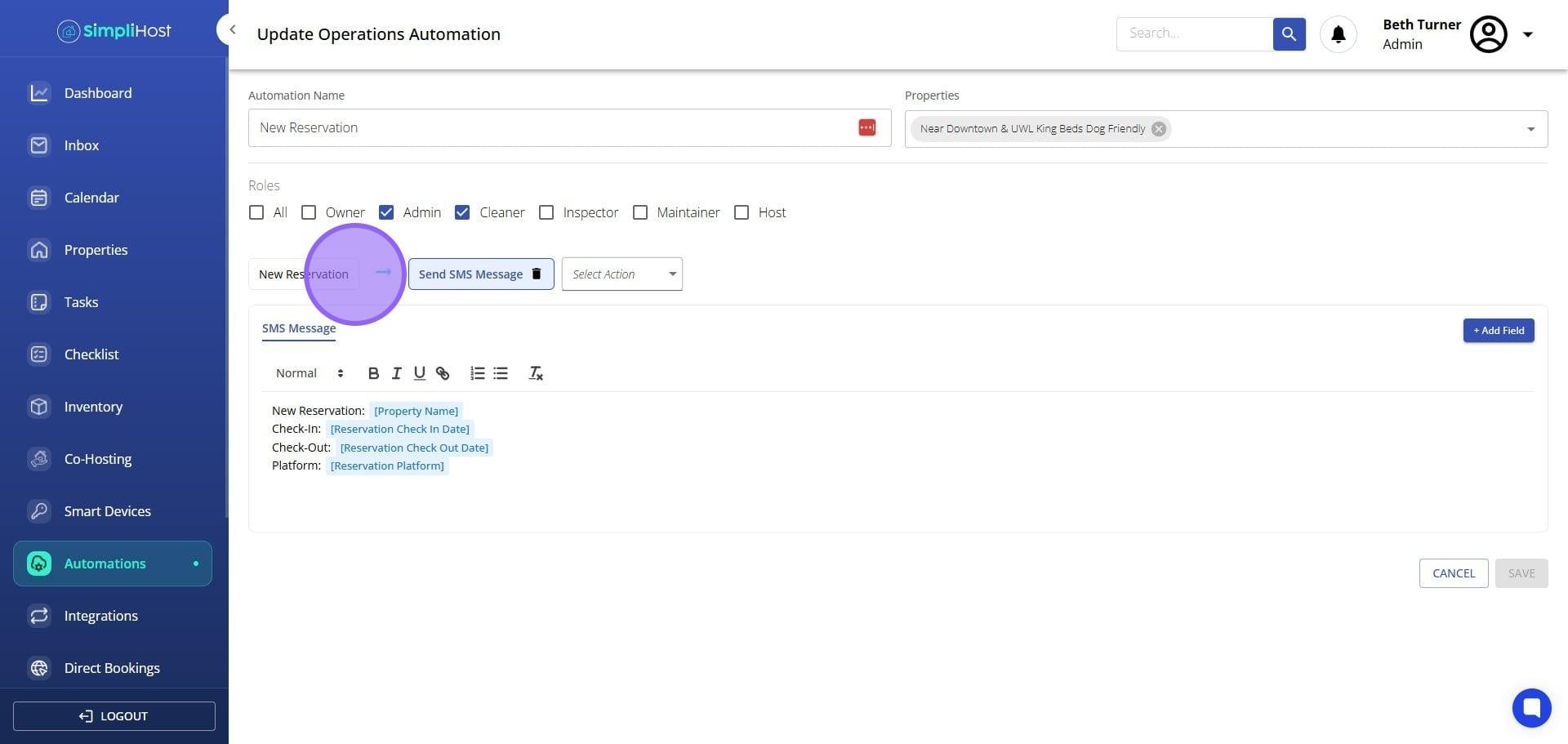
If you do not see a delete icon next to the trigger, the automation is a system standard automation. You can edit its actions and message content, but not its trigger.
To add a new action, select Select Action.
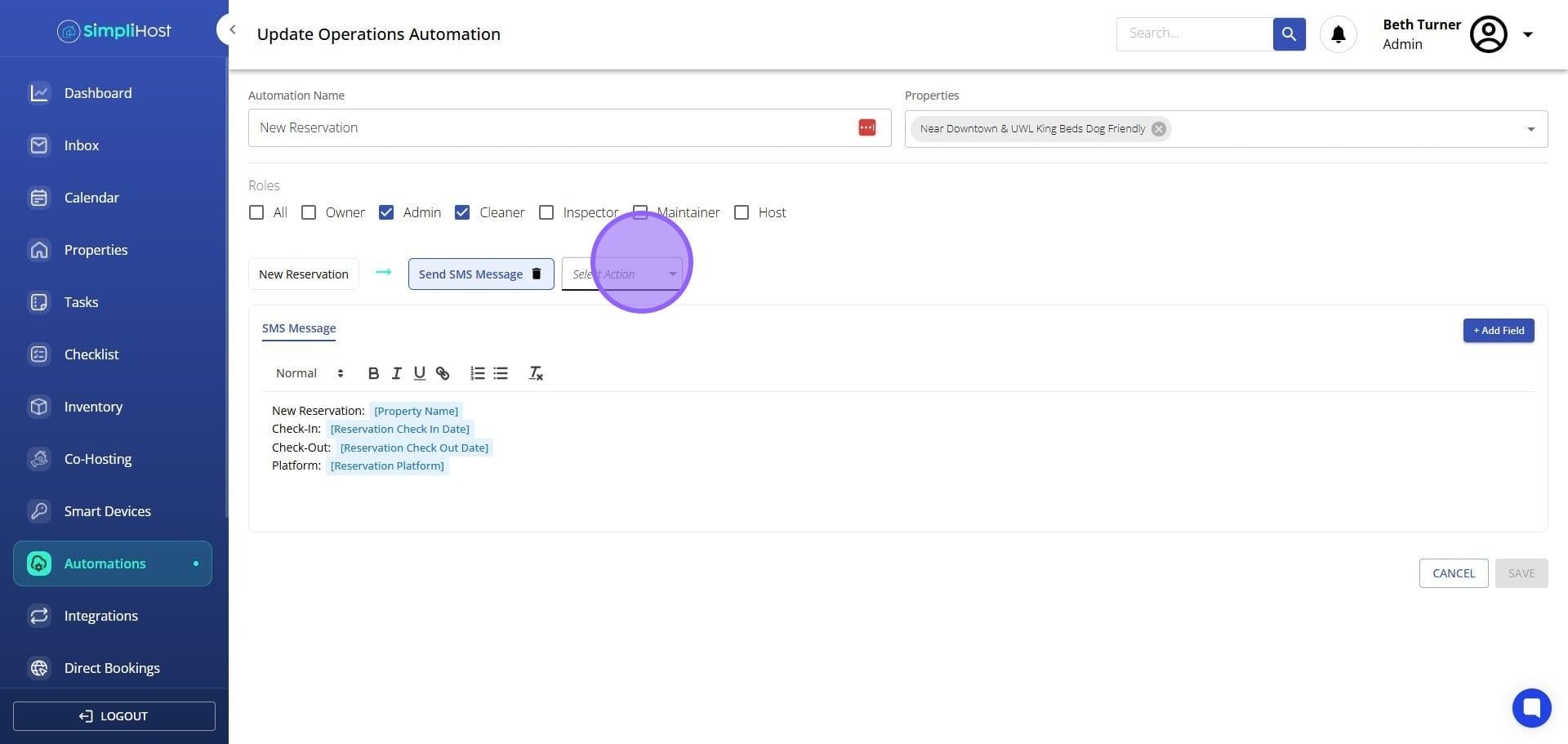
Choose the appropriate action type. For guest automations: Send In-App Message, Send SMS Message, or Send Email Message. For operations automations: Send SMS Message, Send Email Message, or Send Notification.
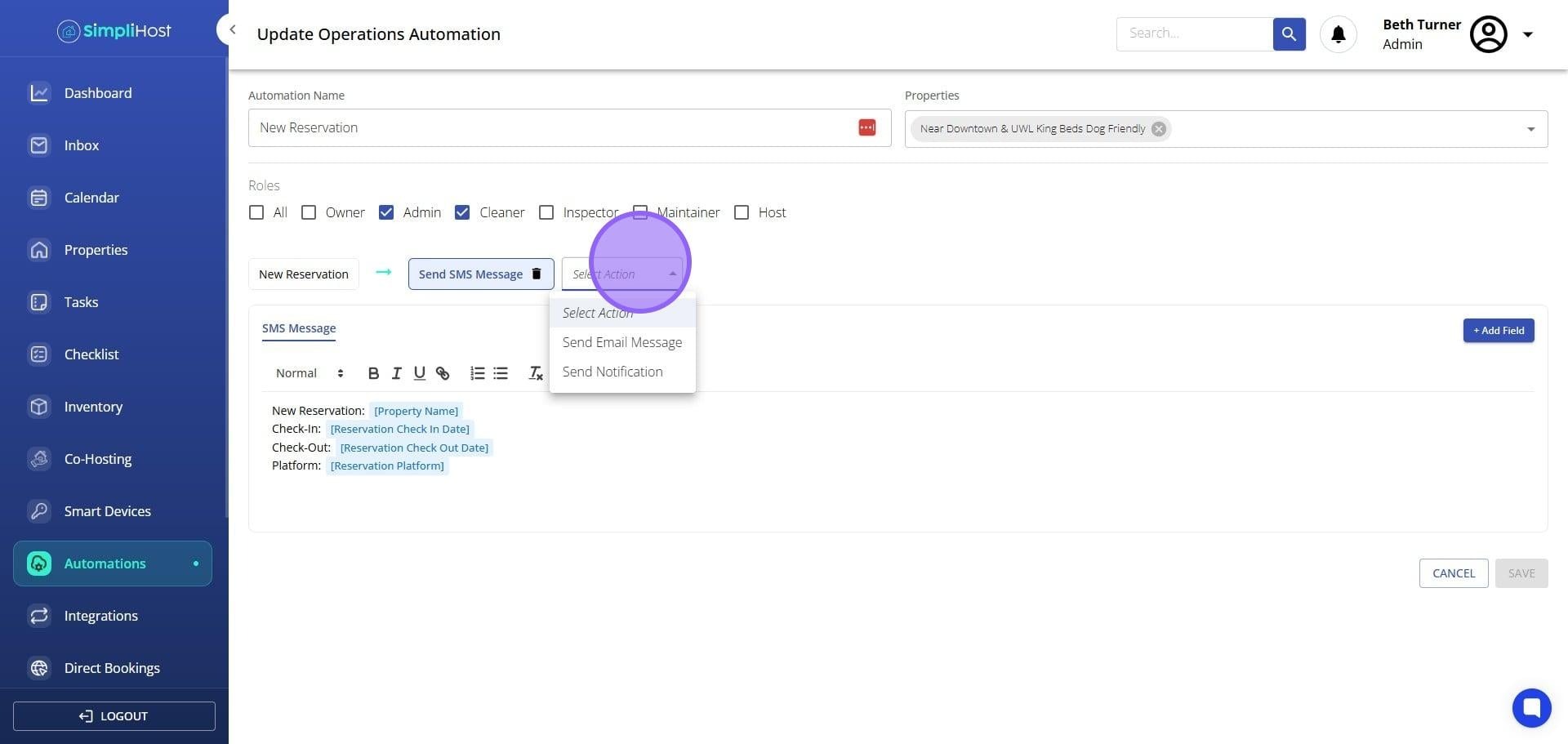
Click into the message body and edit the message text.
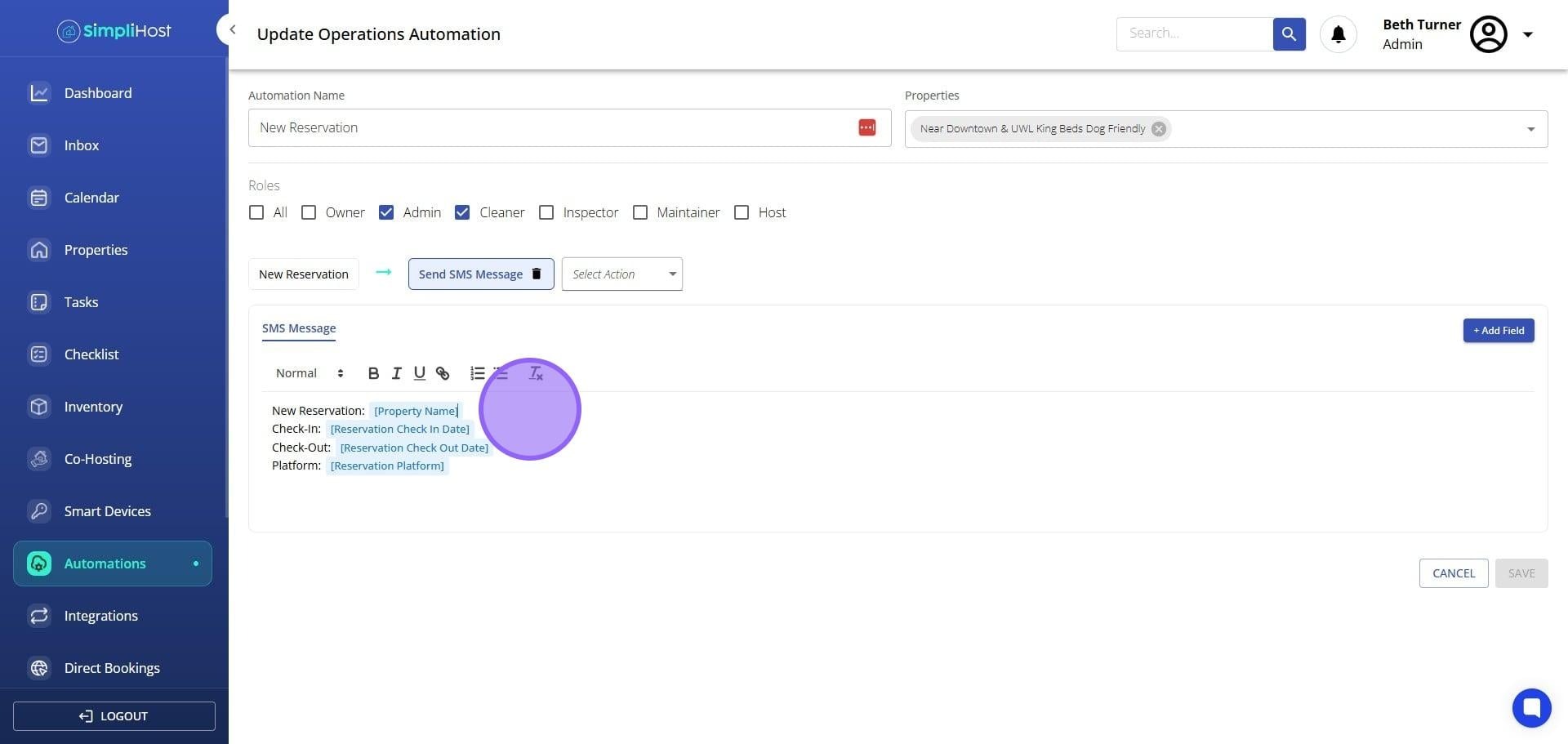
To insert dynamic content, click + Add Field and select the field you want to insert.
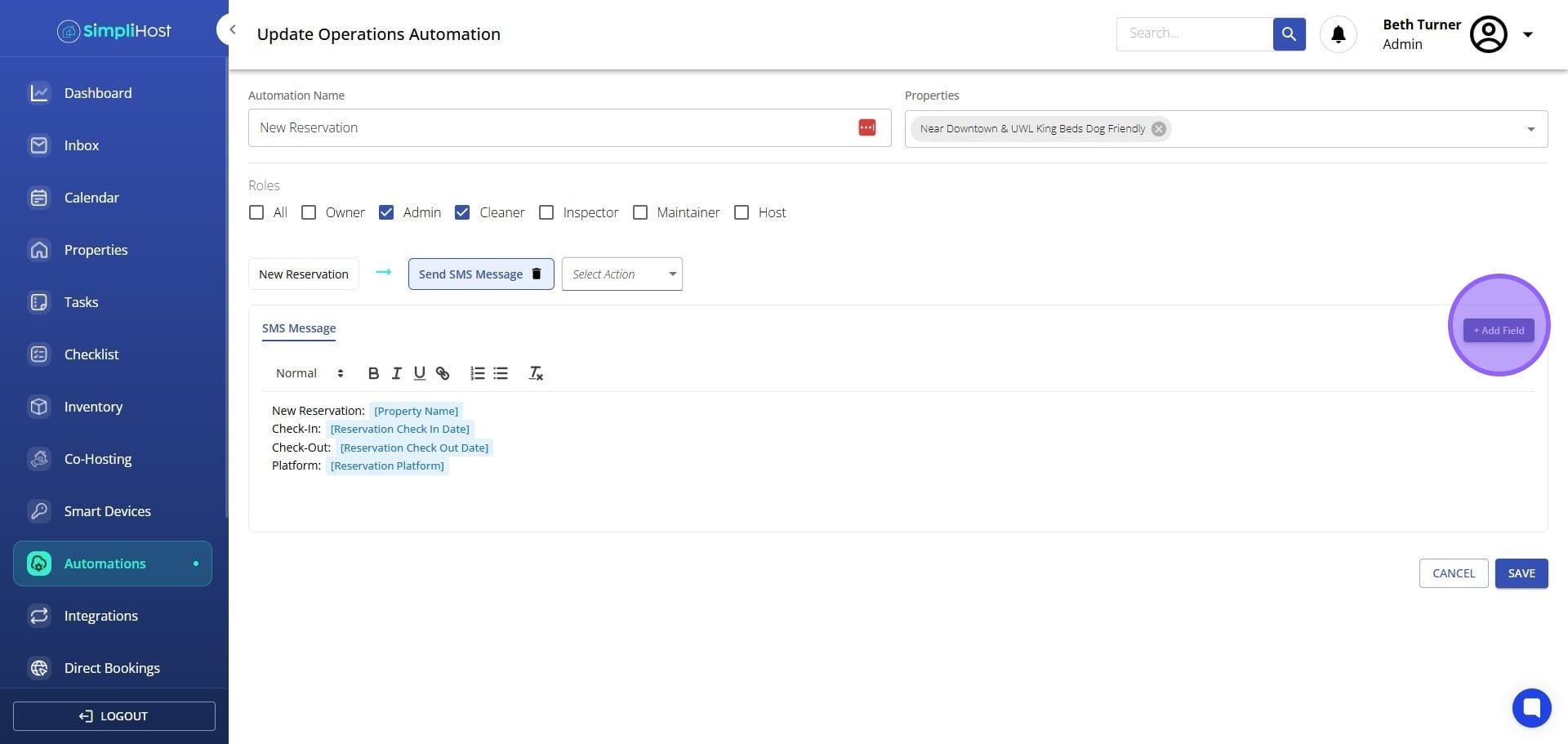
Click Save.
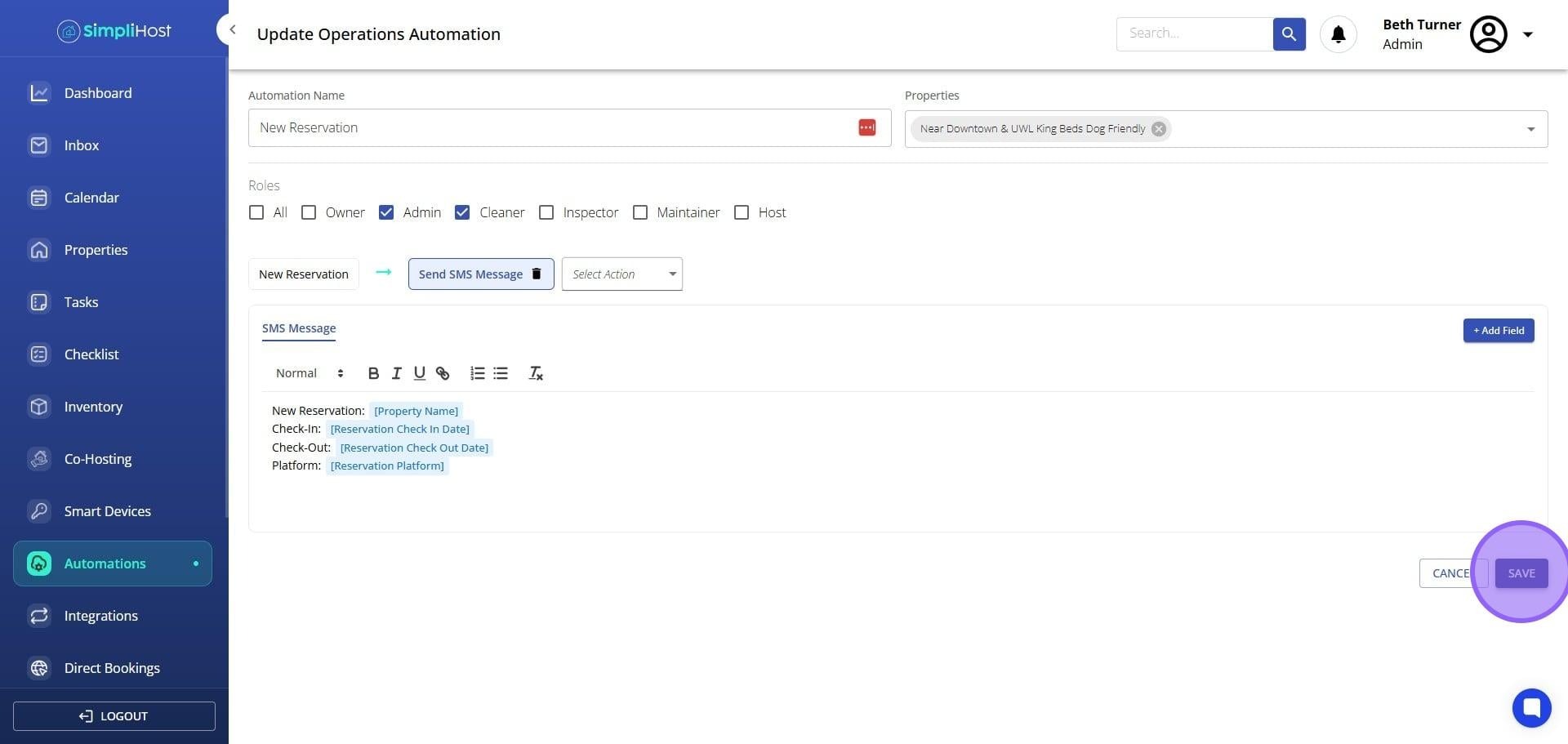
Your changes take effect immediately. The next time the automation triggers, it will use the updated message content, action type, and any dynamic fields you added. Dynamic fields populate in real time based on the reservation tied to each trigger event.
Preview your message mentally with dynamic fields filled in before saving. For example, confirm that "Hi {Guest First Name}, your check-in is at {Check-in Time}" reads naturally in context
Keep message content consistent across action types. If an automation sends both an SMS and an email, make sure both messages reflect the same information
Use the Automation Name field to give each automation a clear, descriptive label to make it easier to find and manage automations as your list grows
Avoid over-stacking actions on a single automation. If a message needs to go to both a guest and a cleaner, consider whether a separate operations automation would be easier to manage
After editing a guest in-app message, check that the tone matches the platform. Airbnb and VRBO guests may have different expectations for communication style
Test your automation after saving by checking the next triggered instance to confirm the message sends as expected
Problem: The delete icon does not appear next to the trigger.
Likely Cause: The automation is a system standard automation, which does not allow trigger editing or deletion.
Fix: Edit only the actions and message content. If you need a different trigger, create a new custom automation instead.
Problem: The "+ Add Field" button does not insert the field into the correct position in the message.
Likely Cause: Your cursor was not placed in the message body before selecting the field.
Fix: Click inside the message box to place your cursor at the desired insertion point, then click "+ Add Field" and select your field.
Problem: Dynamic fields are showing as placeholder text in sent messages instead of actual values.
Likely Cause: The reservation associated with the trigger may be missing the data for that field, such as a missing guest phone number or check-in time.
Fix: Verify that the reservation record is complete and that the field you selected is populated on the relevant reservation.
Problem: You saved changes but the automation is still sending the old message.
Likely Cause: The automation may have already triggered for the current reservation before your changes were saved.
Fix: Confirm the save completed successfully. The updated message will apply to the next reservation that triggers the automation.
Problem: The Send In-App Message option is not available in the action list.
Likely Cause: You may be editing an operations automation rather than a guest automation.
Fix: In-app messaging is only available for guest automations. Confirm the automation type and use SMS or email for operations workflows.
Create a Custom Automation
Still need help? No worries — just open the in-app chat anywhere in SimpliHost and we'll give you a hand.
