Automations in SimpliHost let you send messages and notifications to guests, team members, or property owners automatically based on reservation events, dates, or other triggers. Once set up, automations run in the background without manual effort, helping you stay consistent across every property and booking. There are two automation types: Guest Automations handle outbound communication with guests, while Operations Automations keep your internal team informed and coordinated.
You want to send a check-in reminder to guests a set number of hours before arrival
You need to notify your cleaning team when a reservation is confirmed
You want to follow up with guests after checkout to gather feedback
You manage multiple properties and need a single automation to apply across all of them
You want to send messages using dynamic fields that pull in guest or reservation details automatically
You need to chain multiple actions together under a single trigger
You must have Admin access in SimpliHost to create automations
Confirm whether your automation is guest-facing or operations-facing before you begin, as the action types differ between the two
Properties must already be added to your account before they can be assigned to an automation
Click Automations in the main navigation.
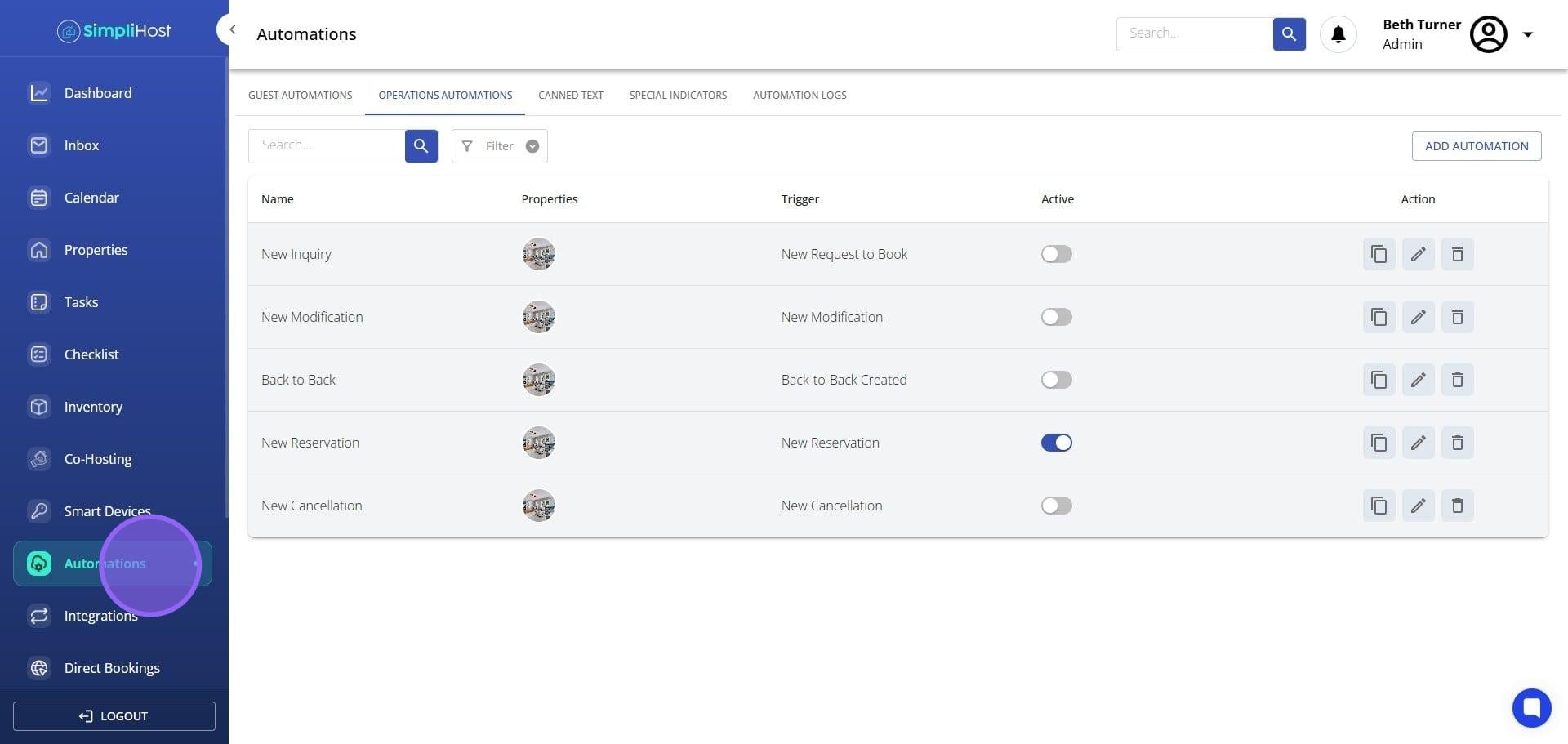
Select Guest Automations or Operations Automations based on the type of automation you want to create.
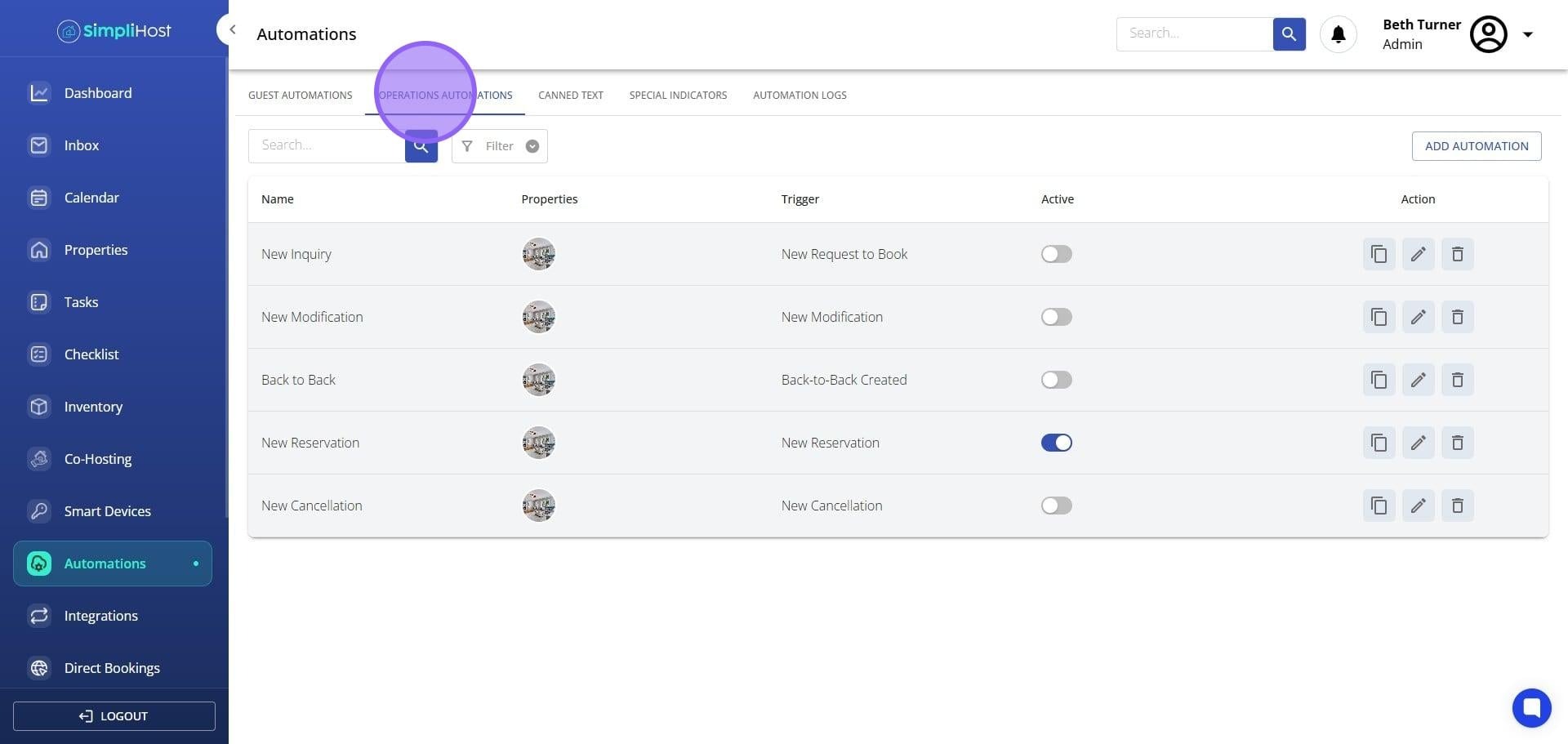
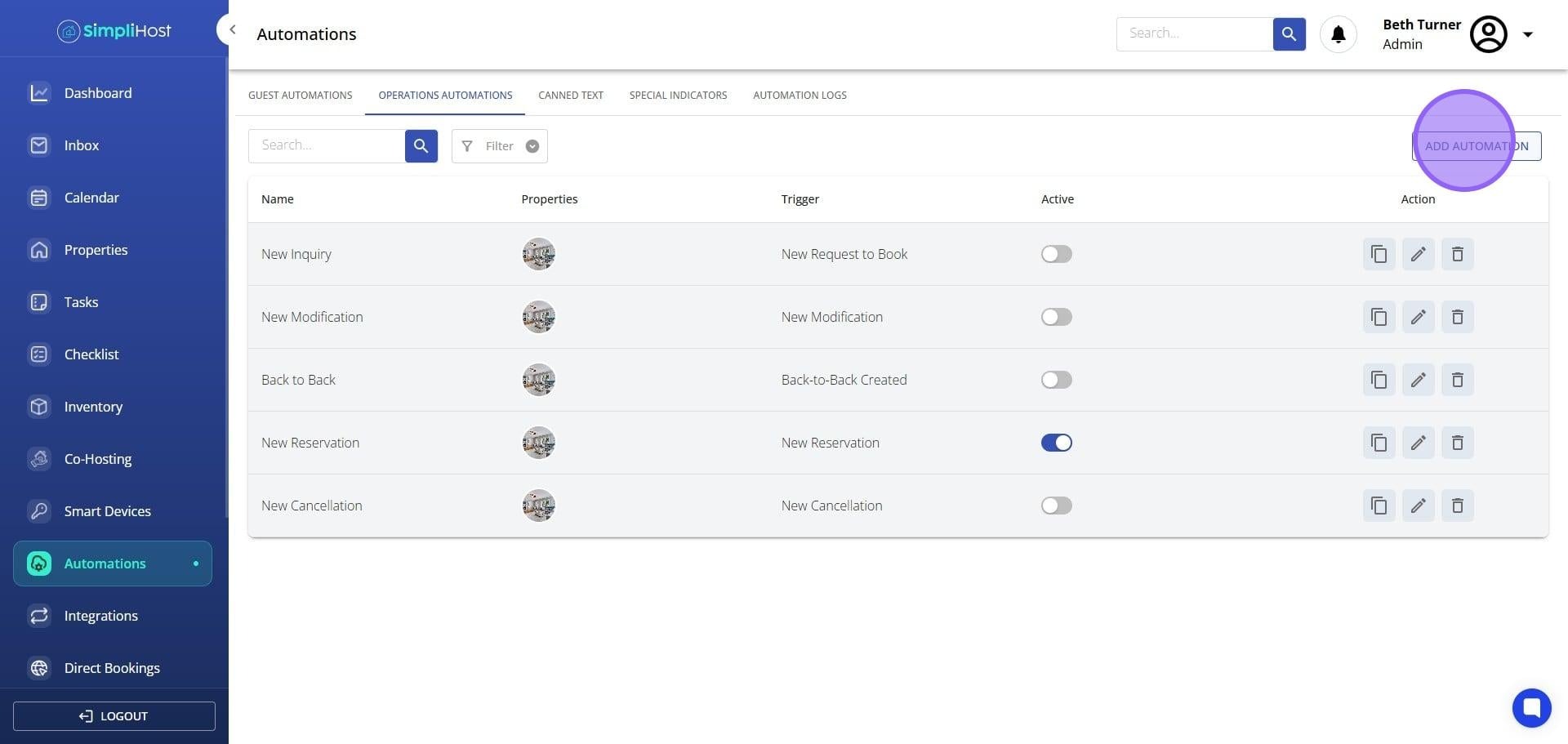
Click Add Automation.
Click the Name field and enter a name for your automation.
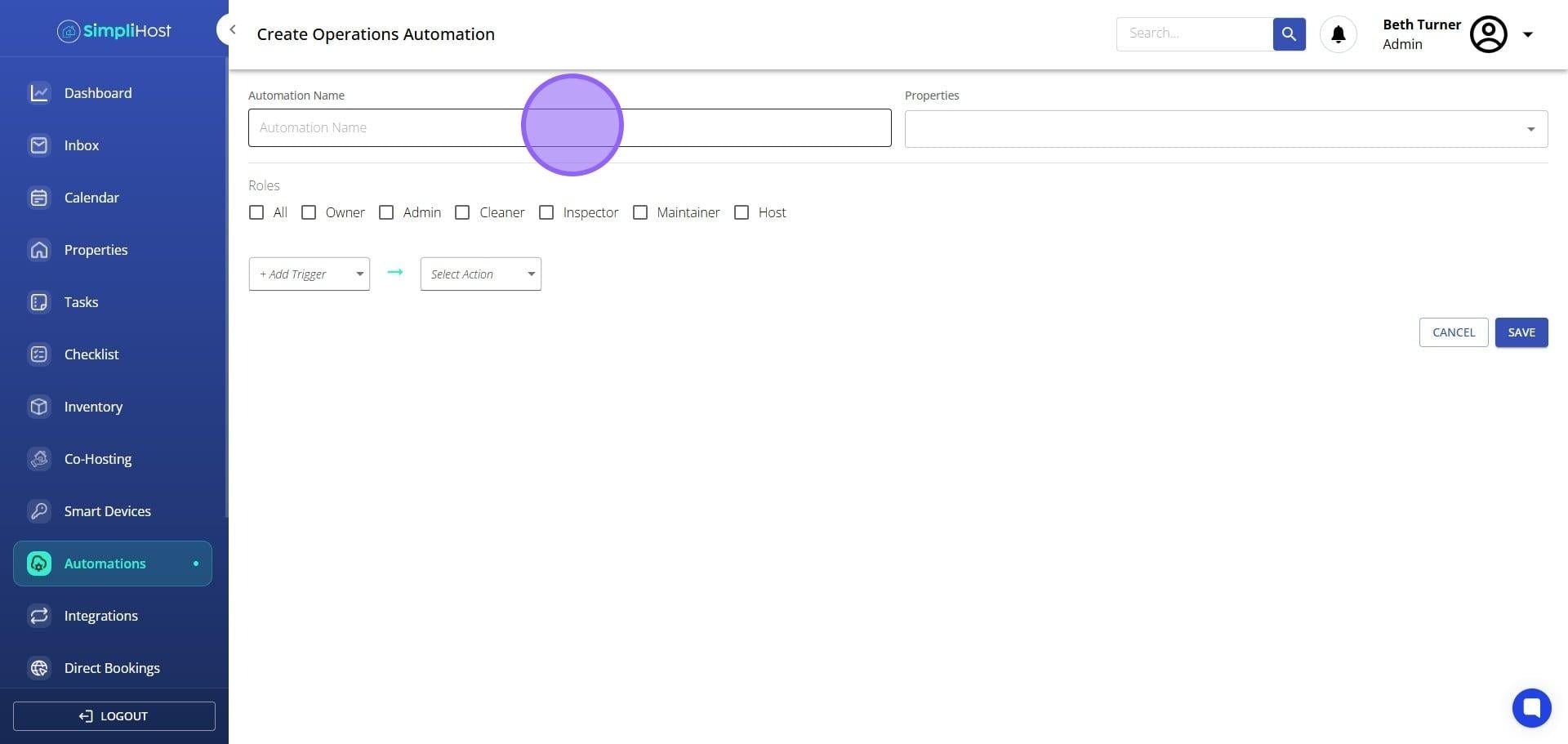
Click into the Properties field and select all properties this automation should apply to. Any properties you add to your account after creating this automation will be included automatically.
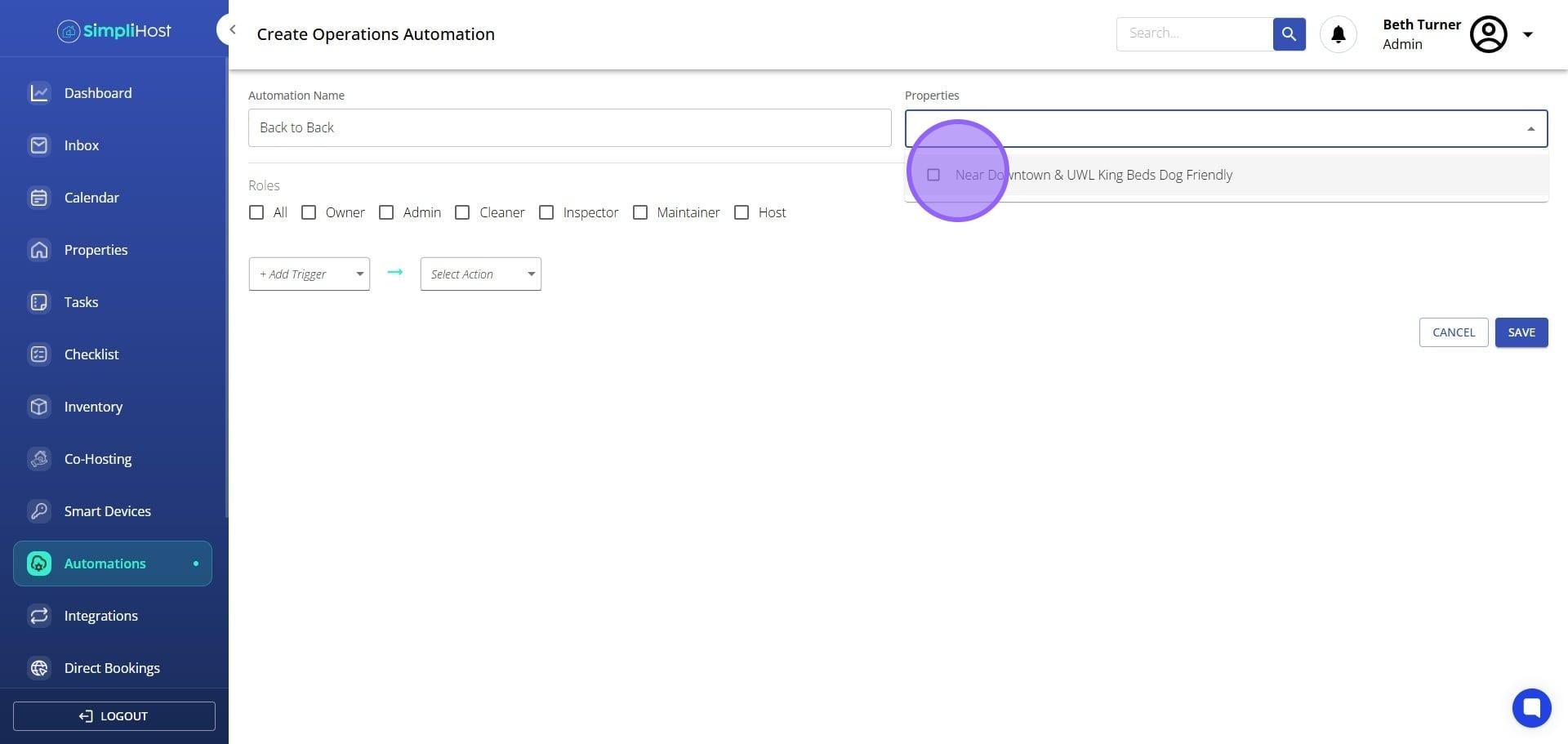
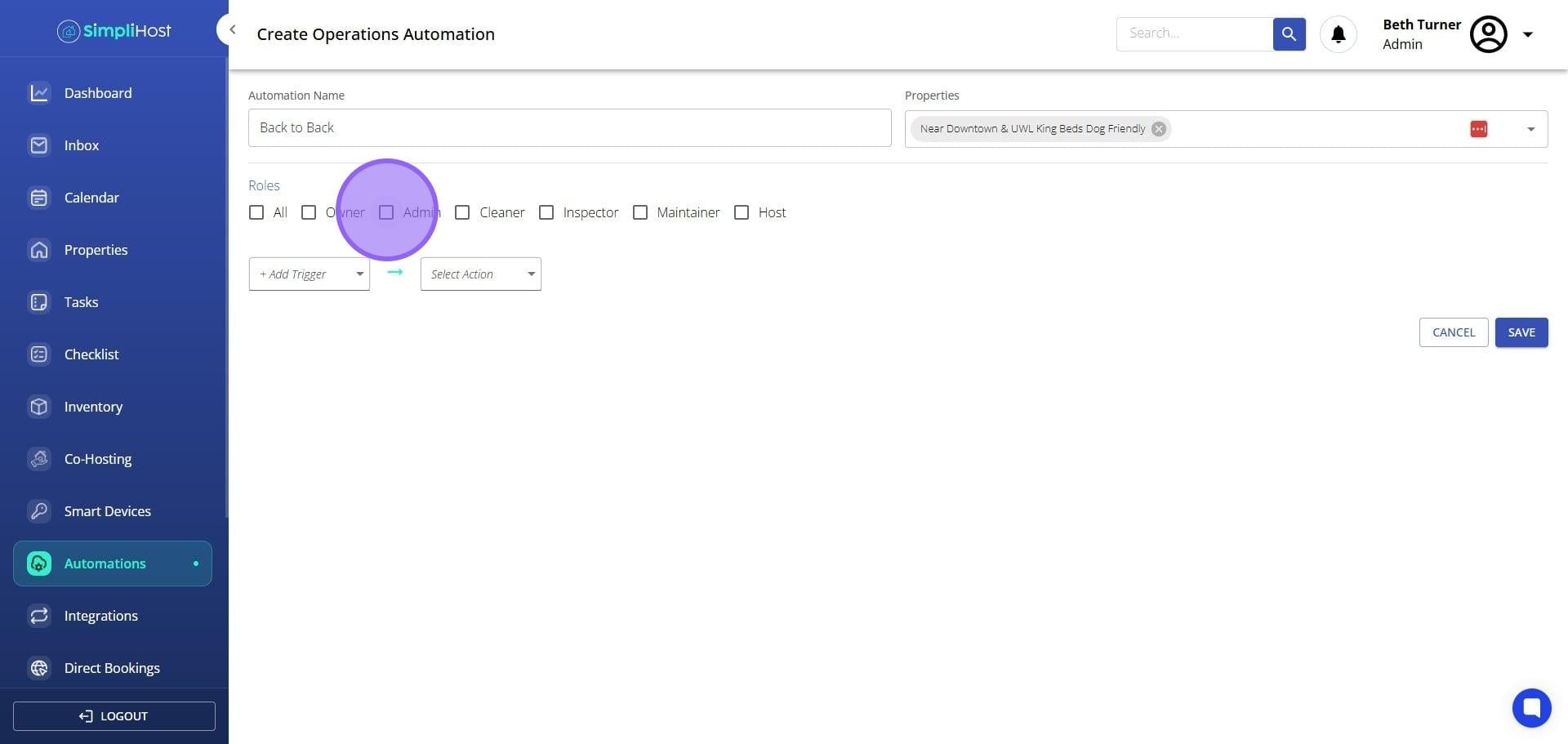
Select the appropriate Role for this automation, such as Admin, Cleaner, Host, or Owner.
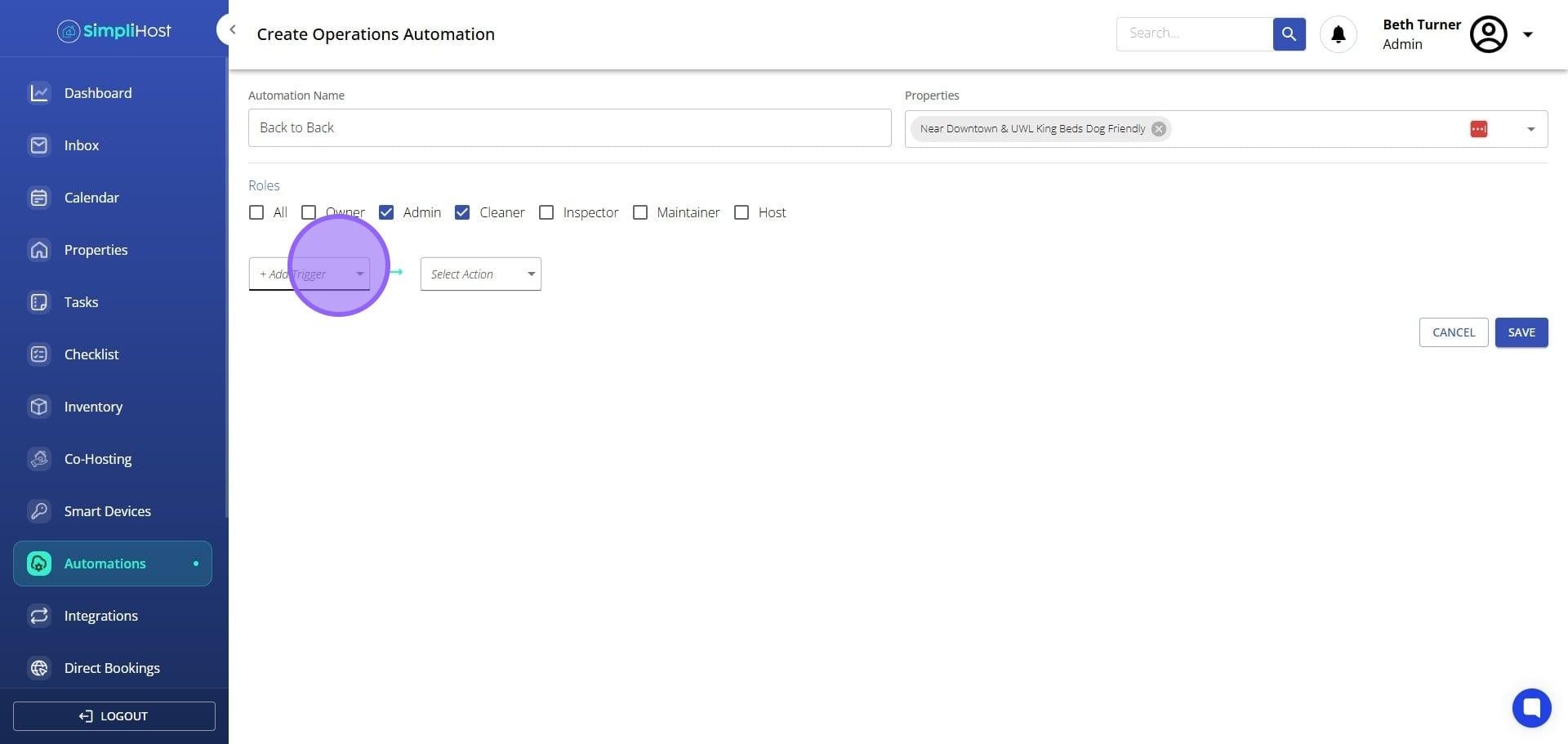
Click + Add Trigger.
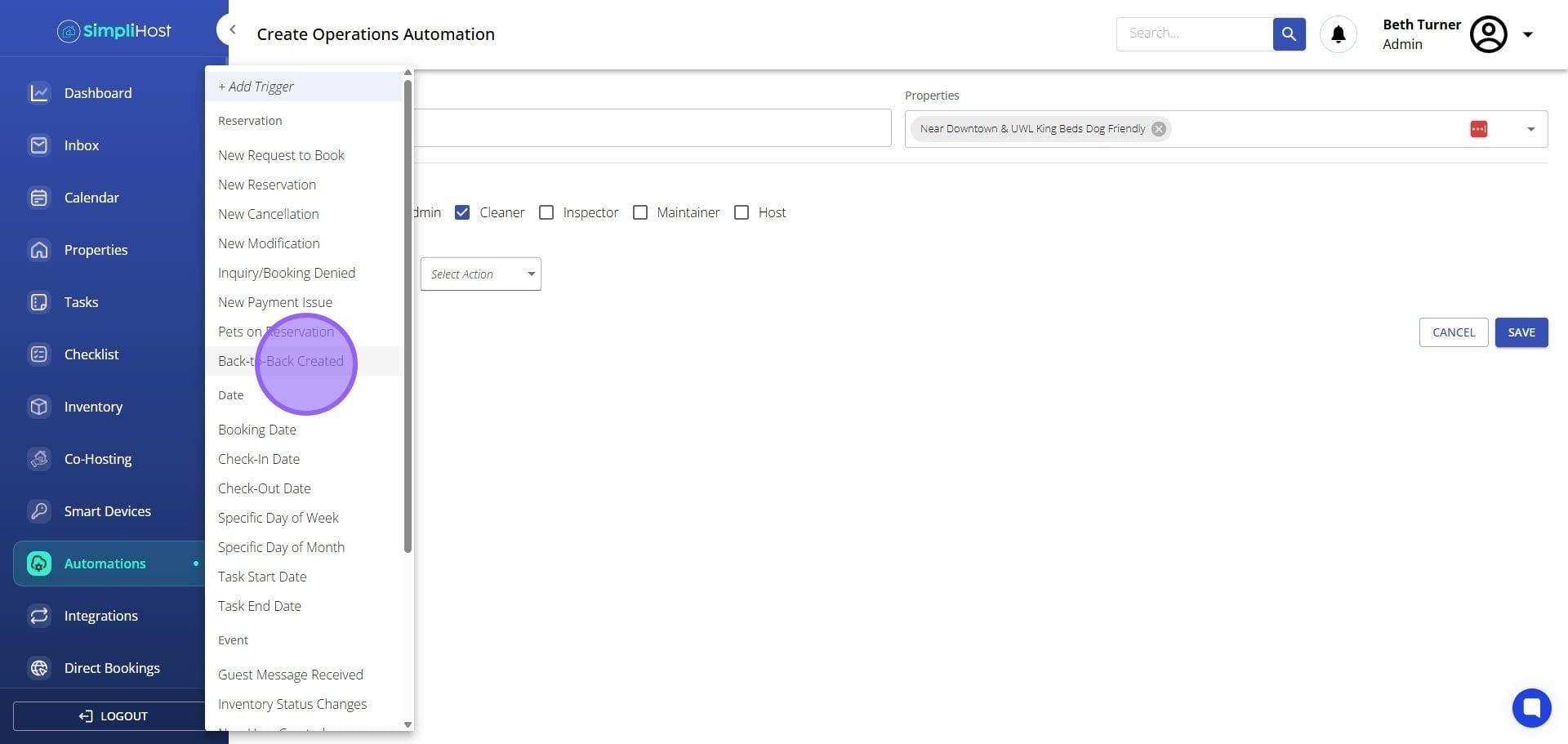
Click the trigger that fits your use case. Triggers fall into three types: Reservation triggers fire when a booking event occurs. Date-based triggers require you to specify whether the action sends before, on, or after the date, and if before or after, how many hours, days, or weeks in advance and at what time. Event-based triggers fire when a specific activity occurs, such as a guest message being received.
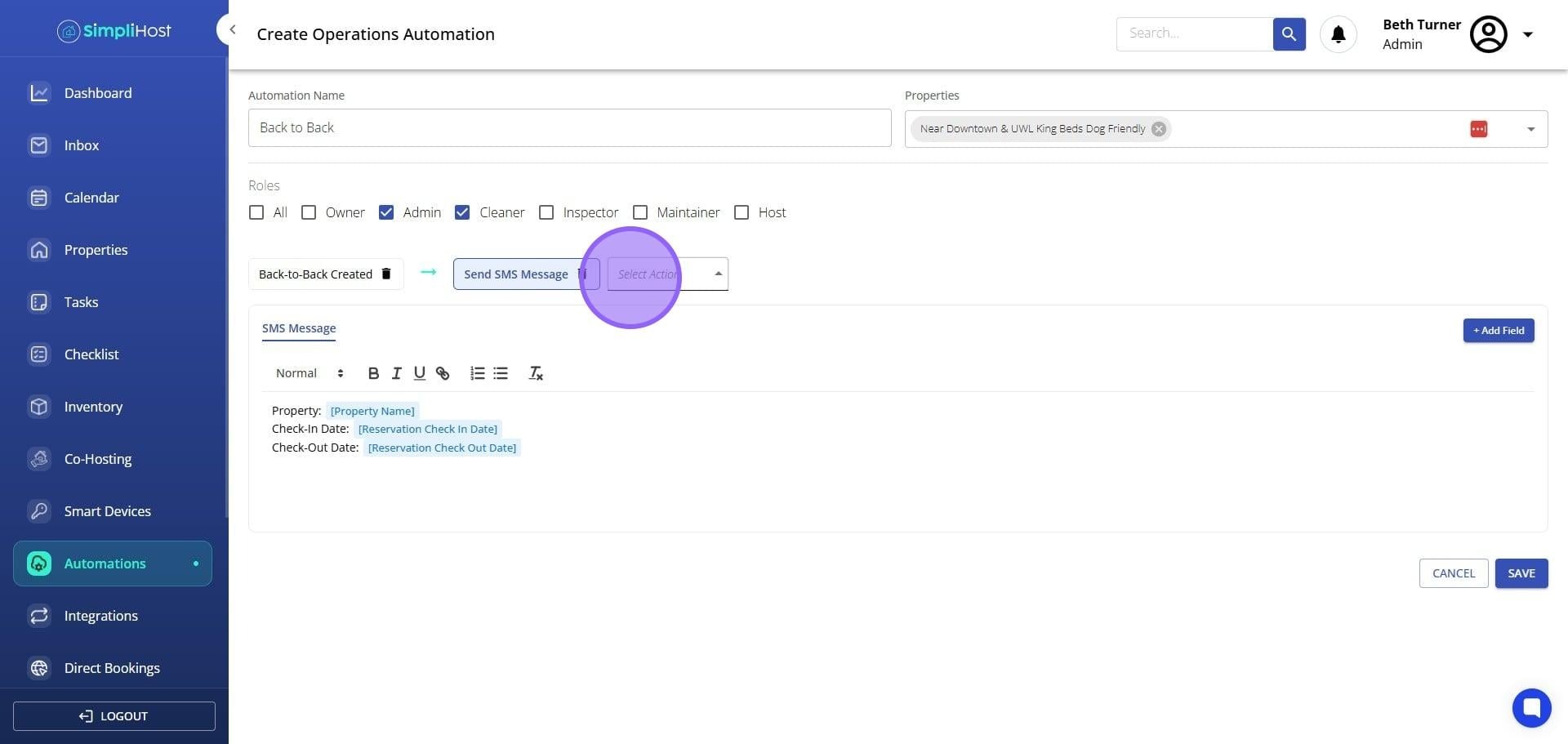
Click Select Action.
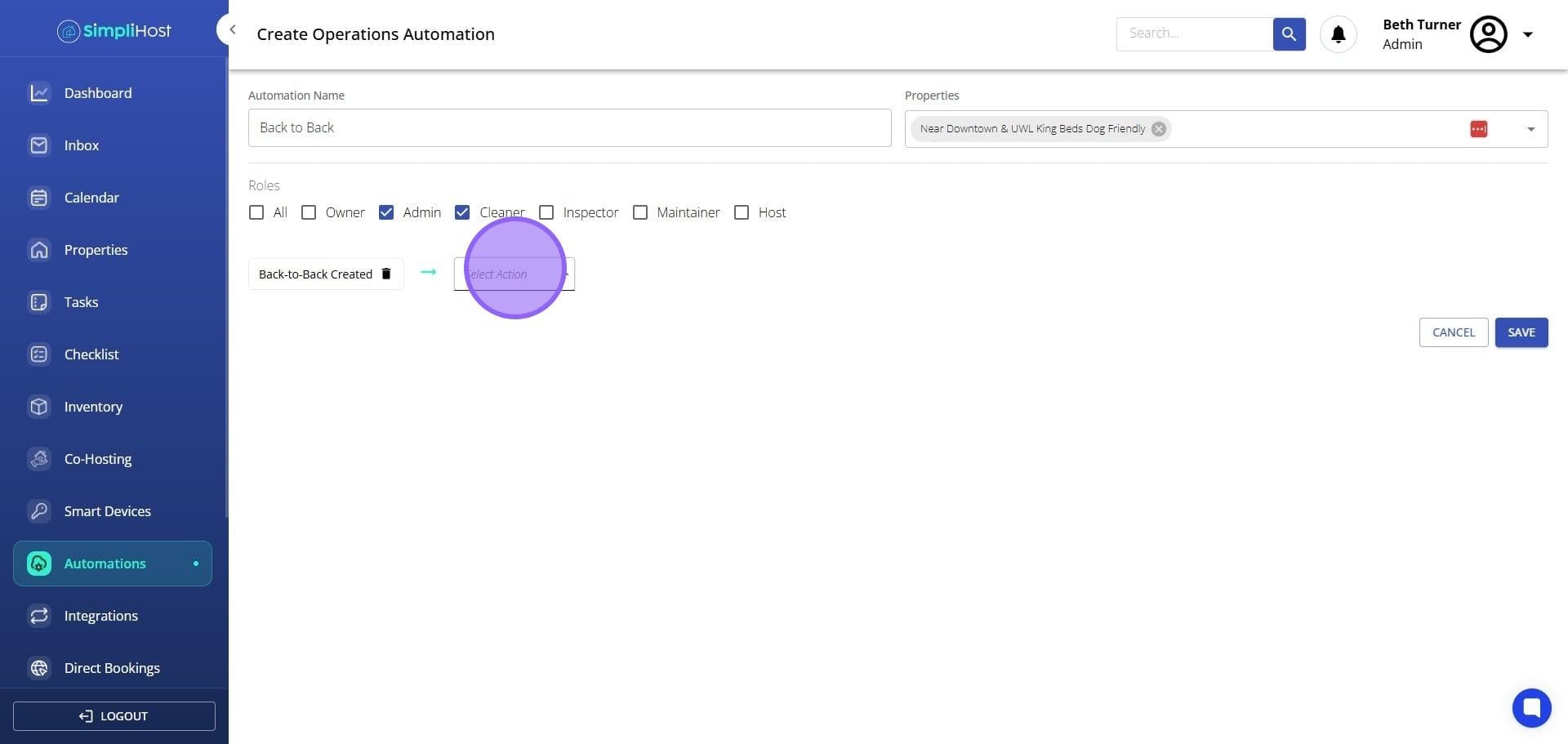
Choose the action type for your automation. For Guest Automations: Send In-App Message, Send SMS Message, or Send Email Message. For Operations Automations: Send SMS Message, Send Email Message, or Send Notification.
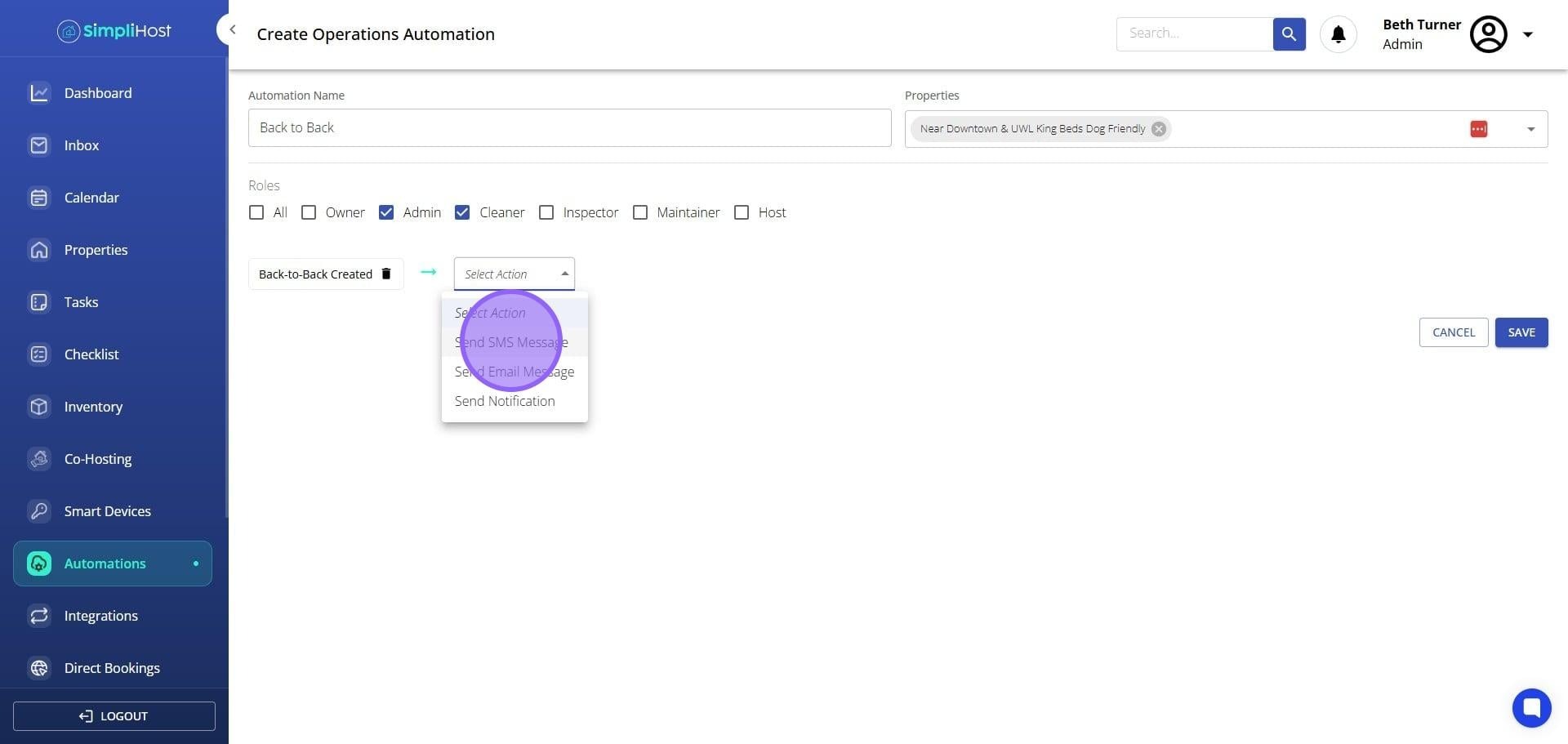
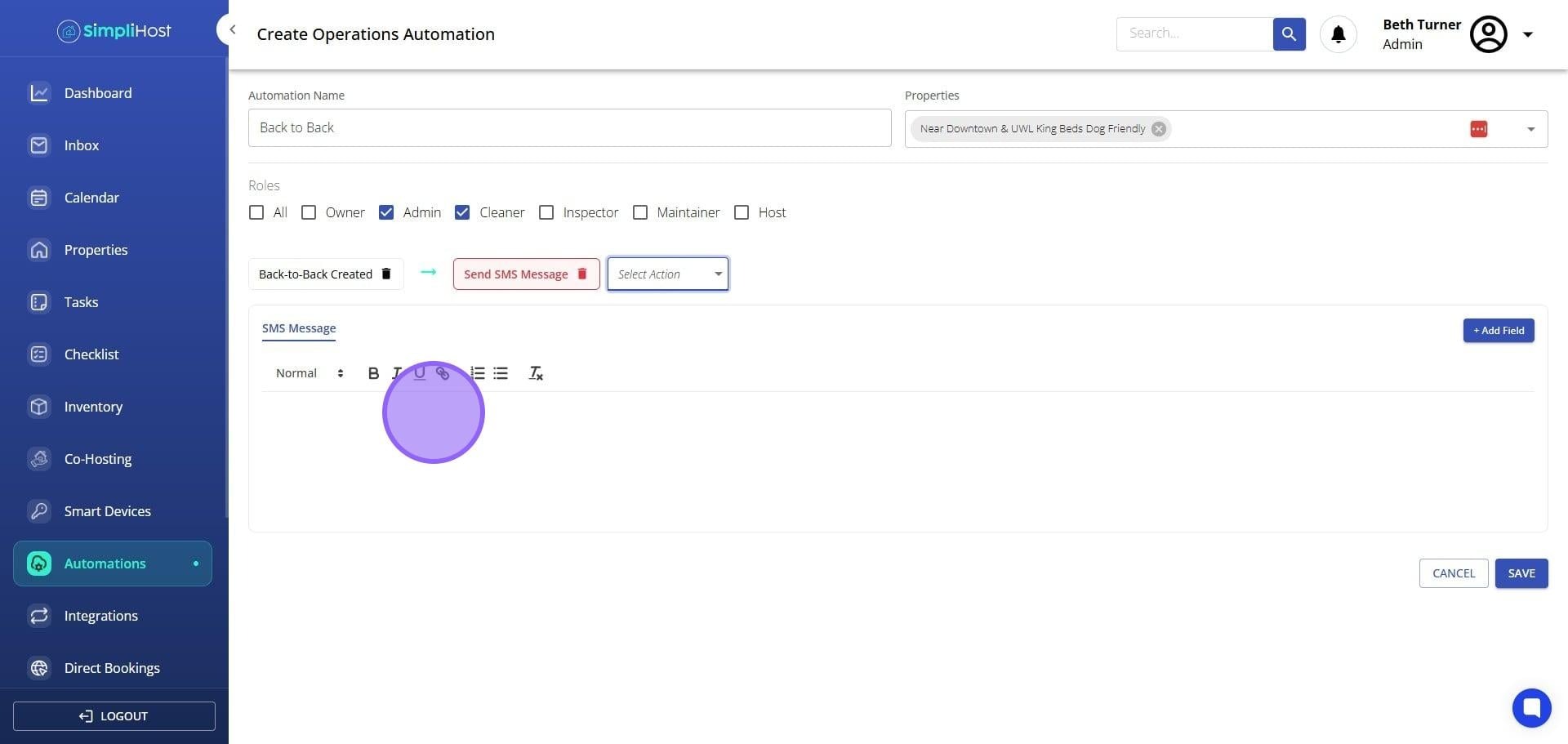
Click into the message body and begin drafting your message.
To insert a dynamic field that pulls in guest or reservation data automatically, click + Add Field.
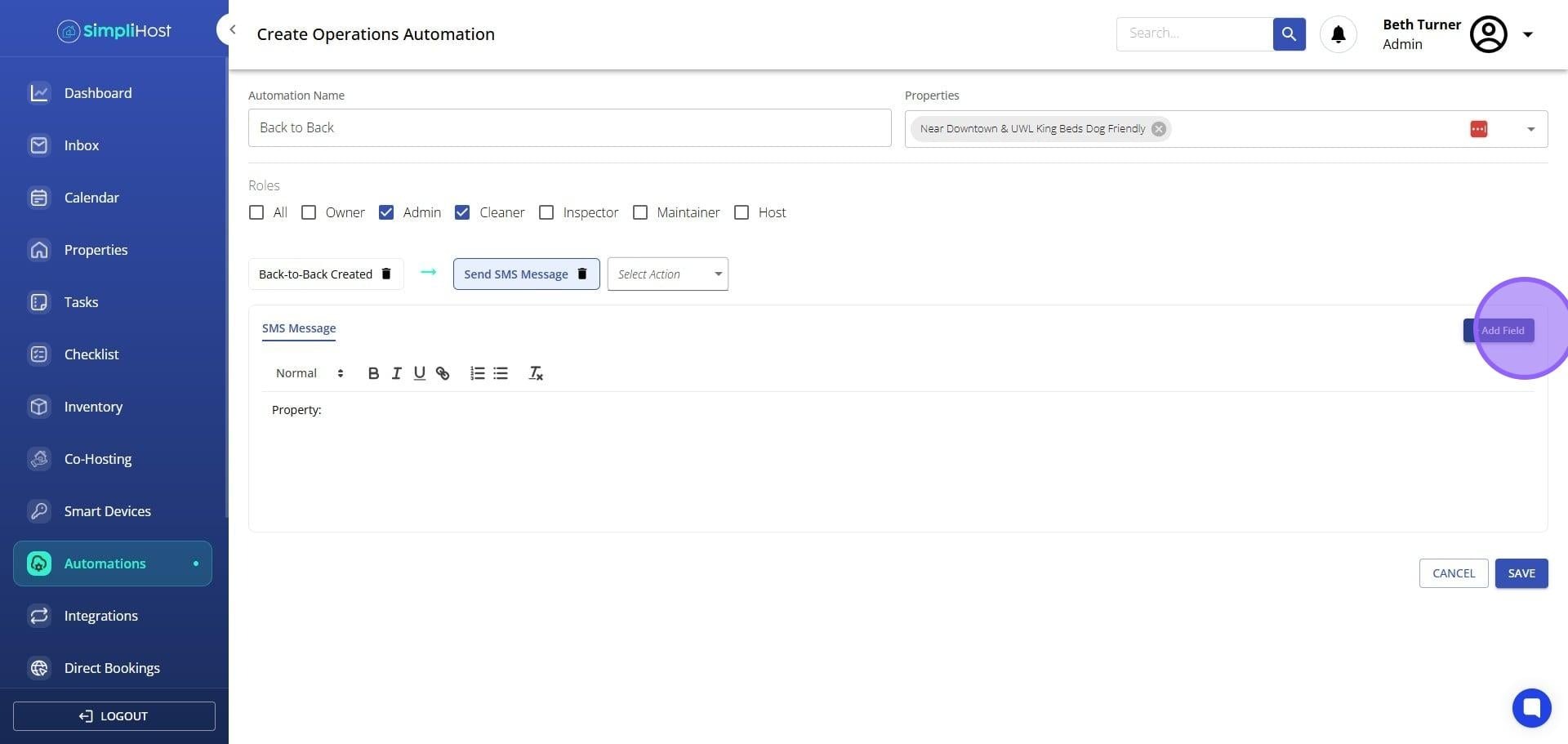
Type ahead to search for the field you need, then click it to insert it.
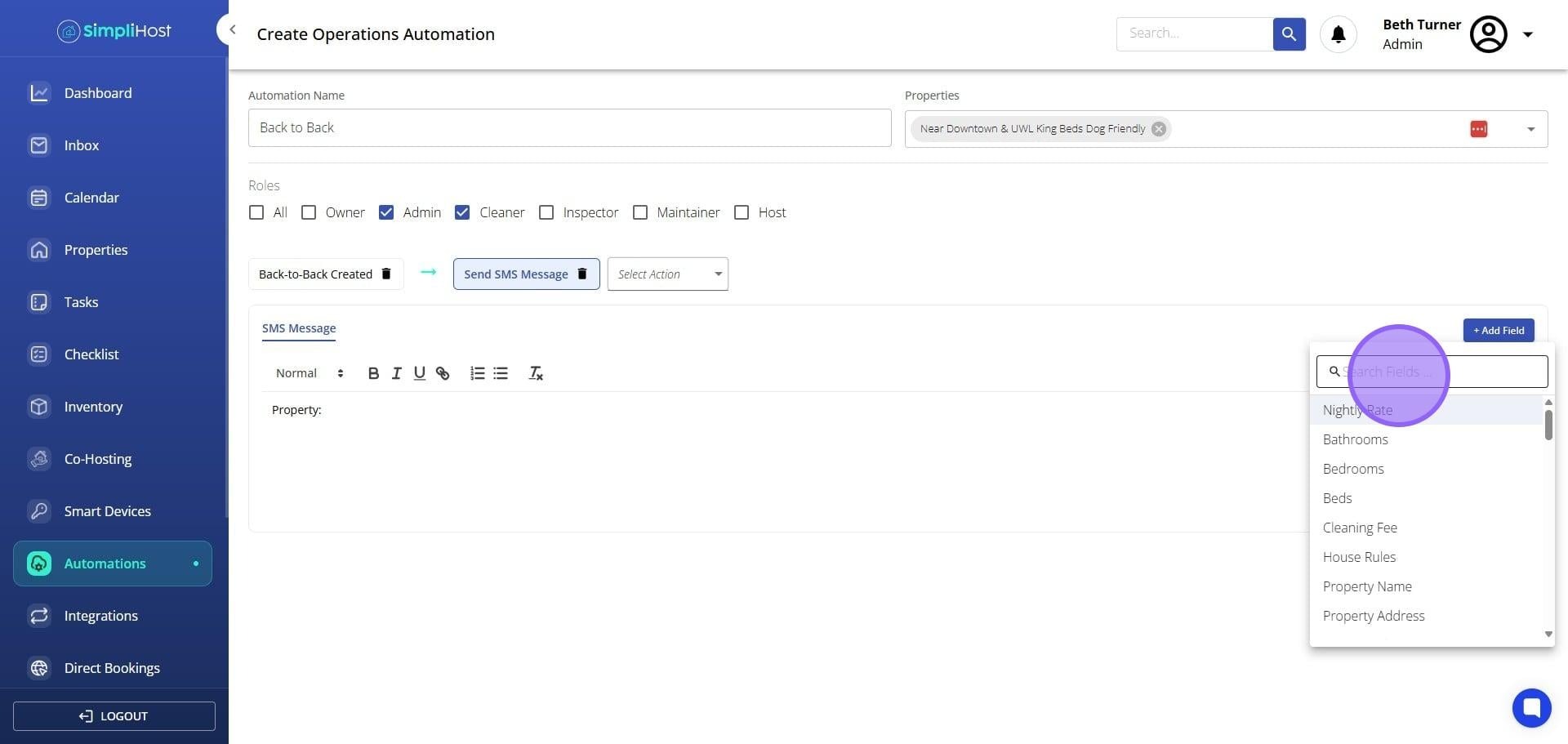
Complete your message using any combination of free text and dynamic fields.
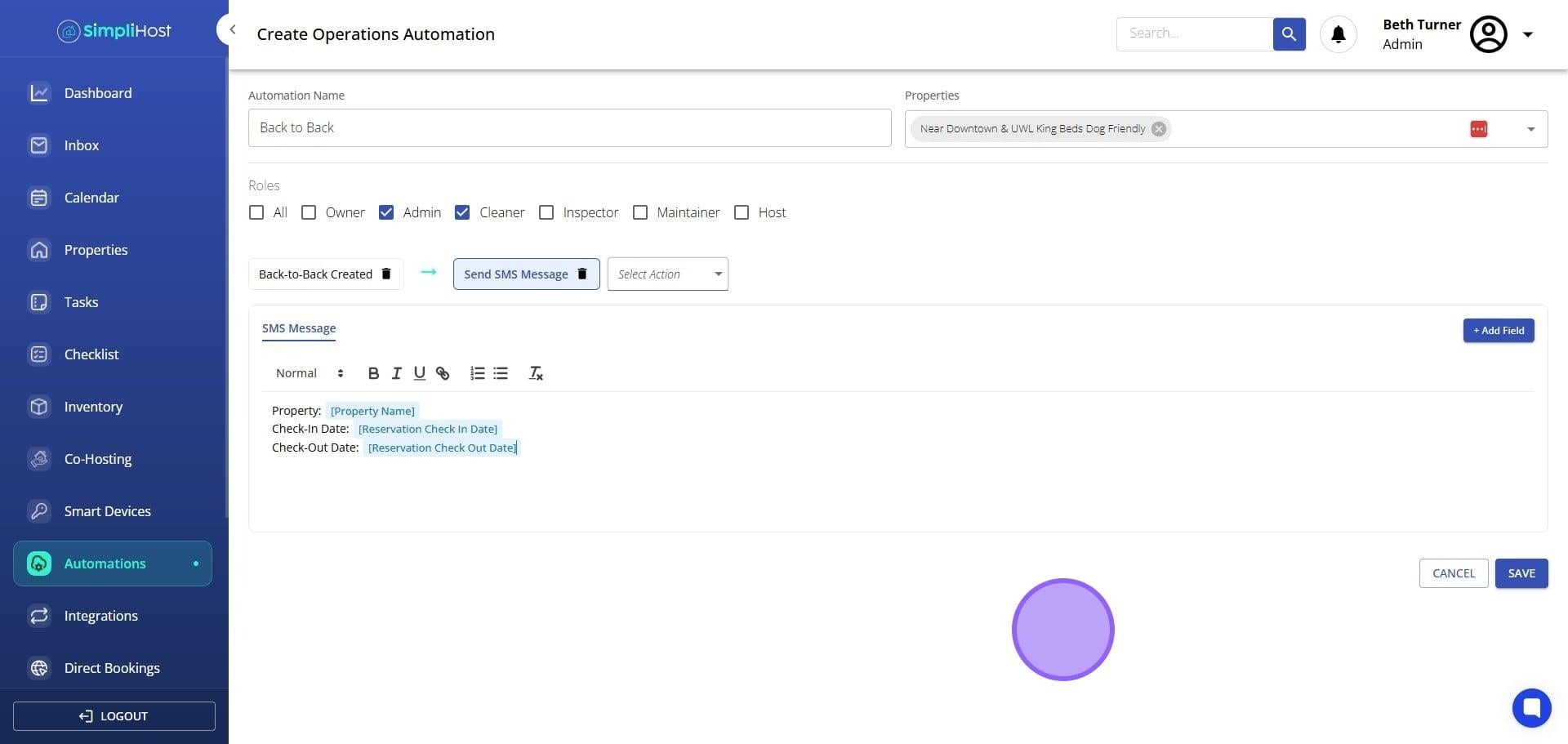
To add a second action to the same trigger, click Select Action again and repeat steps 10 through 14.
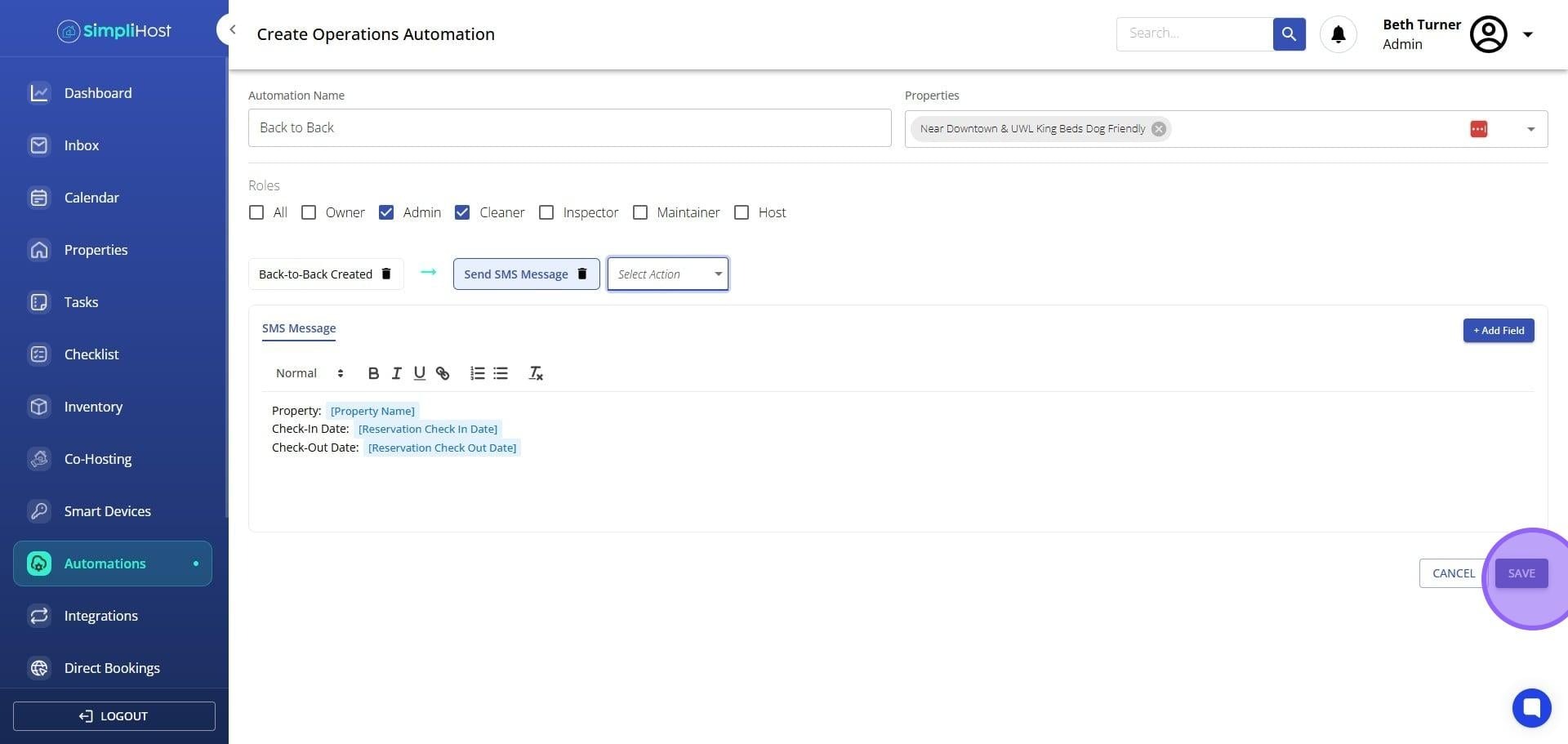
Once all actions are complete, click Save.
You will be returned to the automation list screen. The automation you just created will appear in the list and will already be set to active. No additional steps are needed to turn it on. If you selected date-based triggers, automations will begin queuing for upcoming reservations that match your trigger conditions.
Name automations clearly so your team can identify them at a glance. For example, "Check-In Reminder - 24hrs" is more useful than "Automation 1"
Use dynamic fields for guest names, property addresses, and check-in times to make messages feel personal without extra effort
Review your trigger timing carefully for date-based automations. Sending too early or too late can reduce the impact of your message
Build separate automations for guest communication and internal operations rather than trying to combine both in a single workflow
If you manage a large portfolio, use the Properties selector intentionally. It is easy to assign an automation too broadly or too narrowly during setup
After saving, send a test reservation through a property to confirm the automation fires as expected before guests receive it
Problem: The automation is not sending messages to guests.
Likely Cause: The automation may not be active, or the trigger conditions may not match the reservation.
Fix: Open the automation and confirm it is toggled on. Review the trigger settings and check that the reservation you are testing against meets the trigger criteria.
Problem: Dynamic fields are showing as blank in sent messages.
Likely Cause: The field selected may not have available data for that reservation or property.
Fix: Verify that the reservation or property record contains the information the field is pulling from. Some fields only populate once a guest completes their profile or a booking is confirmed.
Problem: The automation is firing for properties it should not apply to.
Likely Cause: A new property was added after the automation was created and was automatically included.
Fix: Open the automation, go to the Properties field, and remove any properties that should not be included.
Problem: A date-based automation is not sending at the expected time.
Likely Cause: The time zone setting for the property or account may differ from what was entered during setup.
Fix: Check the time zone settings on the affected property and confirm that the send time in the automation aligns with the local time zone.
Problem: The second action in a multi-action automation is not being sent.
Likely Cause: The first action may have an error that is preventing the full automation from running, or the second action was not saved correctly.
Fix: Re-open the automation, confirm both actions are visible and configured, and save again. Check the message body on the second action for any incomplete fields.
Manage and Edit Existing Automations
Set Up Automation Templates for Common Workflows
Assign Roles and Permissions in SimpliHost
Add and Manage Properties in Your Portfolio
Still need help? No worries — just open the in-app chat anywhere in SimpliHost and we'll give you a hand.
