SimpliHost can automatically generate a checkout cleaning task for every reservation, saving you the time of creating tasks manually. You can assign a default checklist, set a cleaning duration or flexible window, auto-assign tasks to a property's primary cleaner, and even attach a pet checklist when a reservation includes pets. These settings apply globally across all properties and can be overridden on a per-property basis when needed.
You want checkout cleaning tasks created automatically for every new reservation
You are setting up a default cleaning checklist to attach to all auto-generated tasks
You want to assign cleaning tasks to each property's primary cleaner without manual effort
You need to set a standard cleaning duration or a flexible completion window
You manage properties with pet-friendly listings and want a separate pet checklist added automatically
You need to override global cleaning task settings for one specific property
Create any cleaning checklists you plan to use before enabling this setting. You can select no checklist if you only need a bare task to be created
Confirm you have admin or settings-level access in SimpliHost
Identify which properties have a designated primary cleaner if you plan to use auto-assignment
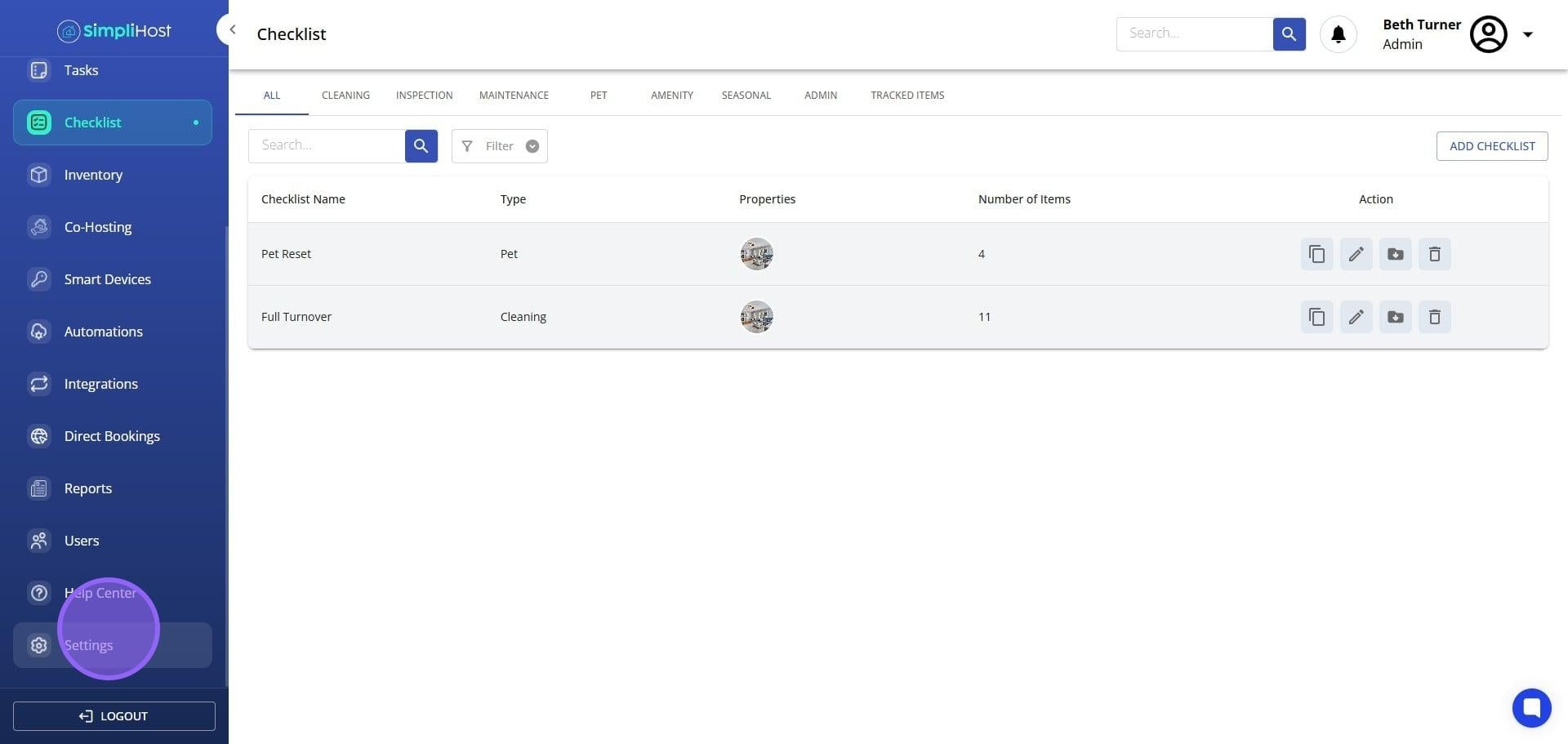
Click Settings.
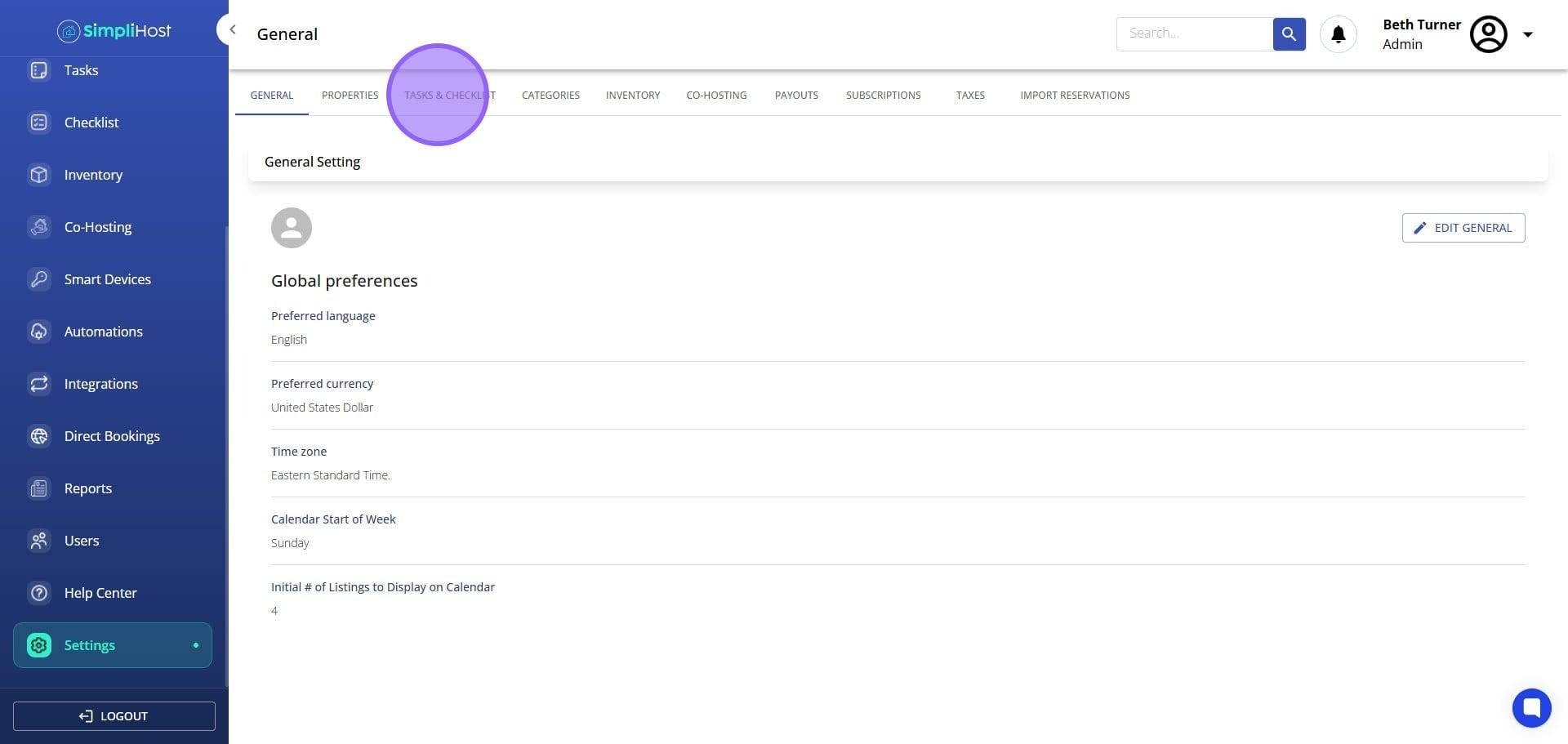
Click Tasks & Checklist.
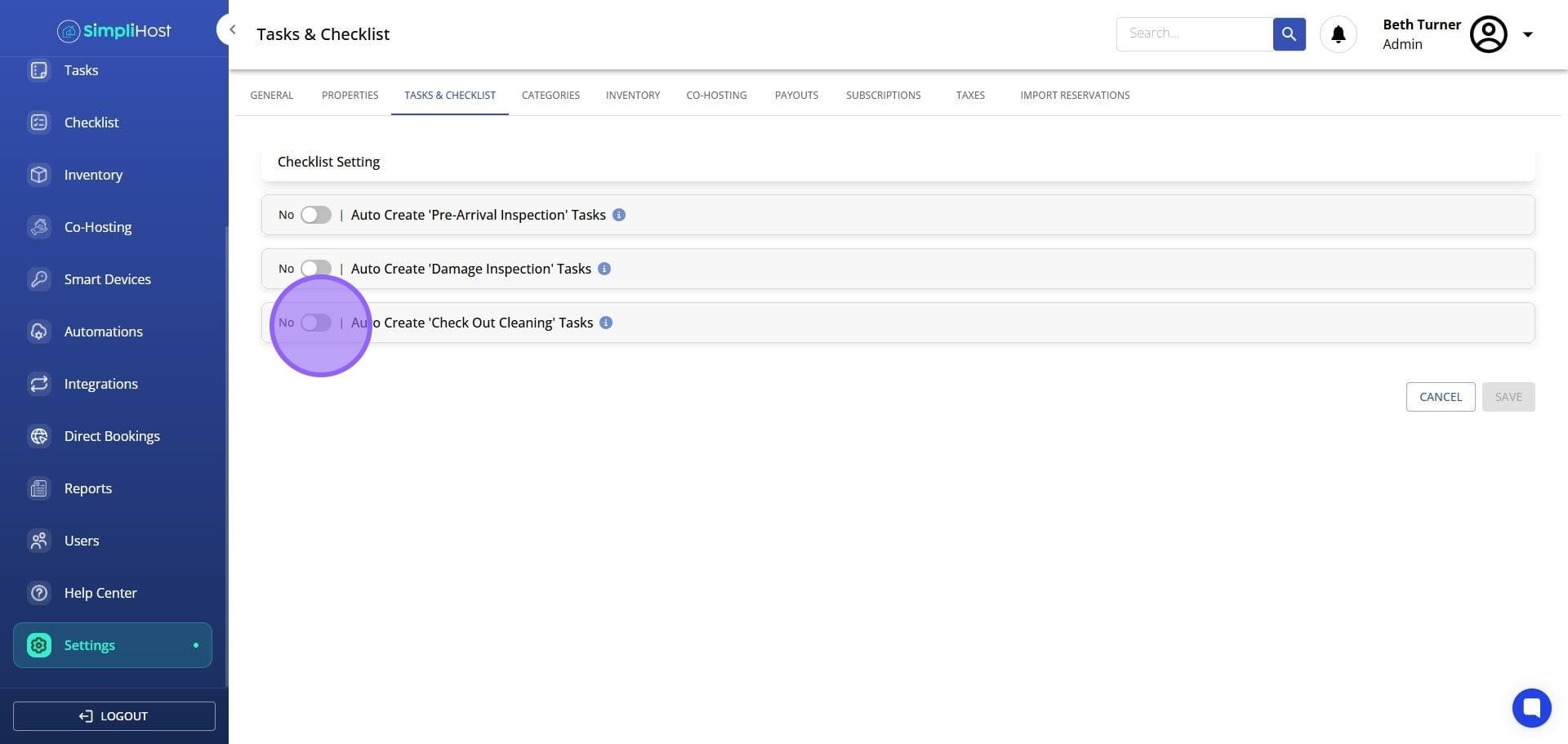
Toggle on Auto Create Check Out Cleaning Tasks.
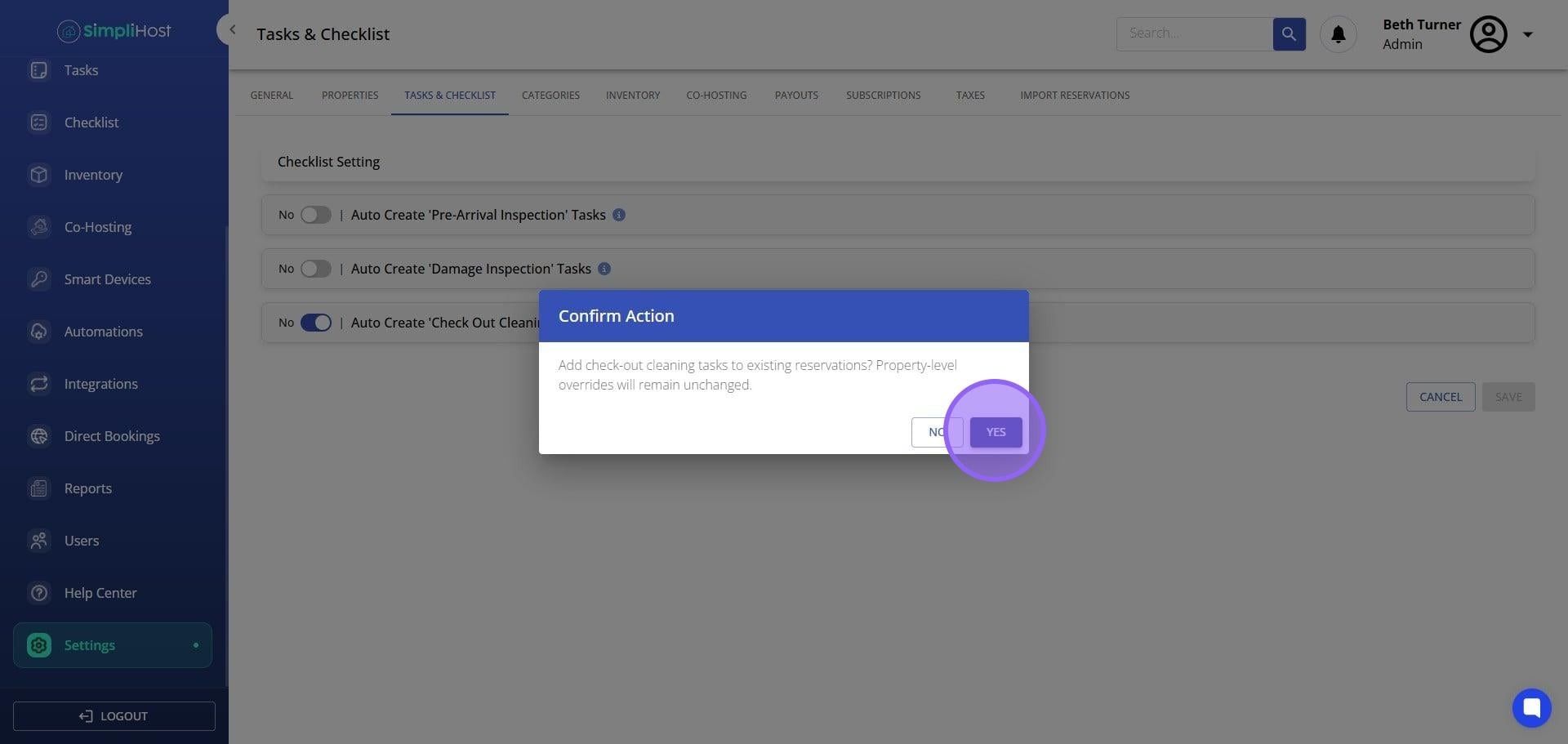
If this is your first time enabling the feature, click Yes when prompted to turn on checkout tasks for existing reservations.
Select a default cleaning checklist from the available options. Choose None if you want only a bare task created without a checklist.
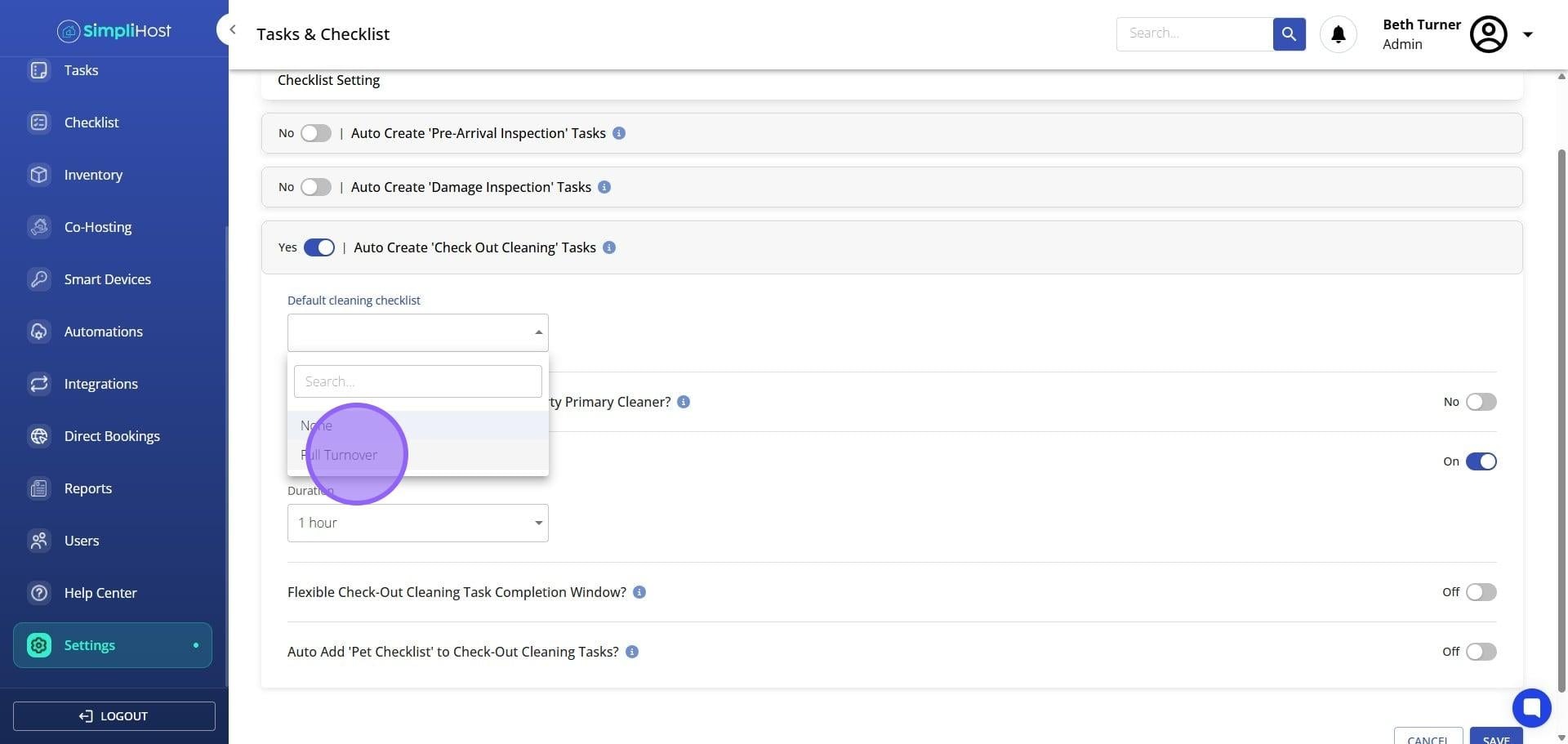
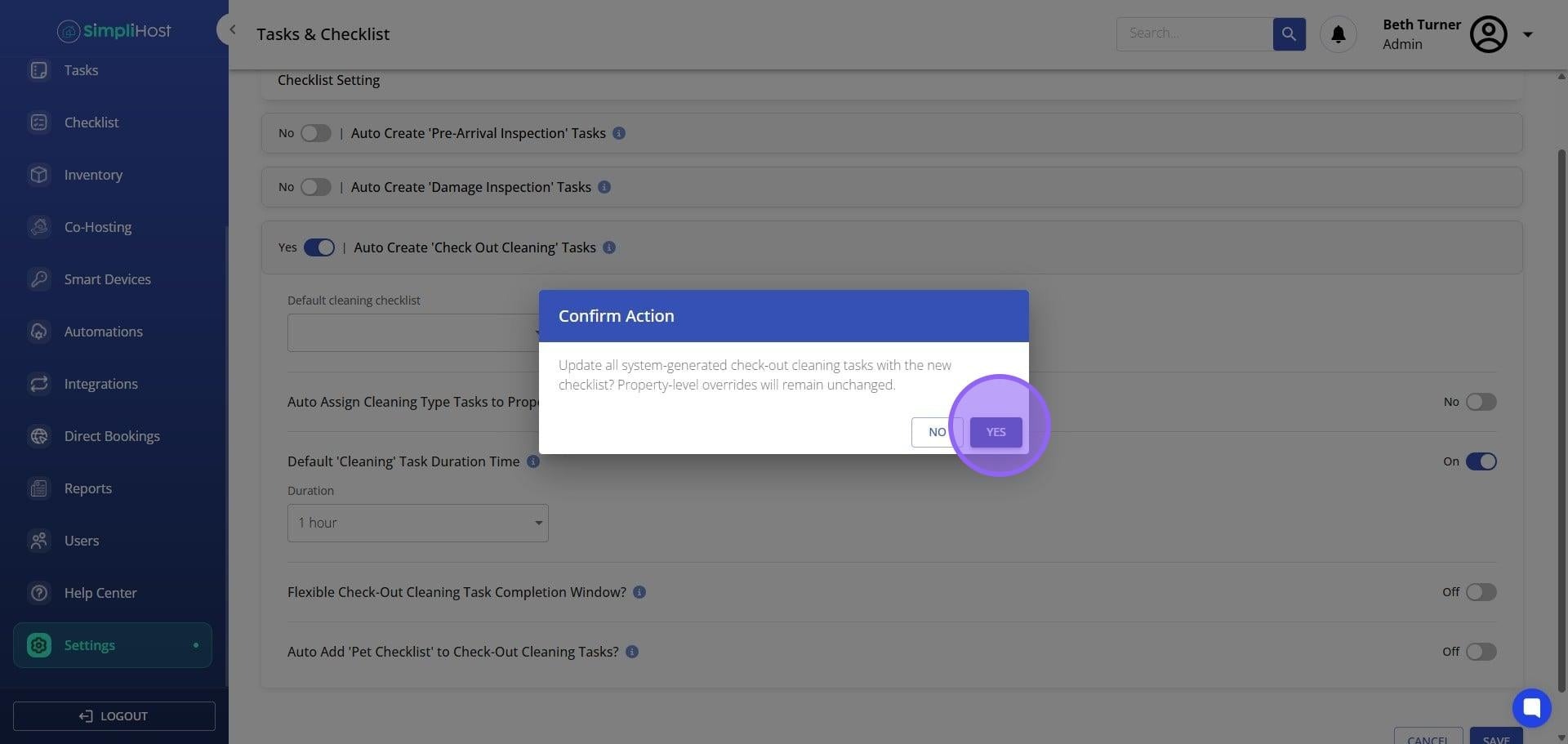
If this is your first time turning on the feature or you are updating the checklist, click Yes to apply the new checklist to all existing auto-generated tasks.
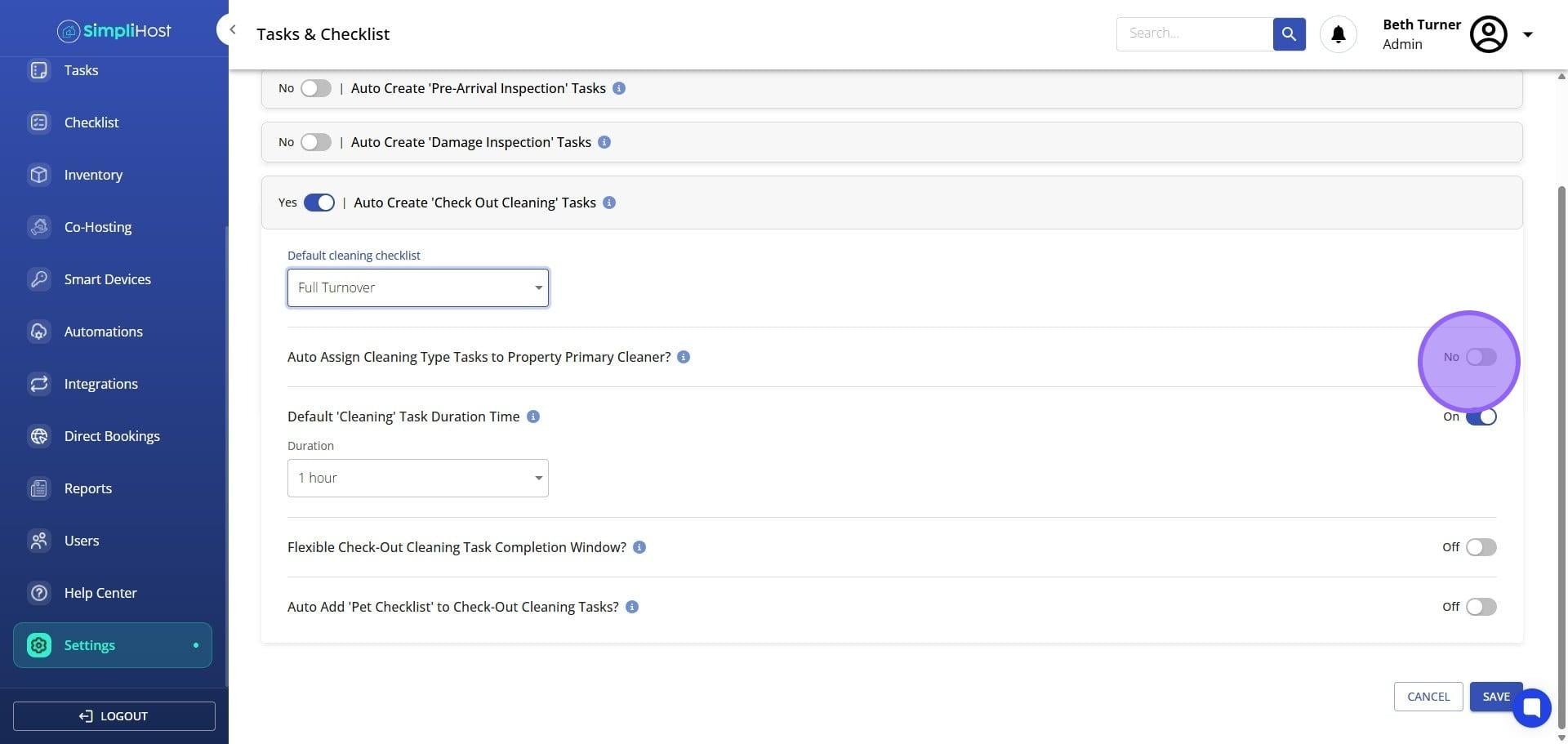
To automatically assign checkout cleaning tasks to the primary cleaner of each property, toggle on Auto Assign Cleaning Type Tasks to Property Primary Cleaner.
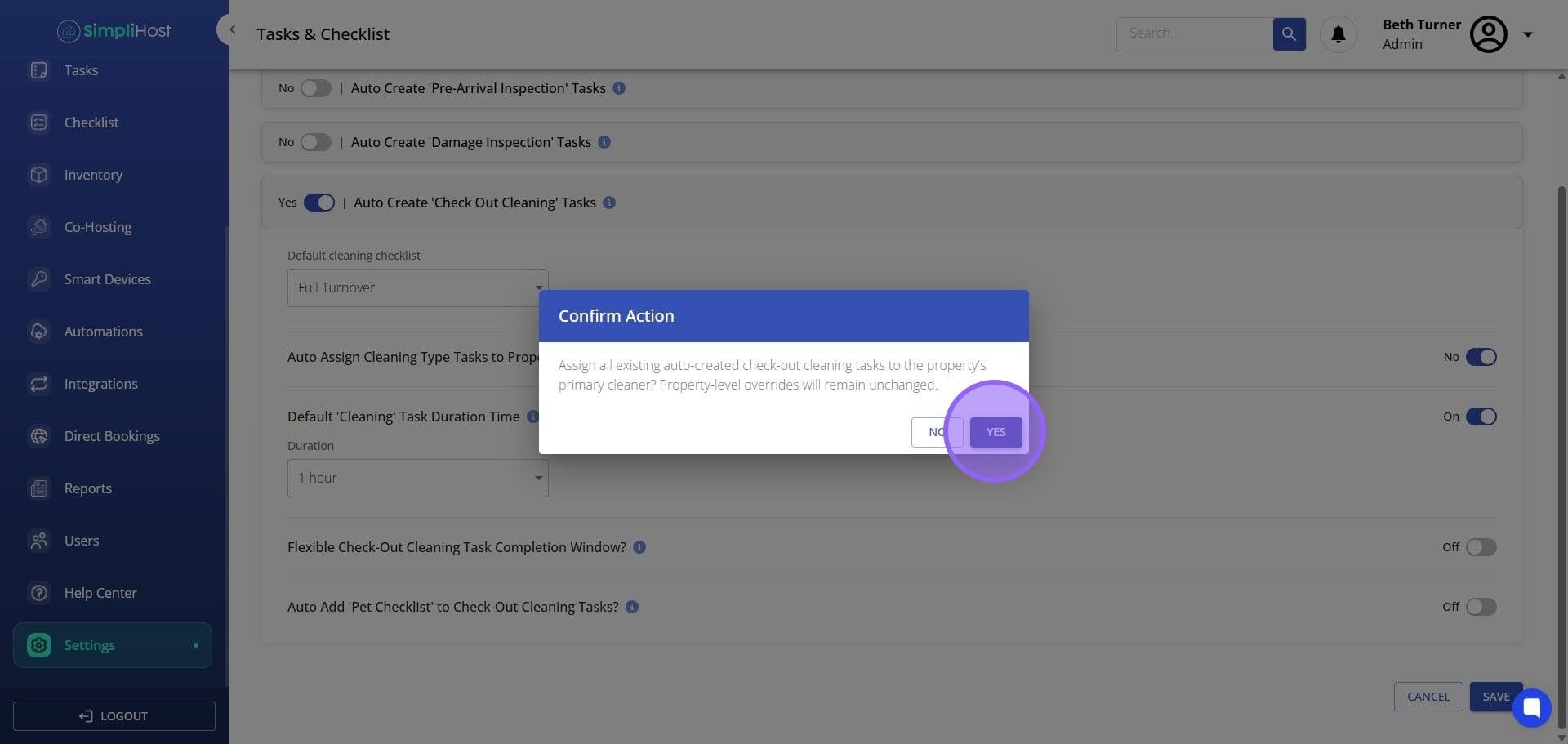
Click Yes to assign all existing auto-created checkout tasks to property cleaners, or click No to apply this change to future tasks only.
To set a fixed cleaning duration, click the duration field and enter your preferred value. You can set either a fixed duration or a flexible completion window, but not both at the same time.
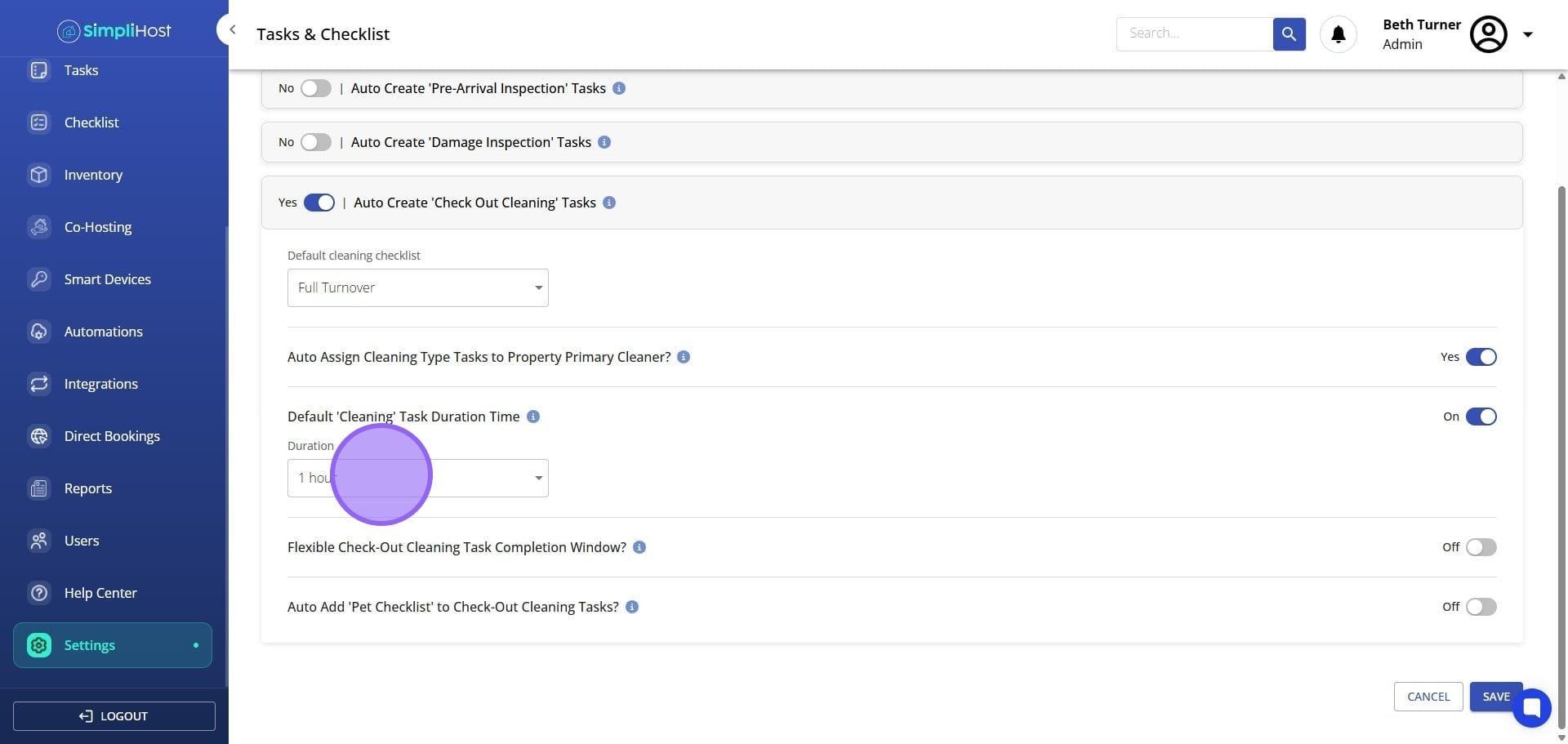
To use a flexible completion window instead, toggle on Flexible Check Out Cleaning Task Completion Window.
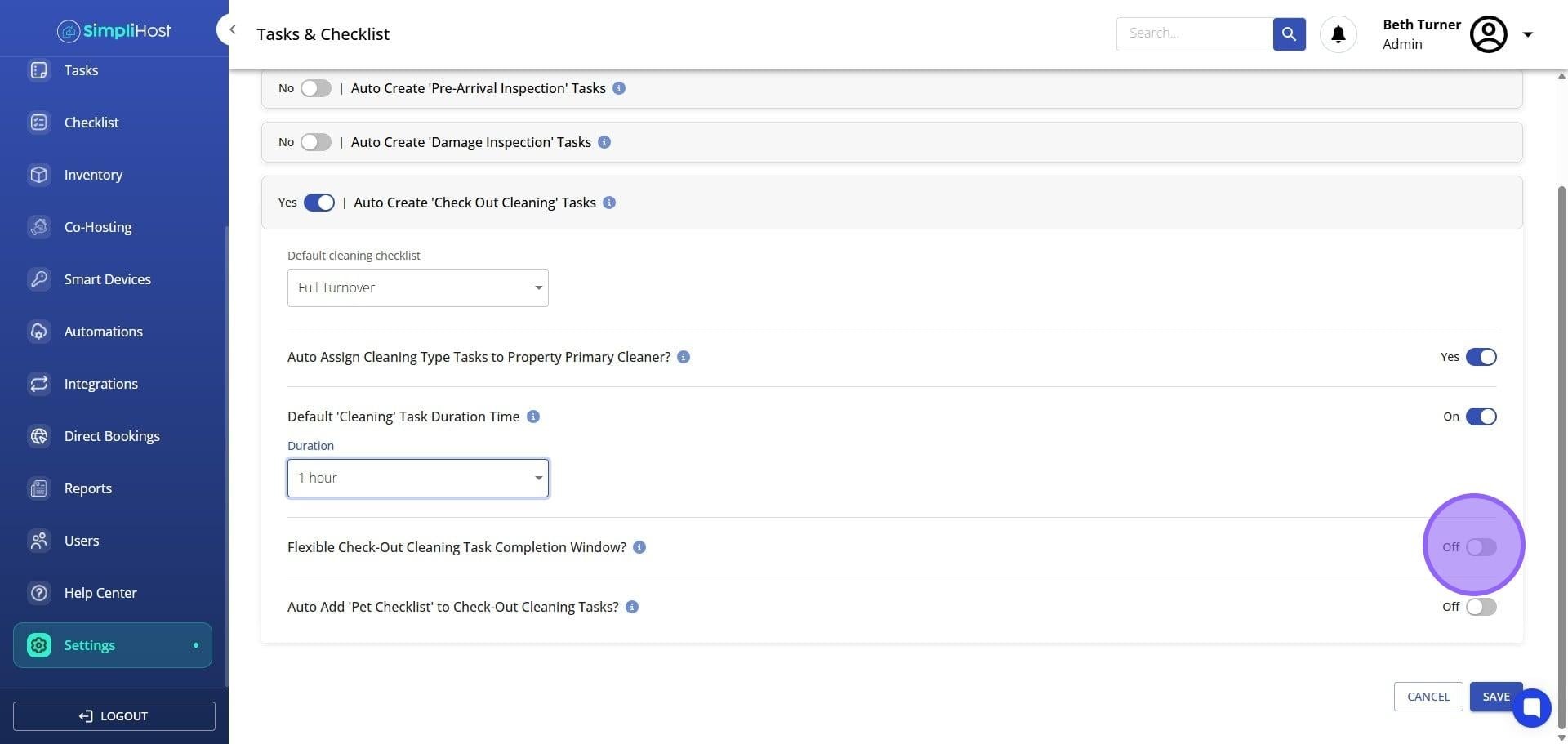
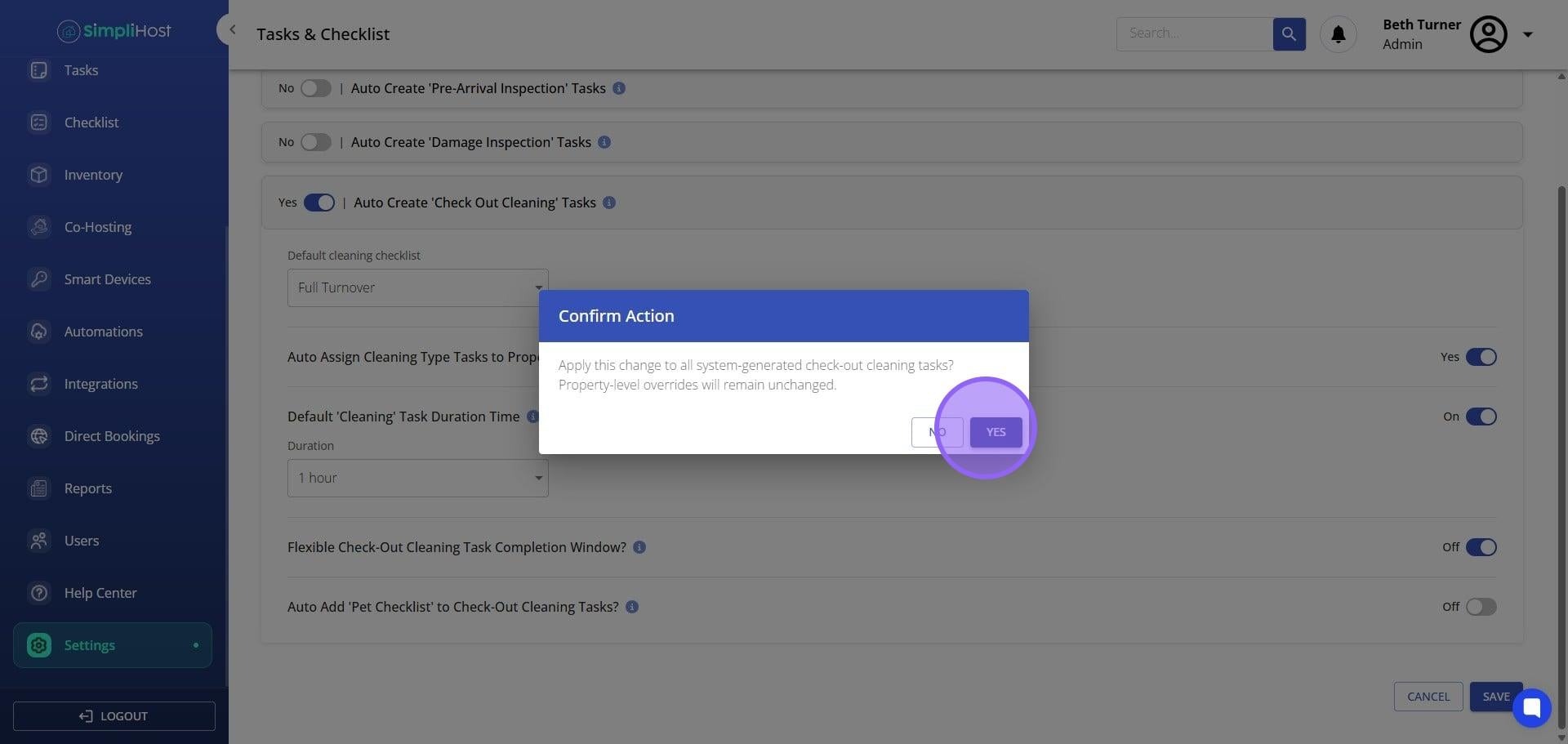
Click Yes to apply the flexible window to all previously created checkout tasks, or click No to apply it to future tasks only.
To automatically attach a pet checklist to cleaning tasks tied to reservations with pets, toggle on Auto Add Pet Checklist to Check Out Cleaning Tasks.
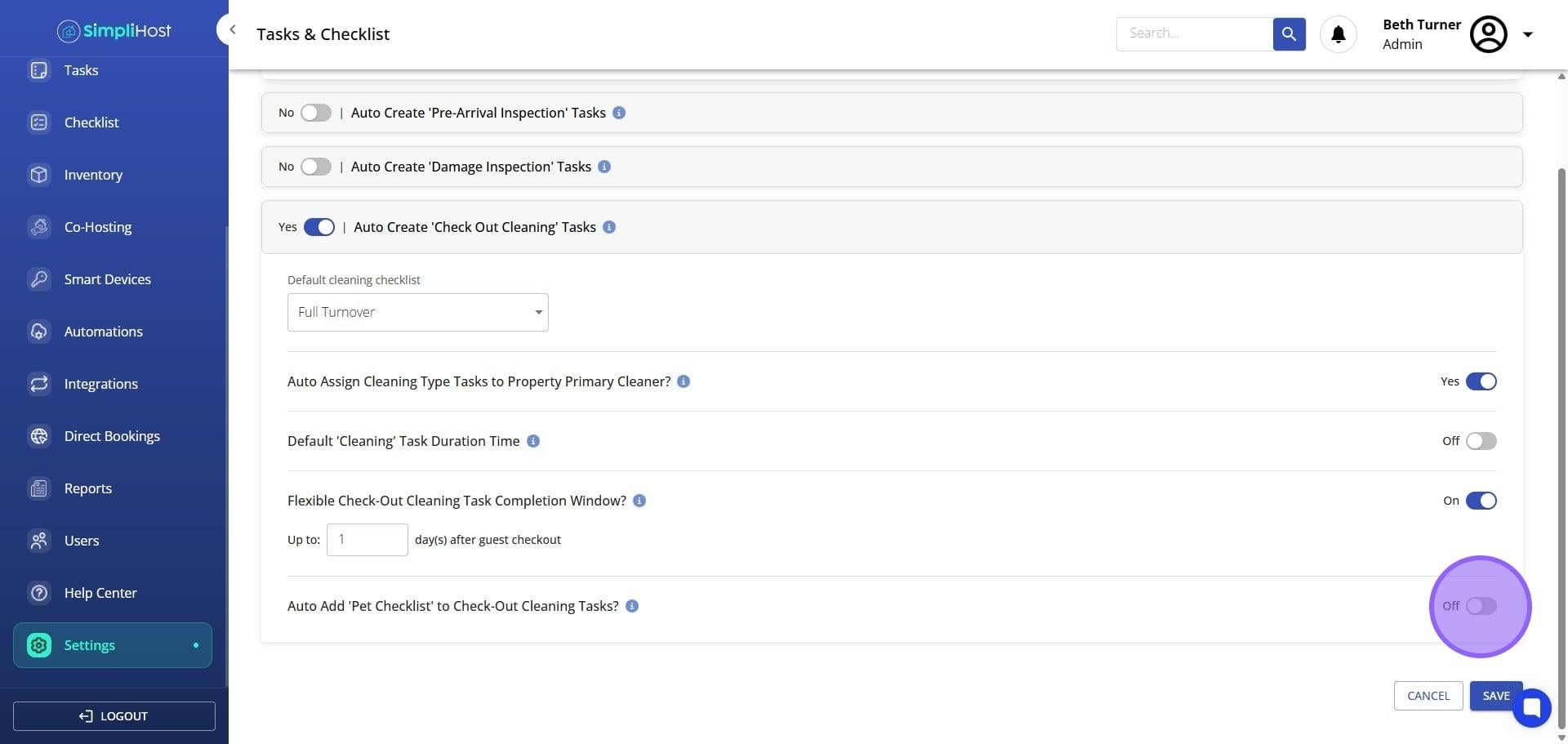
Click Yes to add the pet checklist to all existing checkout tasks with pets, or click No to apply it to new reservations only.
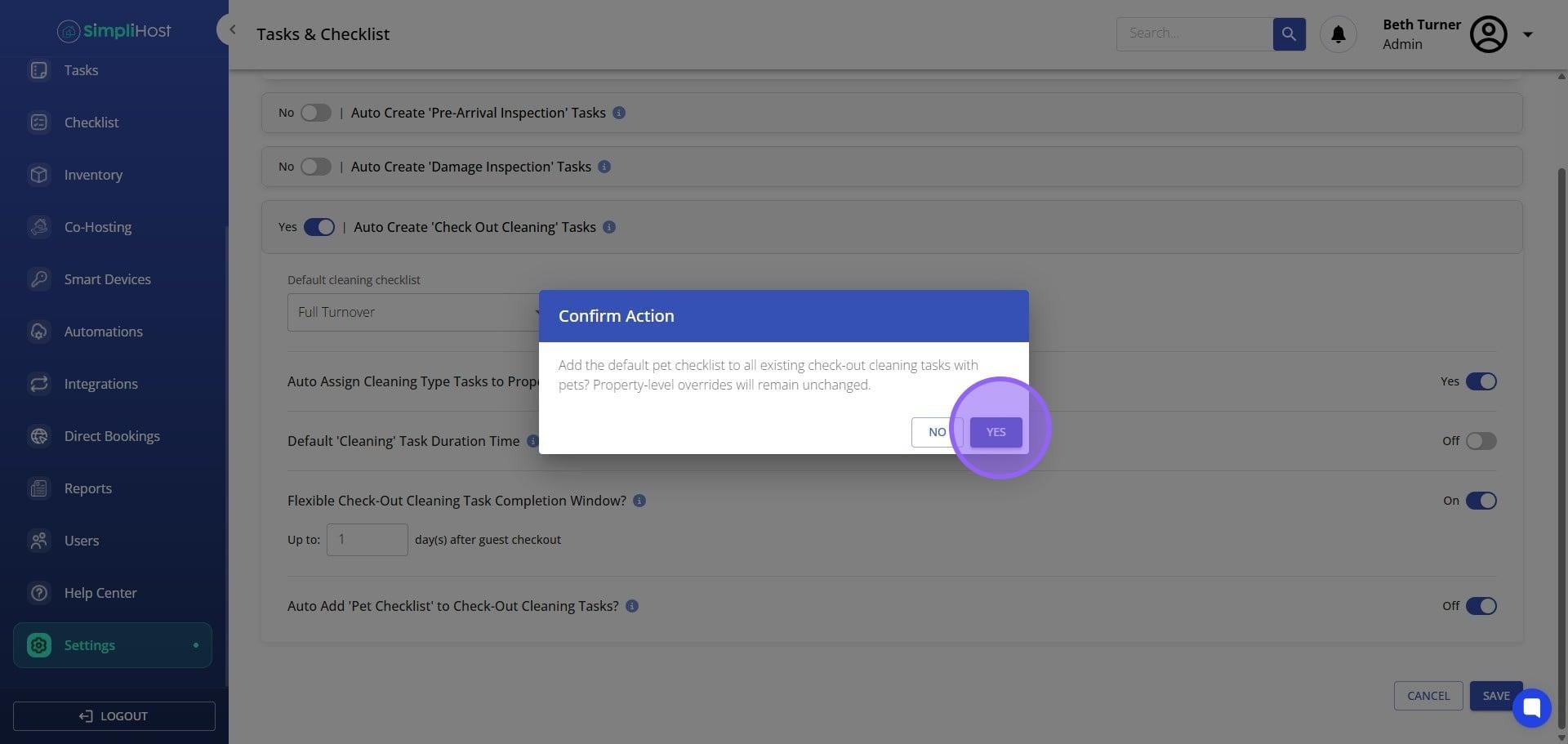
Select the appropriate pet checklist from the available options.
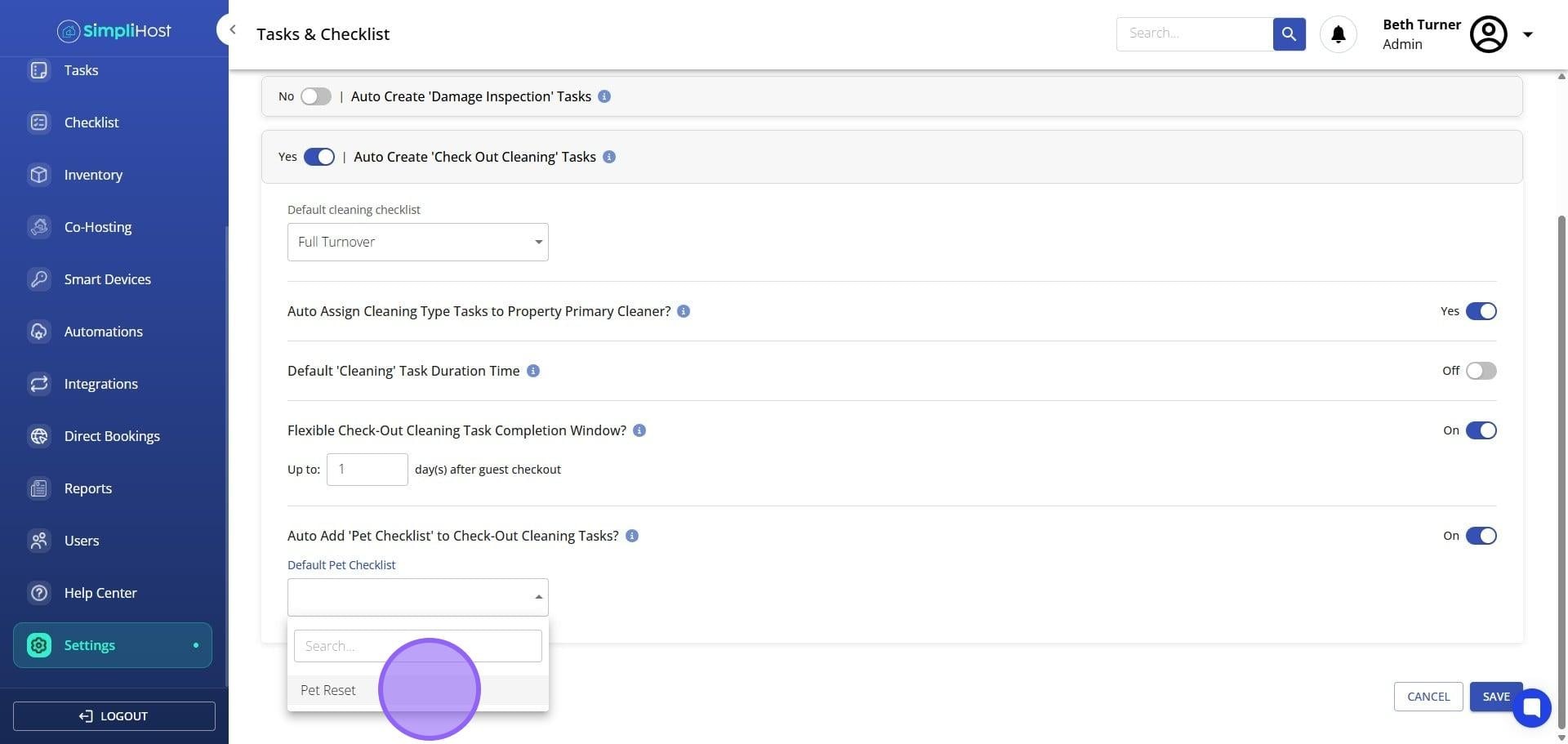
Click Yes to update all existing tasks with the selected pet checklist, or click No to apply it to future tasks only.
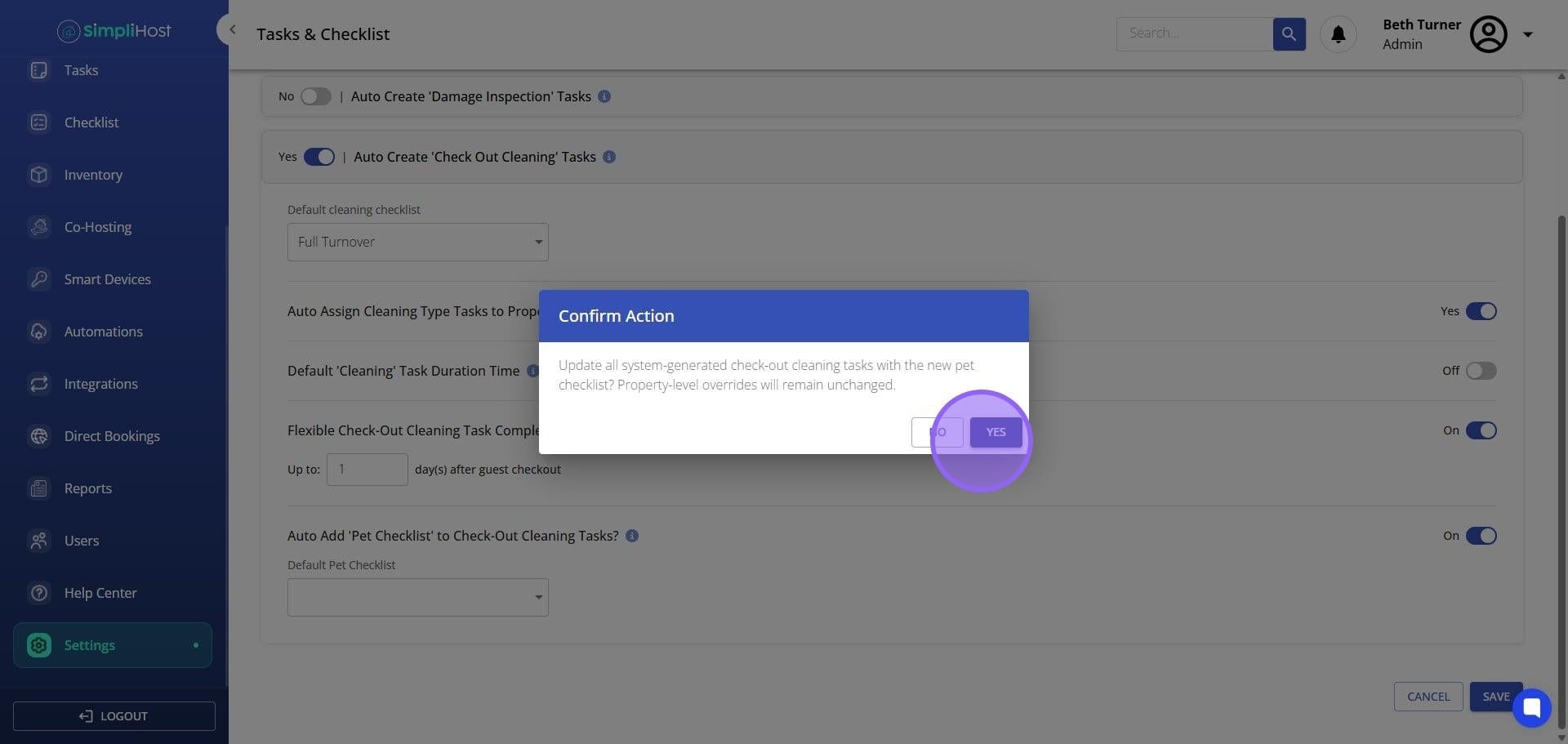
Click Save.
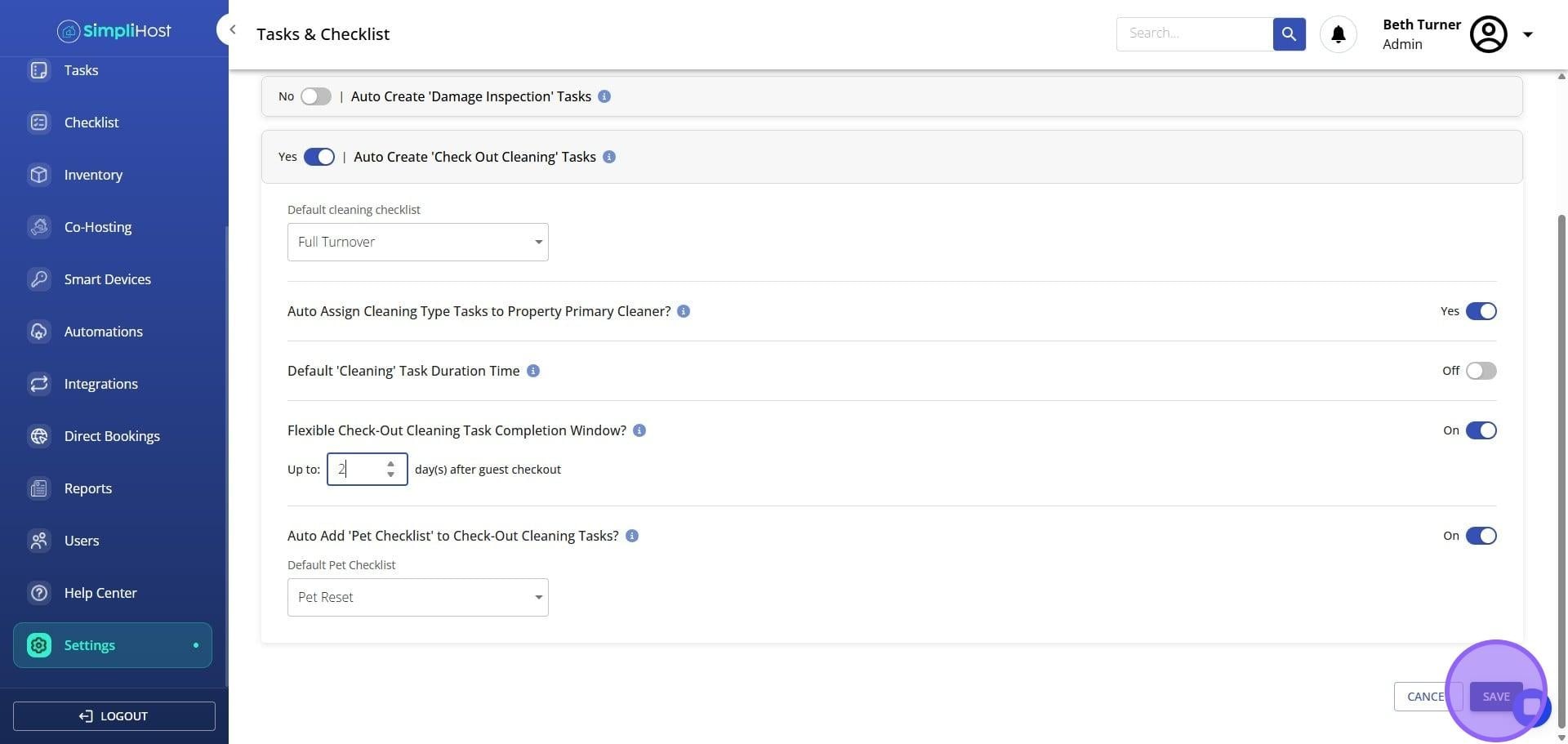
To override these settings for a specific property, continue with the steps below.
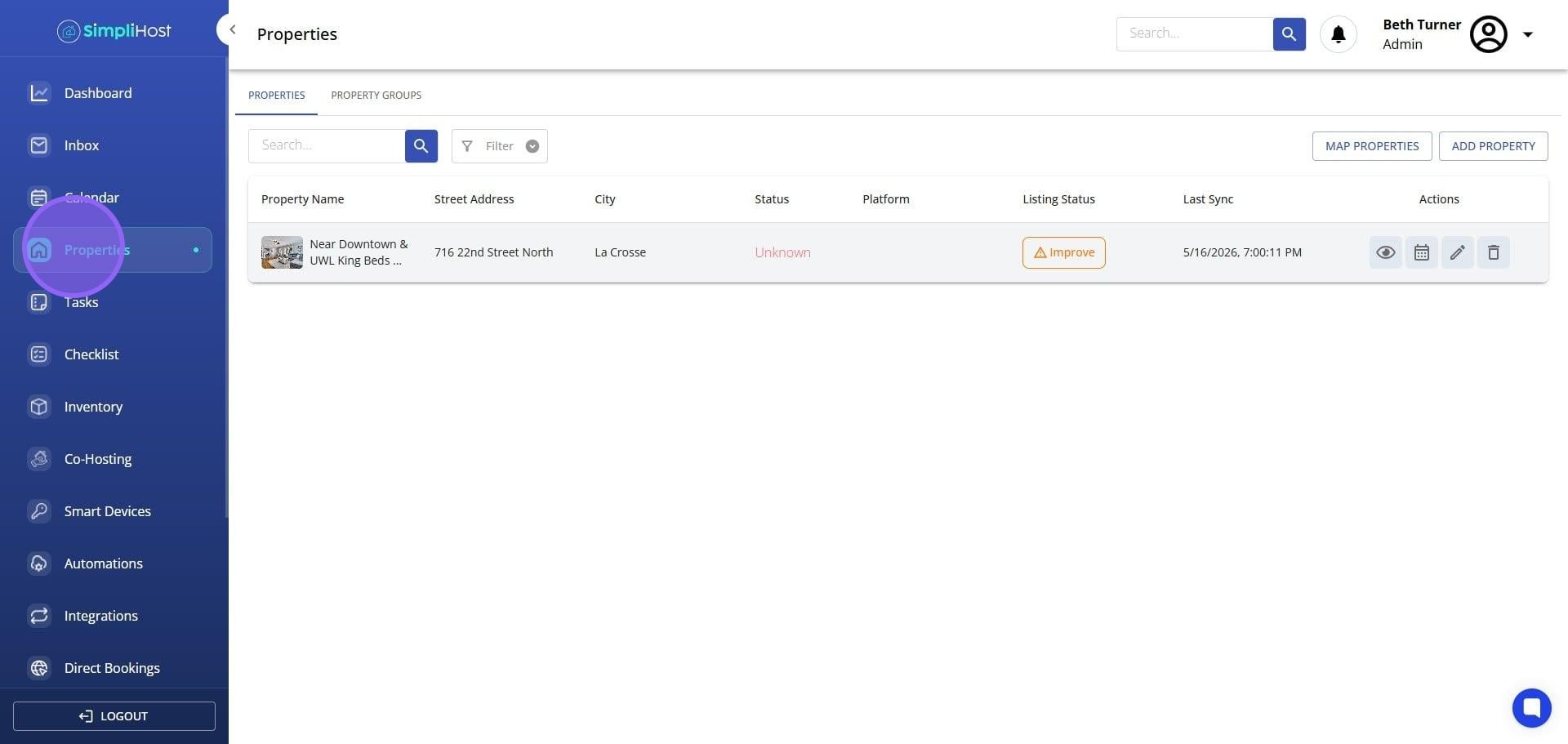
Click Properties.
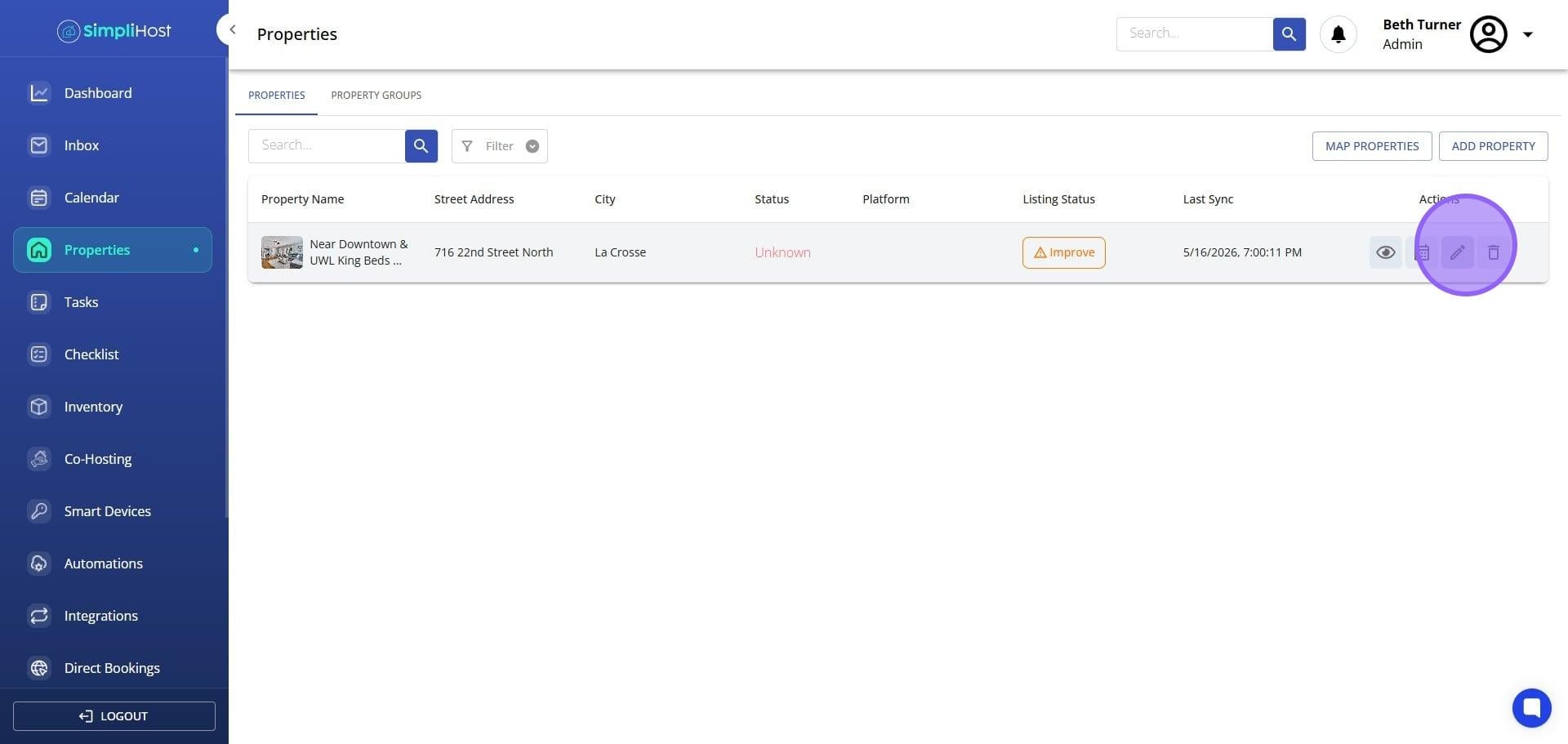
Click Edit next to the property you want to configure.
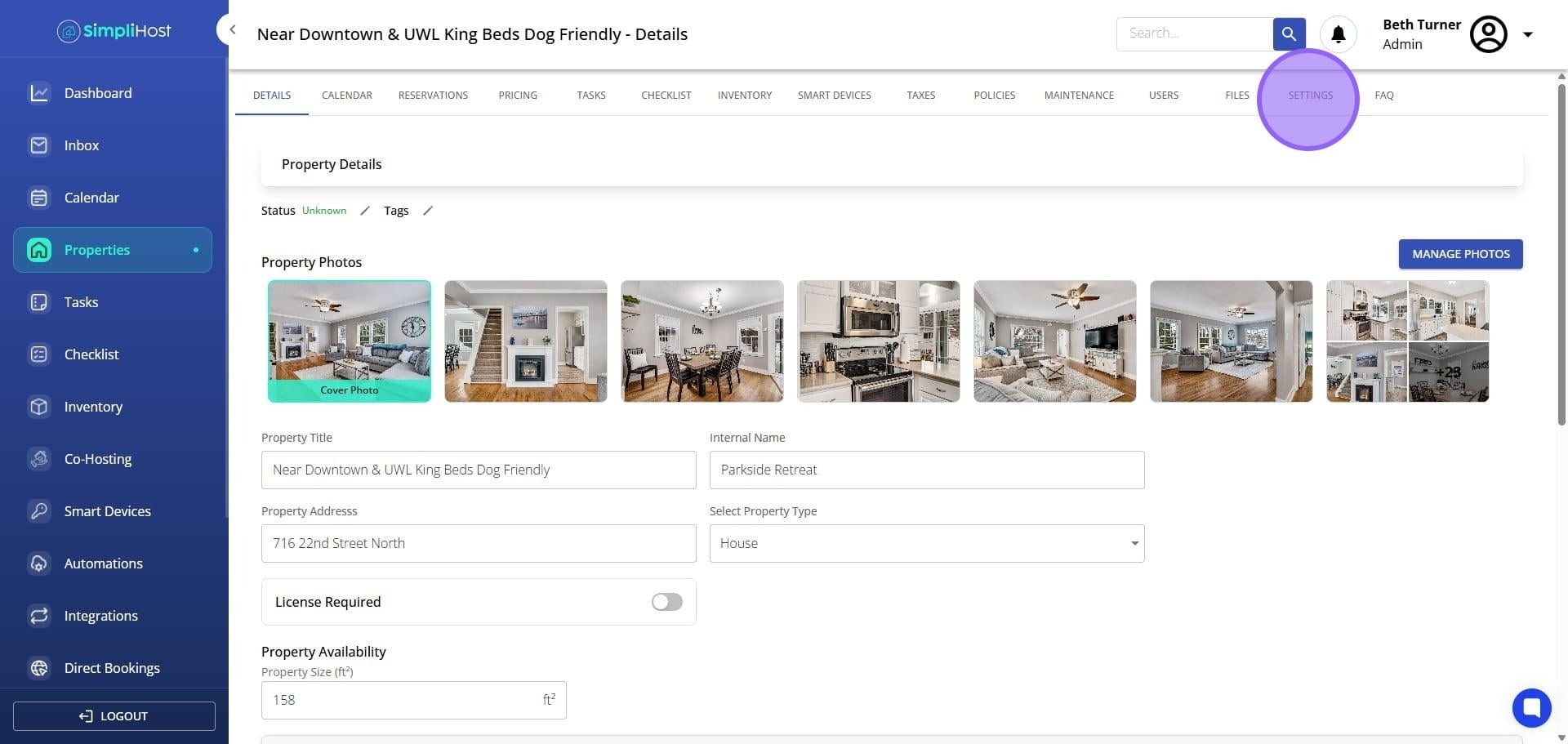
Click Settings.
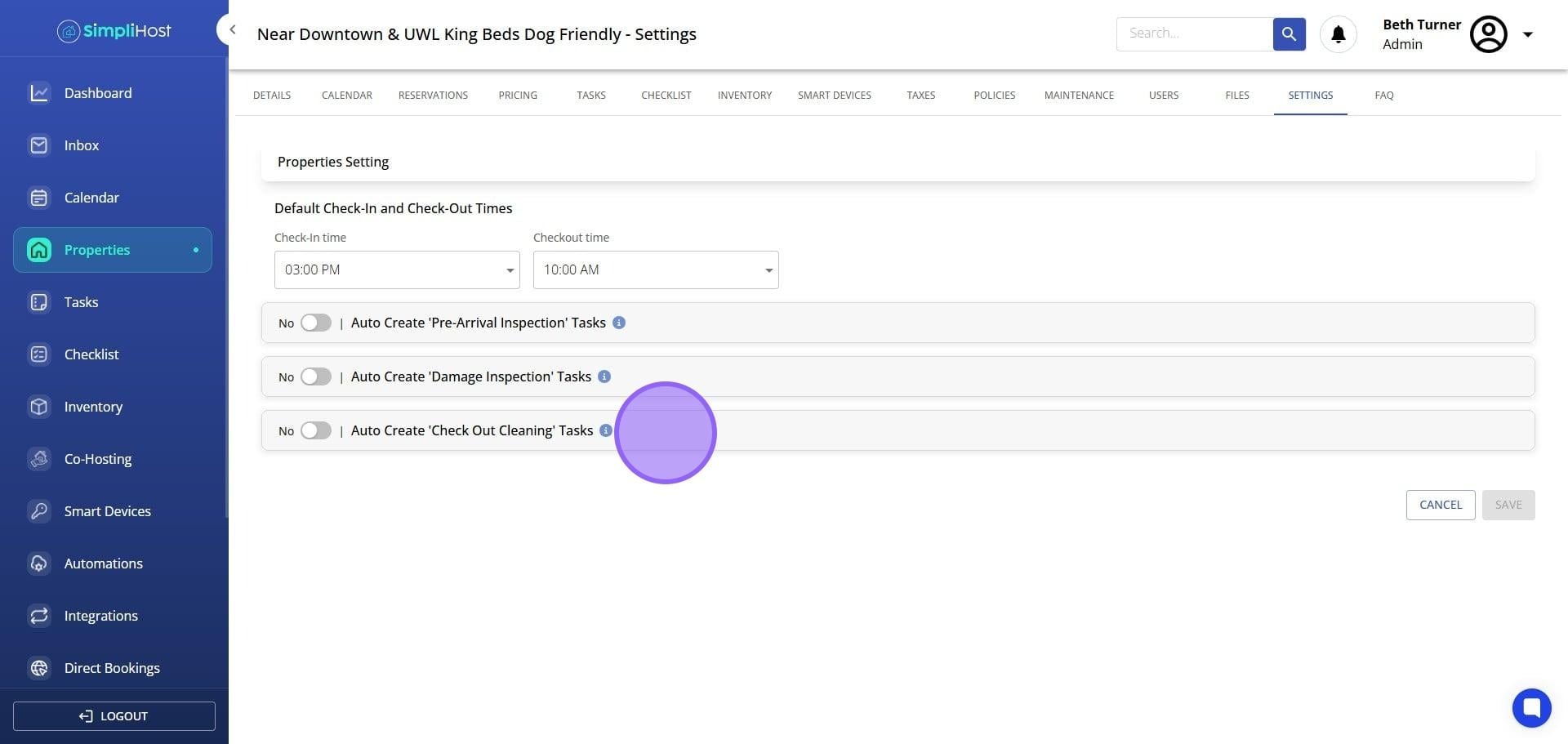
Adjust any of the same settings from the steps above to override global defaults for this property.
Click Save.
Once saved, SimpliHost will automatically generate checkout cleaning tasks for new reservations based on your configured settings. If you chose to apply changes to existing tasks, those updates will be reflected immediately. Per-property overrides take effect right away and apply independently of your global settings.
Create and finalize all checklists before enabling auto task creation. Updating a checklist after the fact requires re-applying it to existing tasks
Use per-property overrides when properties have different cleaning complexity, different cleaners, or unique pet policies
If your cleaning times vary by property size, set a global default and then customize durations at the property level
Use the flexible completion window only when your cleaner's schedule requires it. A fixed duration makes reporting and scheduling more predictable
Assign a primary cleaner to every property before enabling auto-assignment. Properties without a primary cleaner will generate unassigned tasks
Review auto-generated tasks after the first few reservations to confirm the checklist and assignment settings are working as expected
Problem: Auto-created tasks are not appearing for new reservations. Likely Cause: The Auto Create Check Out Cleaning Tasks toggle may have been turned off, or the setting was not saved correctly. Fix: Go to Settings, then Tasks & Checklist, and confirm the toggle is on. Re-save the settings if needed.
Problem: Tasks are being created without a checklist attached. Likely Cause: No checklist was selected, or the checklist was deleted after the setting was saved. Fix: Return to the auto task settings, select a valid checklist, and save. Confirm the checklist still exists under your checklist library.
Problem: Tasks are not being assigned to the property's primary cleaner. Likely Cause: The auto-assign toggle is off, or the property does not have a primary cleaner set. Fix: Verify the Auto Assign toggle is enabled. Then open the property settings and confirm a primary cleaner is assigned.
Problem: A pet checklist is not being added to reservations with pets. Likely Cause: The pet checklist toggle is off, no pet checklist was selected, or the reservation was created before the setting was enabled. Fix: Confirm the toggle is on and a pet checklist is selected. For existing reservations, re-apply the setting by selecting Yes when prompted to update existing tasks.
Problem: The flexible completion window and fixed duration are both showing as active. Likely Cause: One was not properly toggled off before the other was enabled. Fix: Go back into the settings and turn off the option you do not want. Only one can be active at a time. Save your changes.
Problem: Property-level settings are not overriding the global defaults. Likely Cause: Changes were not saved at the property level, or the settings were edited at the global level after the property override was set. Fix: Open the specific property, go to Settings, re-enter your preferred values, and click Save.
Create and Manage Cleaning Checklists
View and Manage Tasks
Still need help? No worries — just open the in-app chat anywhere in SimpliHost and we'll give you a hand.
