Overview
A widget group is a set of embed codes that puts your properties' booking pages on your own website. Each group has its own name, sender name, colors, and properties, so the booking experience matches your brand.
Guests book directly with you instead of through a listing site. Any changes you make to a widget group update on your website automatically.
• You want guests to book your properties directly on your own website.
• You run more than one website or brand and need separate booking pages for each.
• You want booking pages to match your website's colors.
• You want guest confirmation emails to show a specific business name.
• You want to feature the same property on more than one website.
• Direct Booking is included with every SimpliHost account at no additional cost.
• Make sure the properties you want to feature are already set up in SimpliHost.
• Have your brand colors ready if you plan to use custom colors.
• Make sure you, or someone on your team, can edit your website so you can paste in the embed codes.
1. Click Direct Bookings.
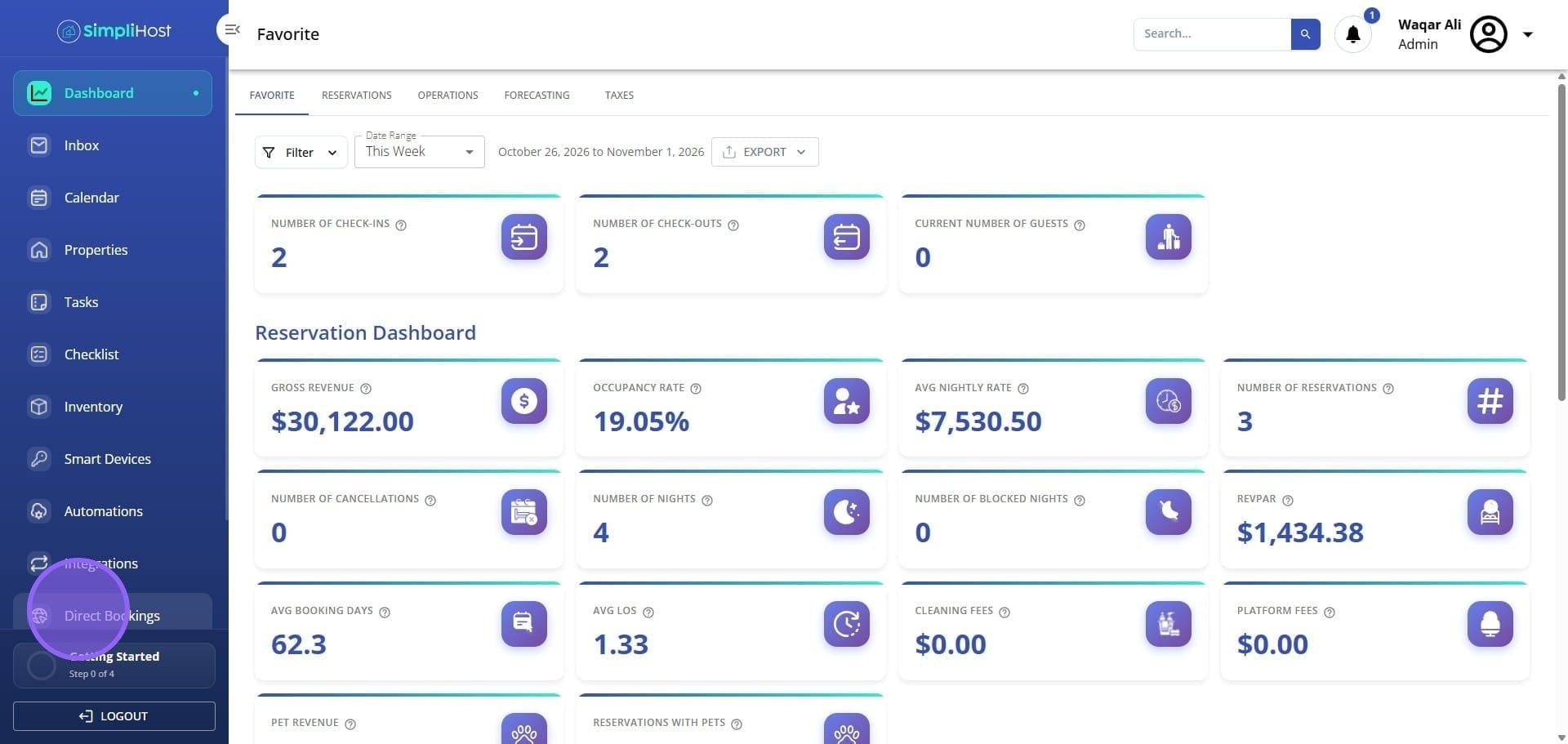
2. Click Widget Groups.
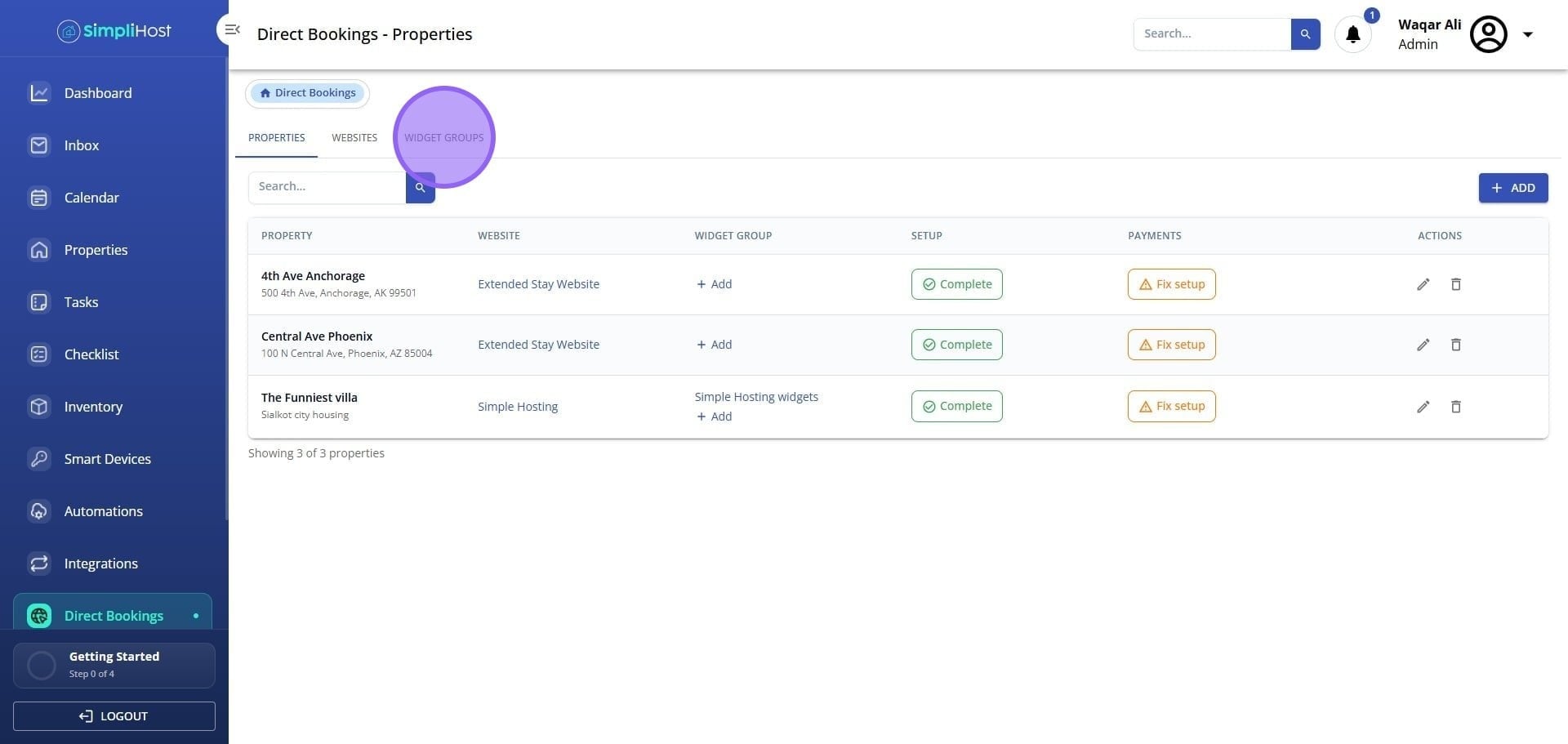
3. Select New Widget Group.
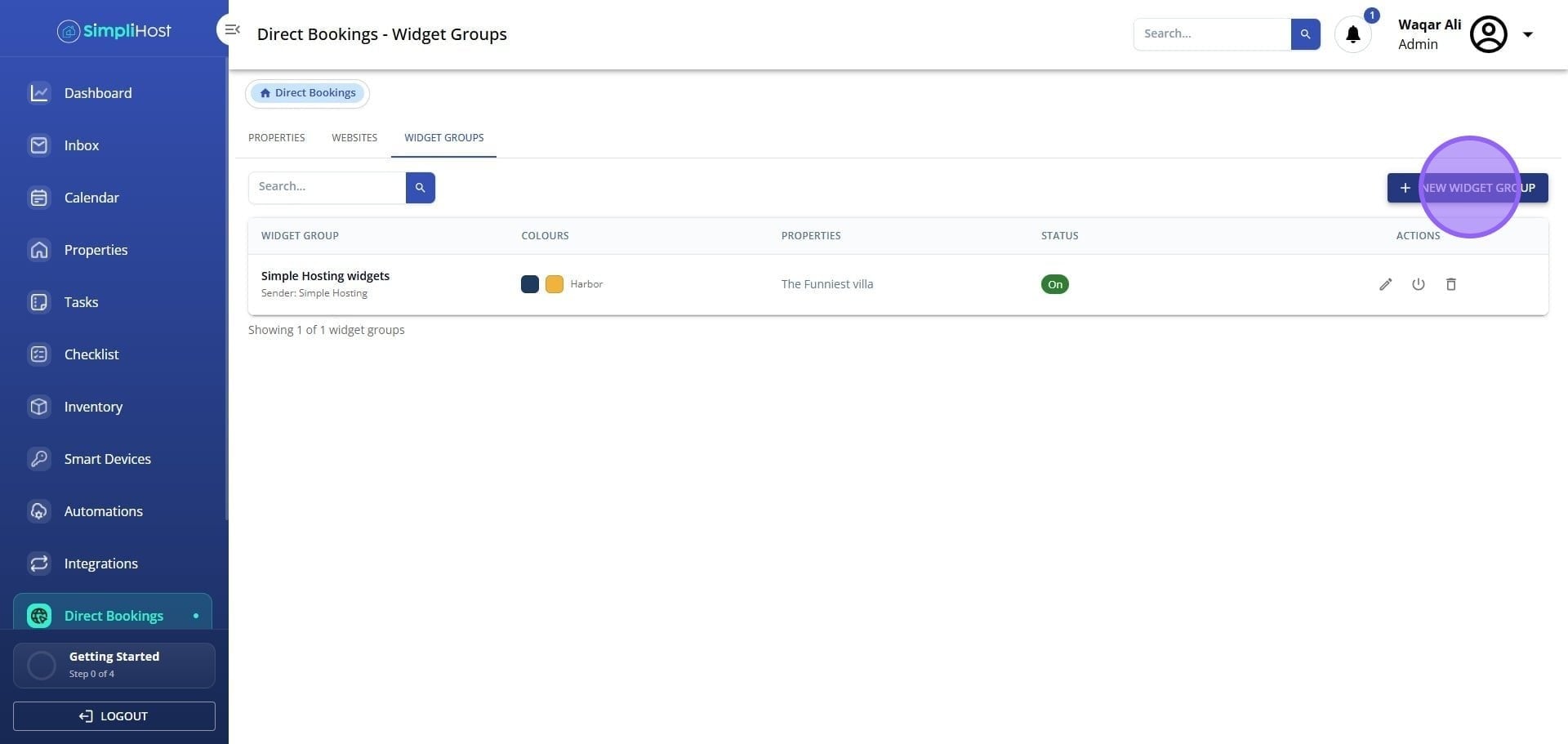
4. Click the Widget Group Name field and enter a name for the group.
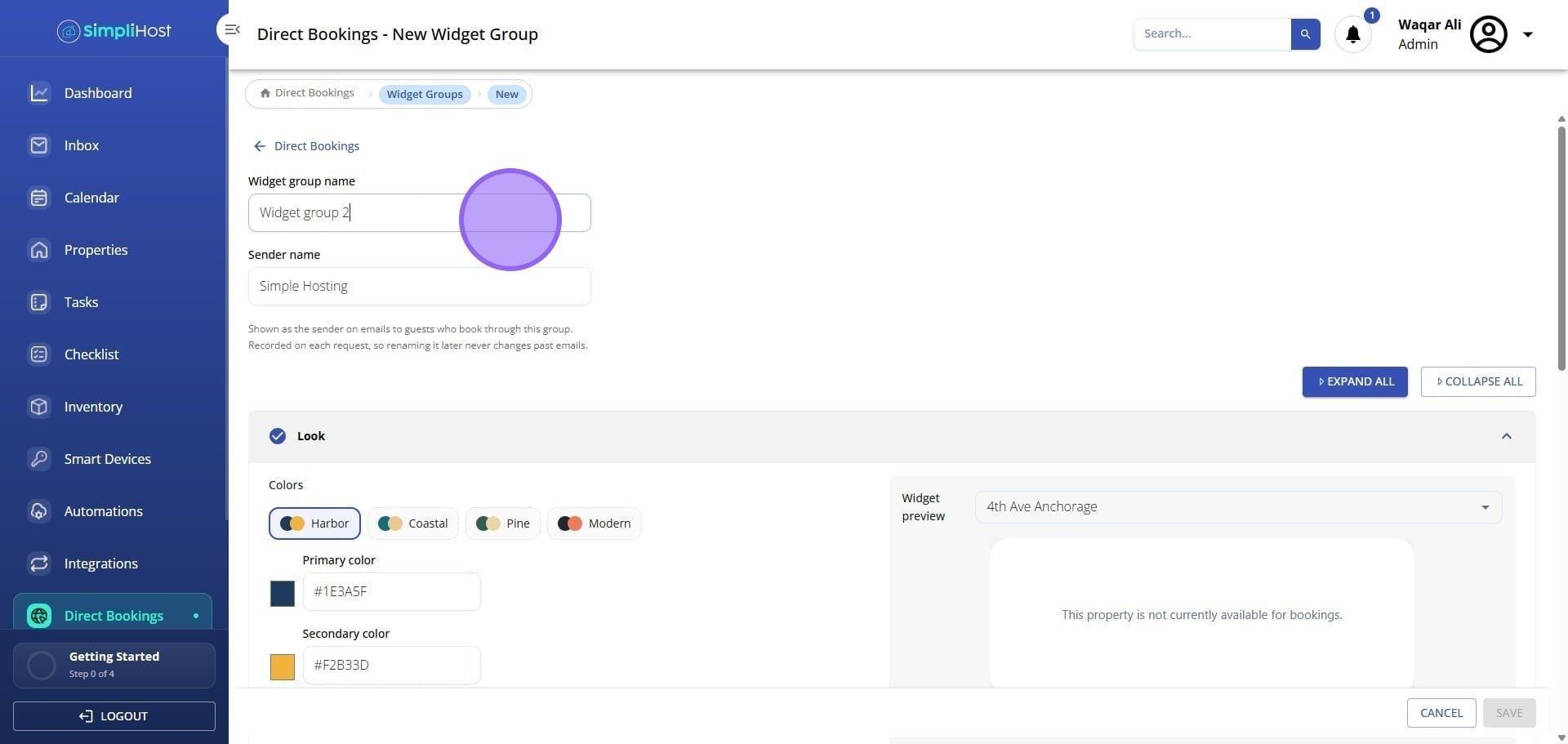
5. Update the Sender Name (optional).
o Tip: This is the name guests see in their email confirmations. If you leave it blank, guests see your company name.
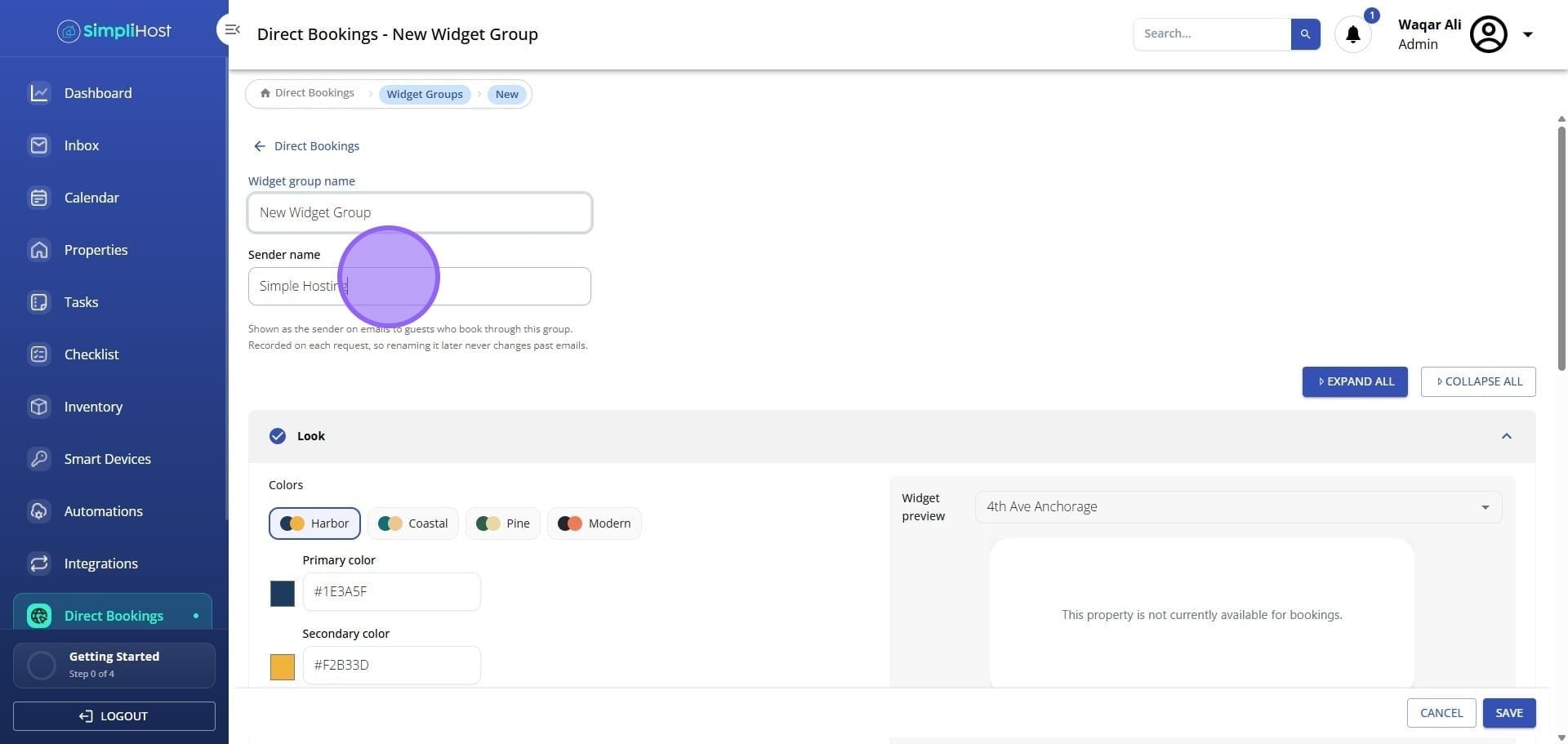
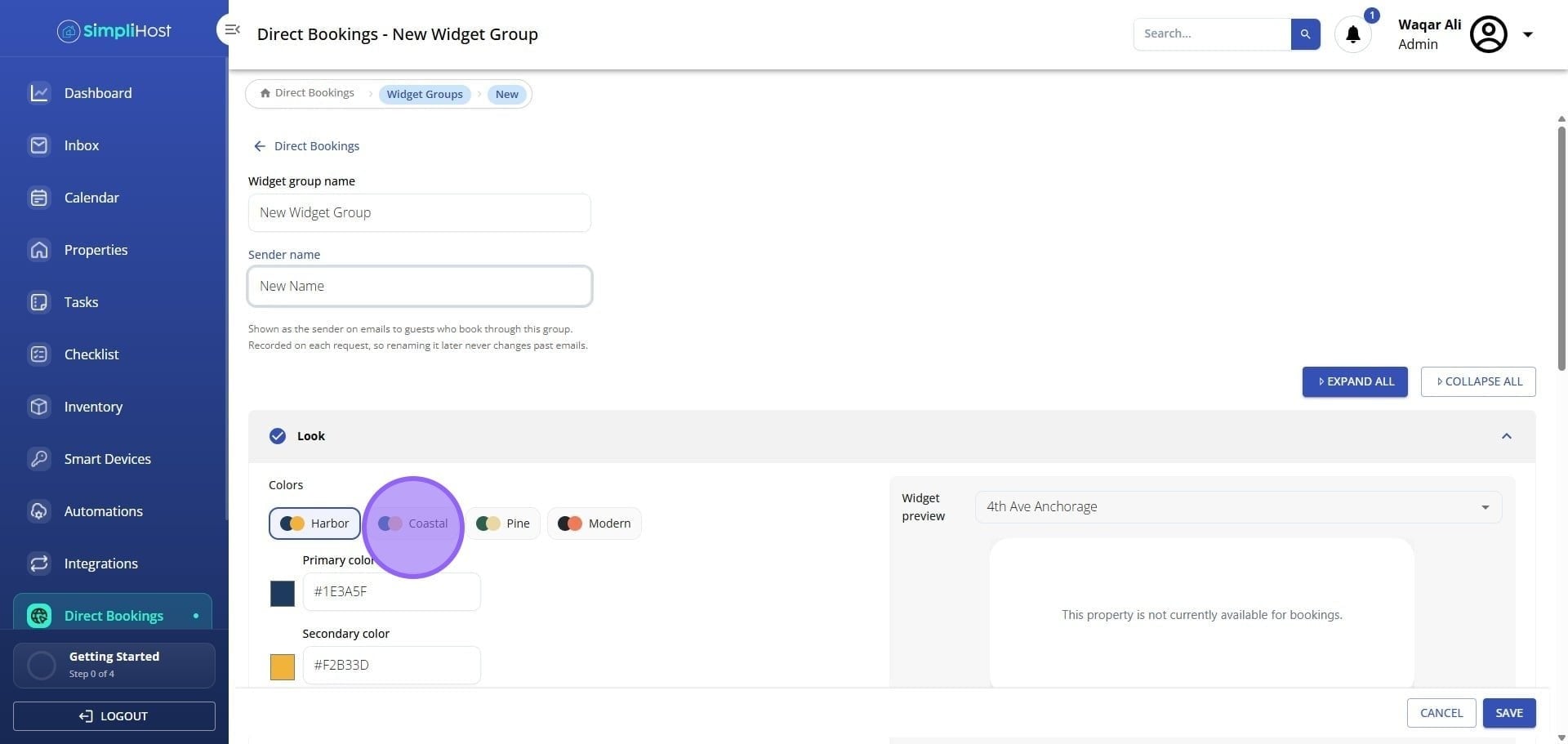
6. Choose a preset color scheme or set custom colors.
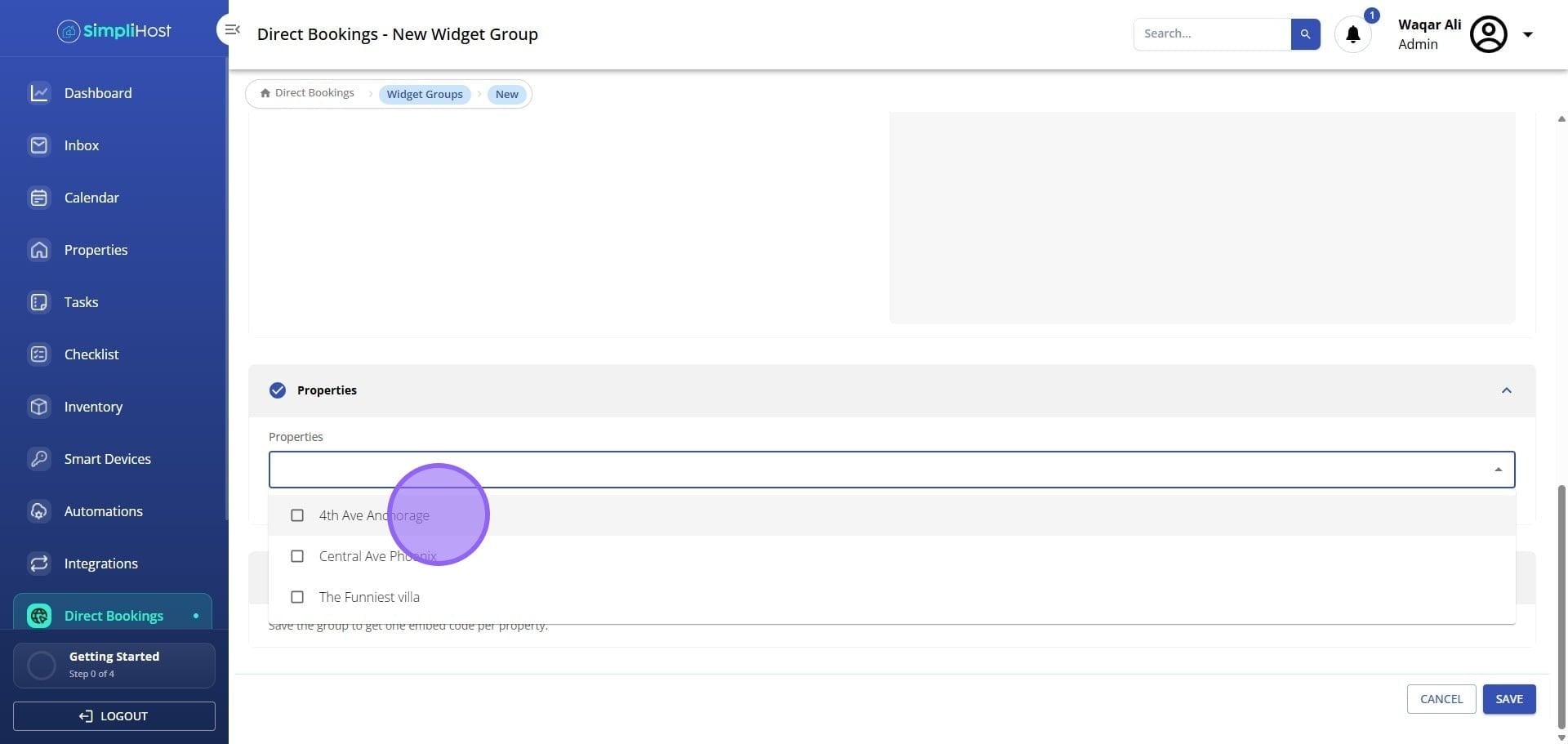
7. Select the properties to include in this widget group.
8. Click Save.
• Your embed codes appear on the screen, one for each property in the group.
• Click Copy next to a property's code, then paste it into the page on your website where you want that property's booking page to appear.
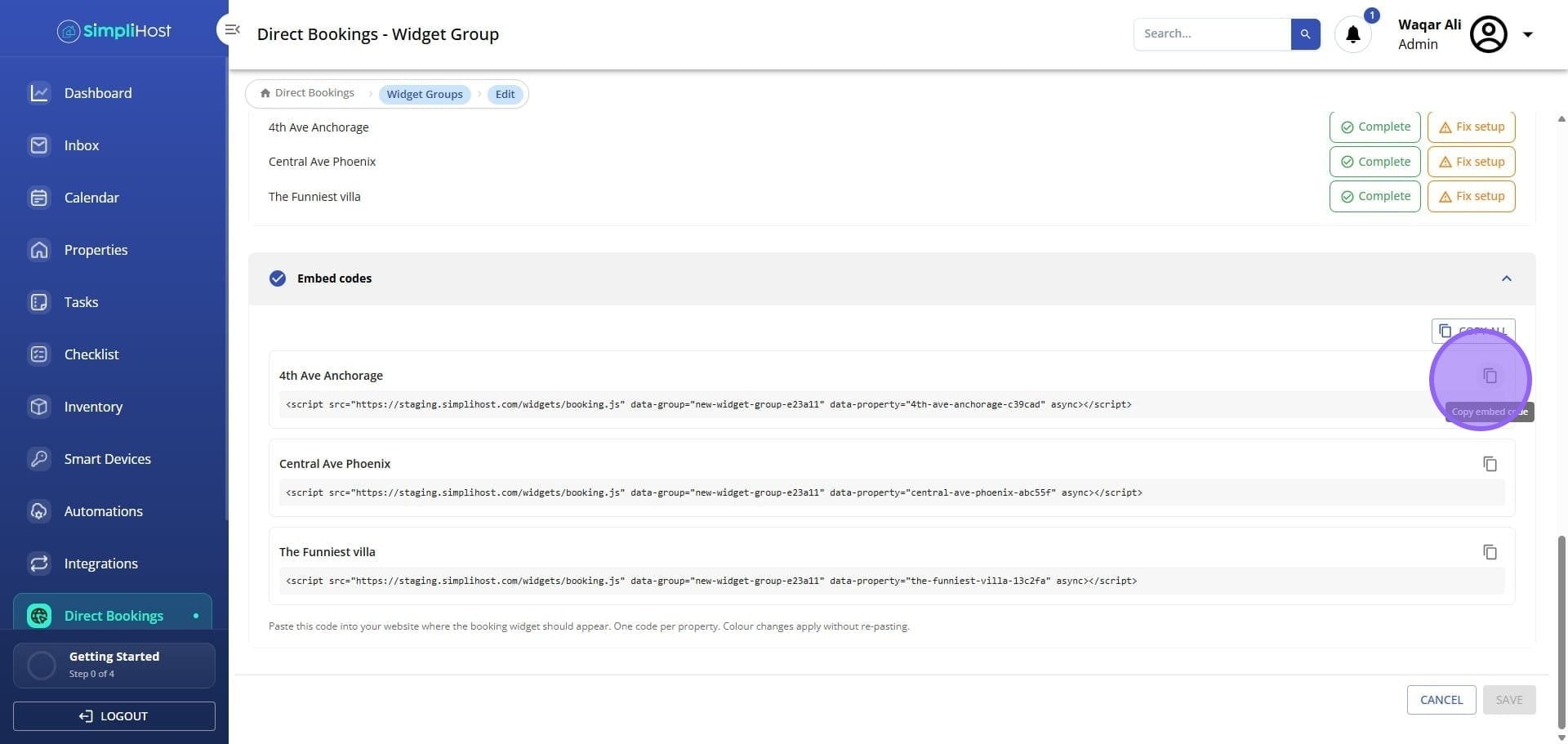
• Repeat for each property you want on your website.
• When you edit the group later, such as its colors or sender name, your website updates automatically. You do not need to paste the codes again.
• Name each widget group after the website or brand it belongs to so it is easy to find later.
• Set the Sender Name to match the business name on your website so guests recognize their confirmation emails.
• Use custom colors that match your website for a consistent guest experience.
• Create a separate widget group for each website. A property can belong to more than one group.
• Make changes inside the widget group instead of replacing codes on your website. Updates carry over automatically.
• After pasting a code, open your website and check that the booking page displays correctly.
• Problem: You cannot find the embed codes.
• Likely Cause: The widget group has not been saved yet.
• Fix: Click Save. The embed codes appear after the group is saved.
• Problem: Guest confirmation emails show the wrong business name.
• Likely Cause: The Sender Name was left blank, so your company name is used, or it was set to a different name.
• Fix: Open the widget group, update the Sender Name, and click Save.
• Problem: A property's booking page does not appear on your website.
• Likely Cause: The embed code was not pasted, or only part of it was copied.
• Fix: Click Copy next to the property's code and paste the full code into your website again.
• Problem: You added a property to the group, but it does not show on your website.
• Likely Cause: Each property has its own embed code, and the new property's code has not been added to your website.
• Fix: Copy the new property's embed code and paste it into your website.
• Problem: Changes to the widget group do not show on your website.
• Likely Cause: Your browser is showing a saved version of the page.
• Fix: Refresh the page or clear your browser cache, then check again.
• Problem: The booking page colors do not match your website.
• Likely Cause: A preset color scheme was selected.
• Fix: Open the widget group, set custom colors that match your website, and click Save.
More guides coming soon.
Still need help?
No worries — just open the in-app chat anywhere in SimpliHost and we'll give you a hand.
